

Participating Frequently
February 2, 2019
Answered

All my layers are stacked on top of each other.

  • February 2, 2019
  • 4 replies
  • 2513 views

When I bring in photos to PS, the layers are all on top of each other and I don't know how to display them individually.    It must be  a setting but I can't find it.

    This topic has been closed for replies.
    Correct answer jane-e

    I don't find file-place embedded on my FB

    Sorry.  I'm really a newbee at this.


    michaelbennett  wrote

    I don't find file-place embedded on my FB

    Hi Michael

    What is "FB"?

    File > Place Embedded is in Photoshop in the File menu. If you have an older version, it just says File > Place. This is an alternative method to the one I gave earlier. They both work, so use either one.

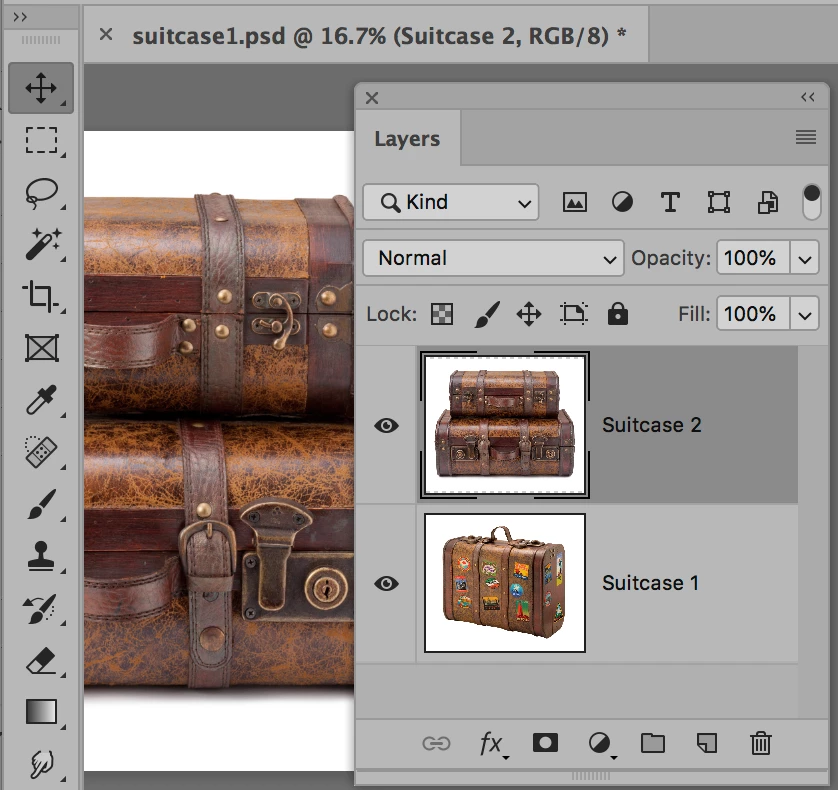
    What you need to do is to get both images into the same document. Then rename your layers.
    4 replies

    Participating Frequently
    February 3, 2019

    Senior moment trying to figure out layers and combining images.  Thanks for all the help to both of your.

    jane-e
    Community Expert
    Community Expert
    February 3, 2019

    Quite alright, Michael, we all have them (especially me!) And you are welcome from both of us!

    Participating Frequently
    February 2, 2019

    Hi Attached are some photos of my screen.  I have 2 photos active and only one layer that shows.  The second photo is underneath the top photo.  I need them to show one above the other.

    jane-e
    Community Expert
    Community Expert
    February 2, 2019

    Hi Michael,

    Okay, Dave and I interpreted what you were saying a completely different way. What you have is two images that are not in the same document.

    Try this:

    • Go to Window > Arrange > Tile All Vertically
    • With the Move tool, drag one image into the other Window. Long Press with the Shift key to center the image. Once they are in the same file, close the one window and choose Window > Arrange > Consolidate All to Tabs.
    • If one file has a Background layer, click the Lock icon to make it a regular layer
    • Do a Save as to save this composite file with a new name before you start to work further.

    Also, to take a screen shot in Windows, try using the Snipping tool:
    https://support.microsoft.com/en-us/help/4027213/windows-10-open-snipping-tool-and-take-a-screenshot

    Is this what you are trying to do? Ask again if you need more help!

    Jane

    Participating Frequently
    February 2, 2019

    Here's how I want my layers to look like from my several photographs:  I want to show them all at once each photo one above the other in with it's own new layer.  I use a PC so I don't have option +

    You said this:

    If you mean you want to see individual layers, you can click or drag across the eyeballs to hide / show layers. Option + click will hide all layers except the current. Or do you mean something else?

    jane-e
    Community Expert
    Community Expert
    February 2, 2019

    michaelbennett  wrote

    I don't know how to display them individually. 

    If you mean you want to see individual layers, you can click or drag across the eyeballs to hide / show layers. Option + click will hide all layers except the current. Or do you mean something else?

    Participating Frequently
    February 2, 2019

    Yes, as in the example here all the layers are dislayed vertically one below the previous one.   Now if I bring in 3 photographs, it shows up as one layer and doesn't display them vertically.  If I click on a photograph, the image on top of the layer will change and say "background" , "layer one" etc.  I need them to display individually so I can do a composite.  I must have clicked some setting to change how they display but I can't figure out which one.

    jane-e
    Community Expert
    Community Expert
    February 2, 2019

    As Dave said, a screen shot from you is helpful. Otherwise you keep making us guess until we get it right. Here's my next guess:

    If the pictures are all the same size and you can't see what's underneath, try these tips:

    • Make the canvas really big as you work. Resize it back later.
    • If you have a background layer, make it a regular layer by clicking the lock icon.
    • If necessary, drop the Layer opacity as you work so you can see what's underneath. Put it back on 100% later.
    davescm
    Community Expert
    Community Expert
    February 2, 2019

    Hi

    That is the idea of layers. They are stacked on top of each other, with masks/transparency/blending modes achieving the composite image.

    Perhaps you can show a screenshot, including your layers panel, along with a description of what you want to achieve and we can advise the best way.

    Dave