Loucas B.
Participating Frequently
July 13, 2023
Question

Automate/batch insert unique text from a CSV file to multiple different images in Photoshop

  • July 13, 2023
  • 2 replies
  • 3703 views

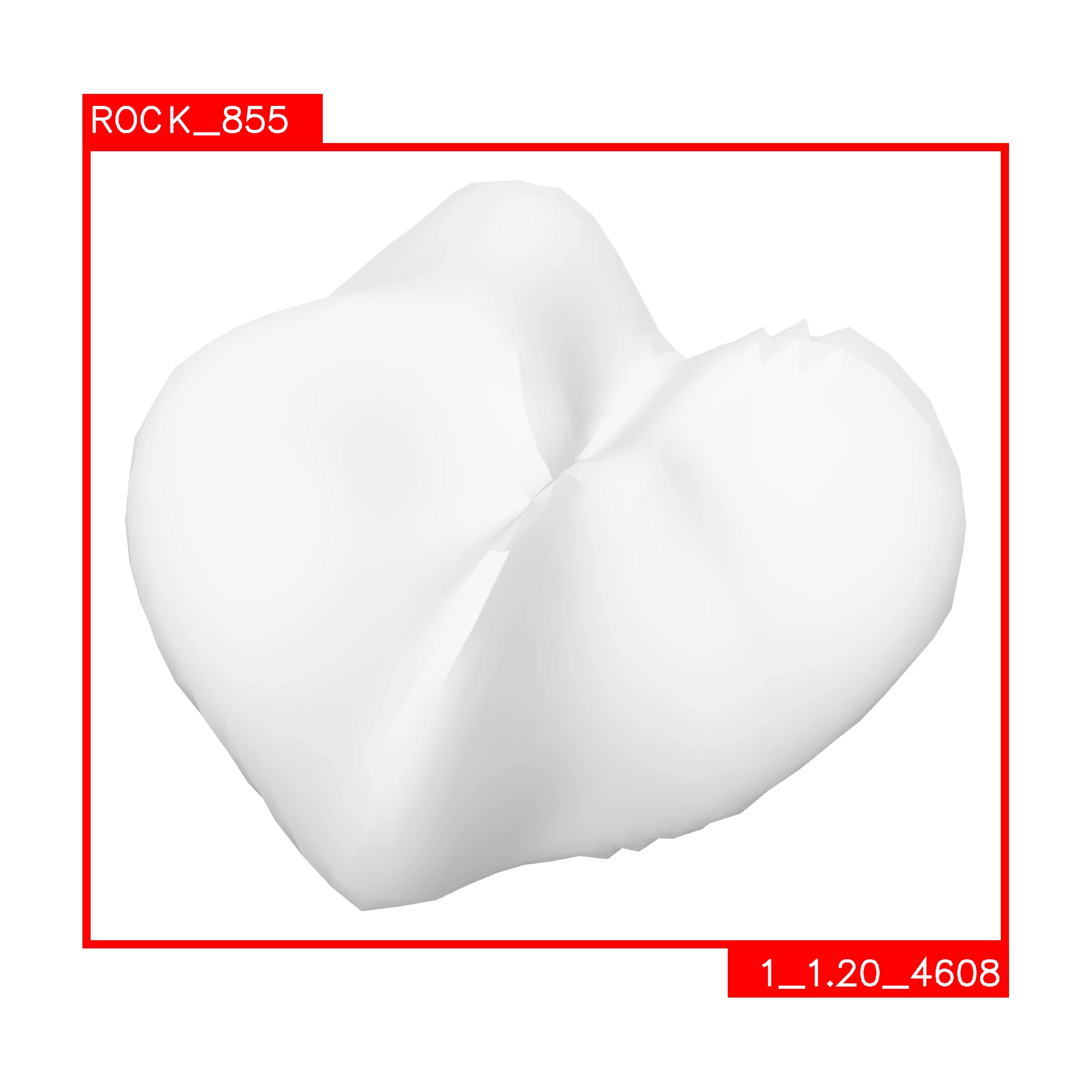
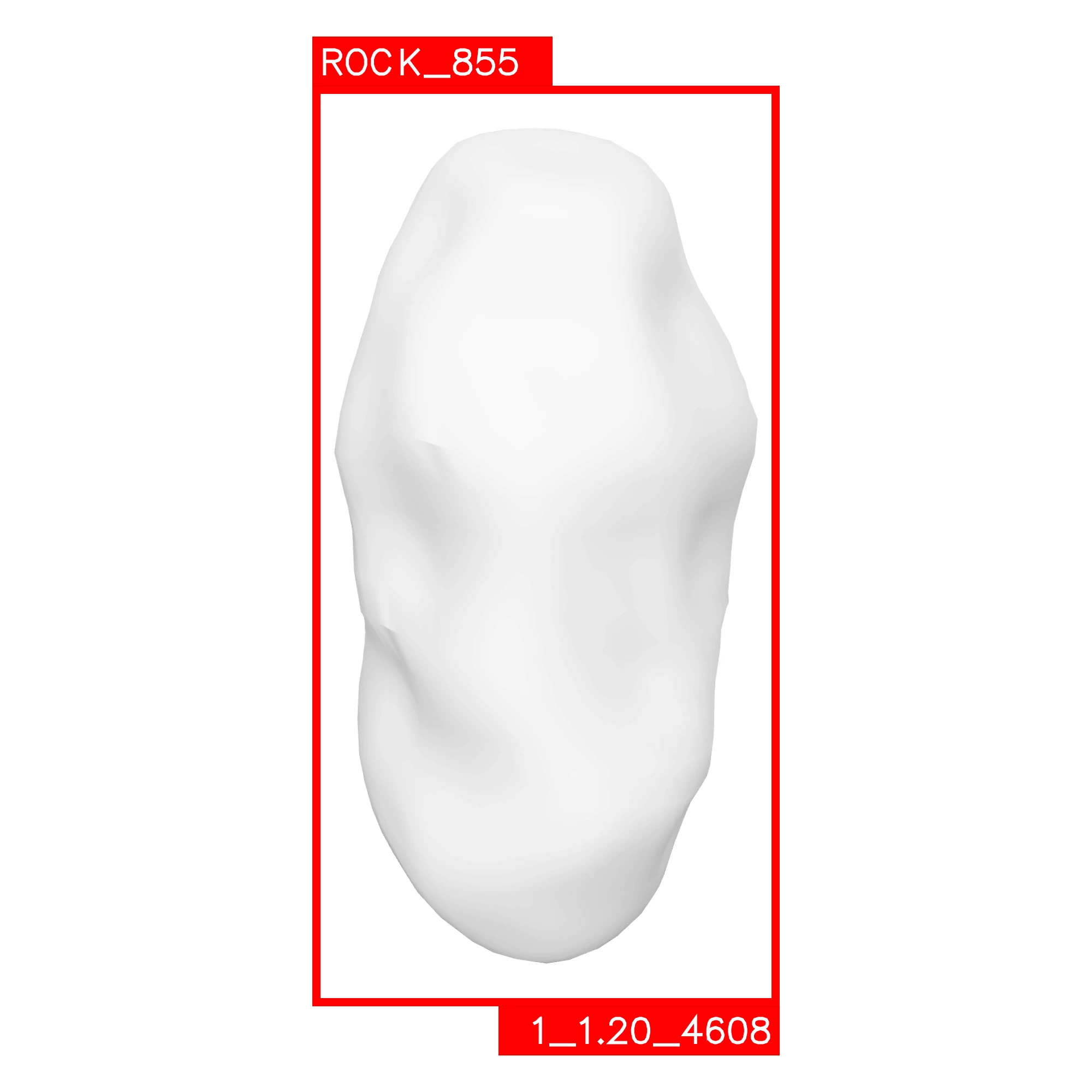
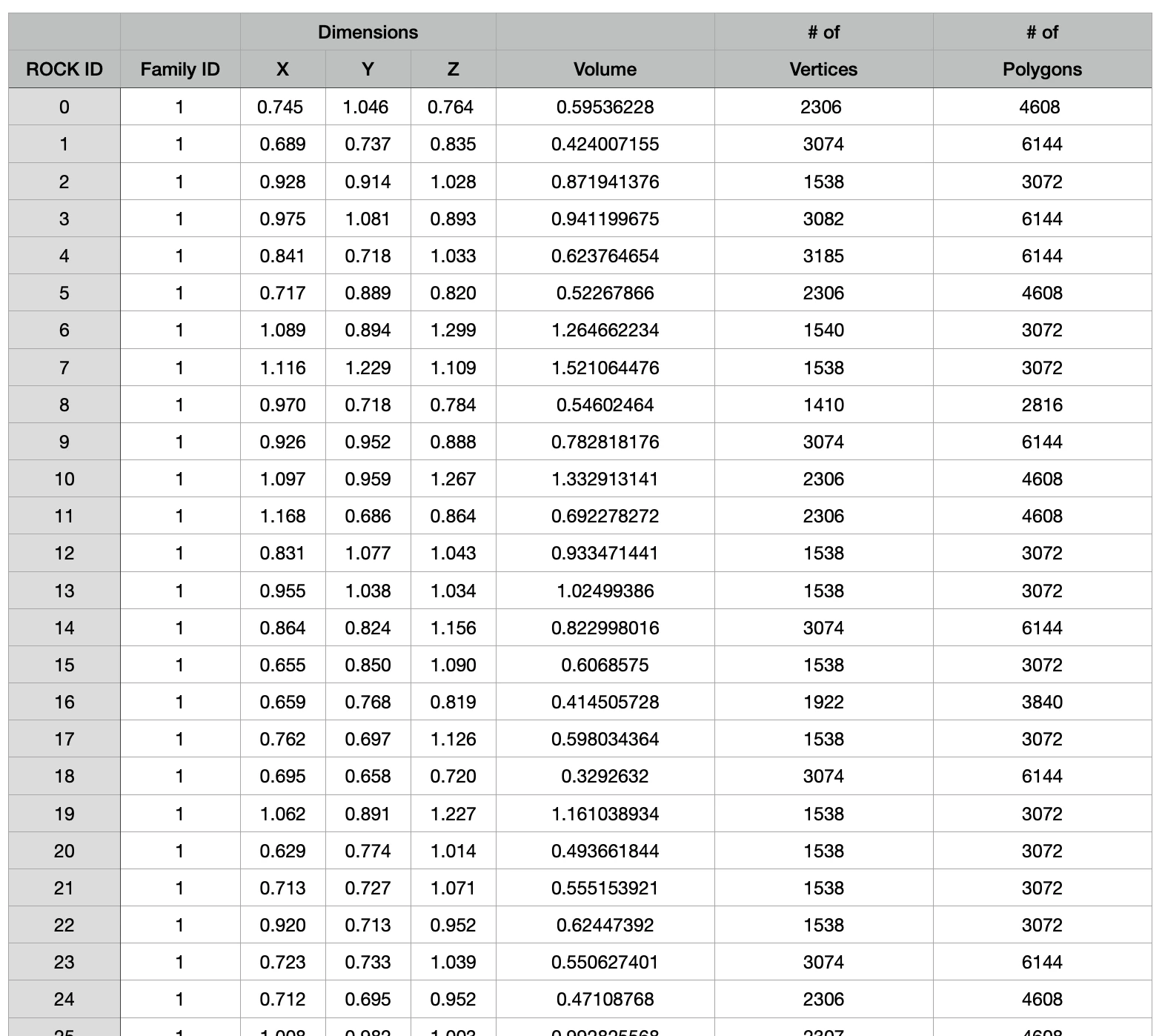
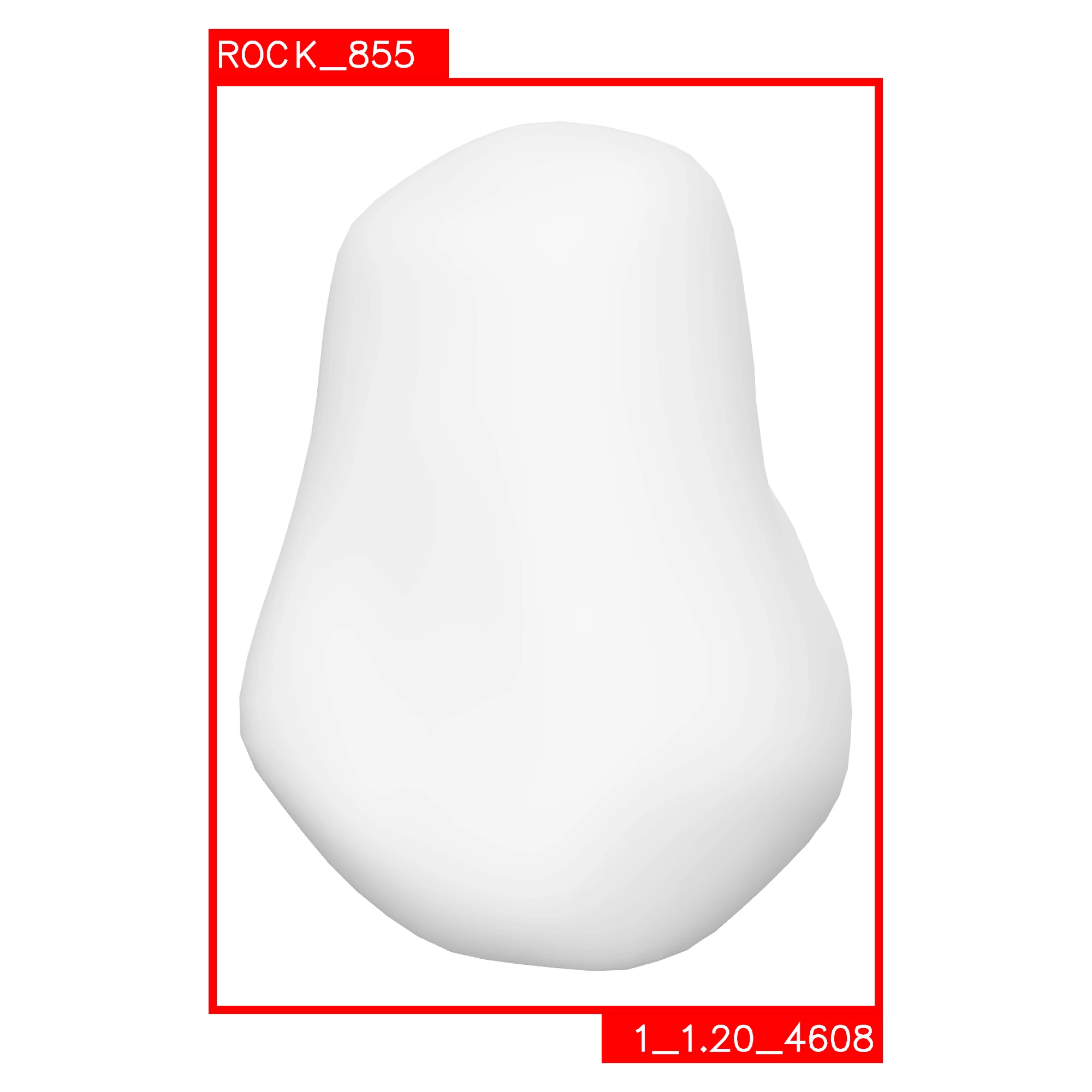
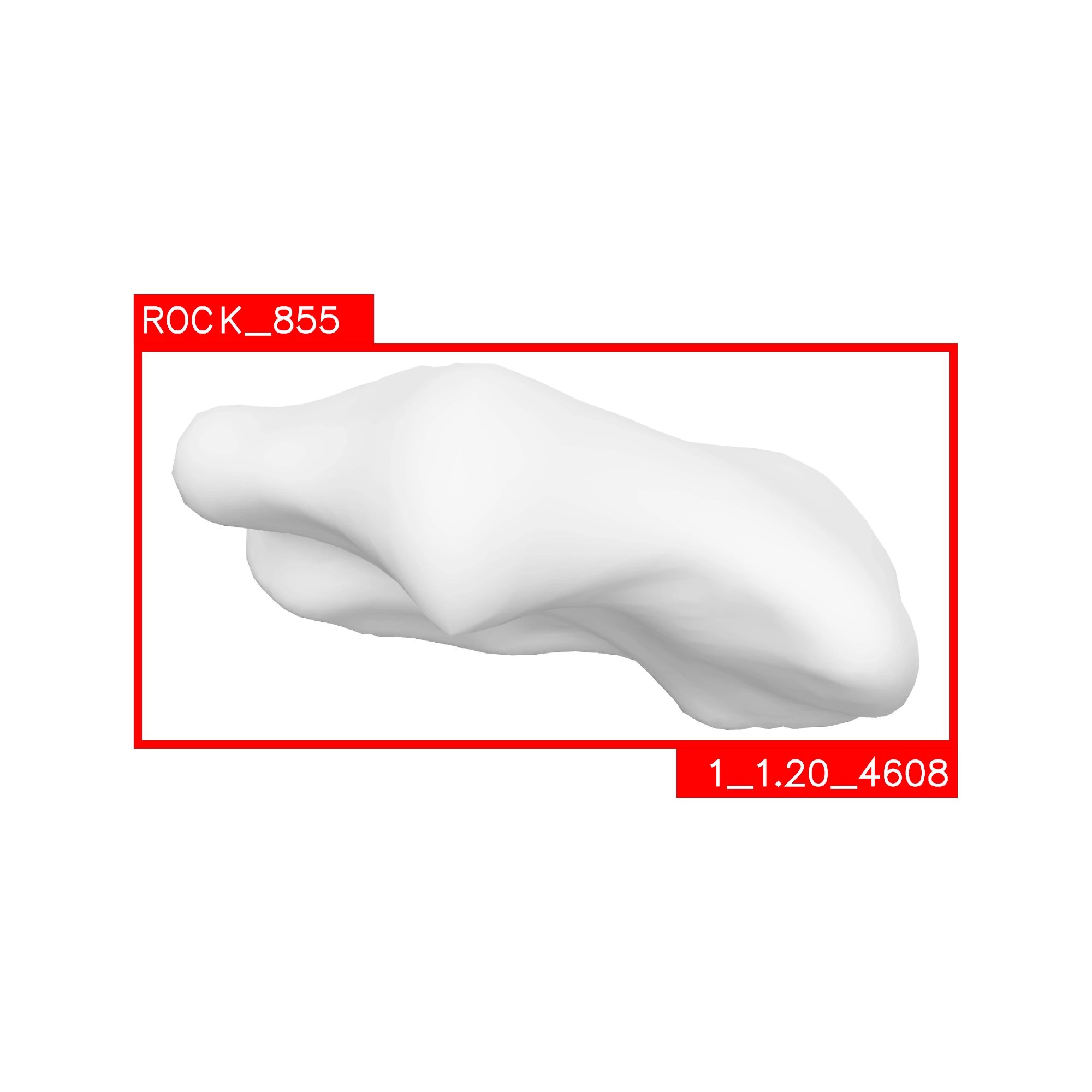
Hi, I have thousands of images similar to the ones shown here. They are all labelled 0.png to XXX.png. I automated the creation of a frame with two boxes to place text. I need to figure out how to add the right text to every unique image from a CSV file. The CSV file is quite simple. It contains the ID of the object in the image and some data. This obviously has to be automated/batch processed. I'm not sure if the image processor allows me to do this. 

I read about variables but found nothing that would allow me to match specific text fields in my CSV to all of my unique images. Every image is different

I use the latest version of Photoshop on a Mac. 

The first images are an example with placeholder text. The last image is a screenshot from my CSV/Numbers file. I want to add the following text to every image: ROCK_[ID] at the top and [Family ID]_[Volume]_[Polygons] at the bottom.
 

This topic has been closed for replies.

2 replies

Loucas B.
Loucas B.Author
Participating Frequently
July 13, 2023

I found a solution; it's a 2 steps process,

1. Place the text I need on each image using the usual variables method as if I was making business cards. Save the results as PSD. Placement doesn't matter here; anywhere/any format will do. 

2. Render these new PSD files containing the relevant text information through my previous framing automated actions + format the text to my needs. It's a bit of a mess with the layers selection, but it works. 

Stephen Marsh
Community Expert
Community Expert
July 14, 2023
quote

It's a bit of a mess with the layers selection, but it works.


By @Loucas B.


Not sure exactly what you mean, but one should use relative keyboard shortcuts to select the layer rather than clicking on it when recording the action, or use a common generic name if clicking on the layer.


Relative Layer Keyboard Shortcuts for Action Recording:


Select/target front (top) layer =
Option + .

Select/target next layer up = Option + ]
Select/target next layer down = Option + [
Select/target back (bottom) layer = Option + ,


Move current target layer to front (top) layer = Command + Shift + ]
Move current target layer up = Command + ]
Move current target layer down = Command + [
Move current target layer to back (bottom) layer = Command + Shift + [


Windows users would swap the Command key for Ctrl and the Option key for Alt

Participant
July 16, 2023

The keyboard shortcuts don't work on my French Canadian/Mac device. I've seen other people post about this problem. The first paragraph of shortcuts you posted doesn't work :(. I also cannot find them in the custom keyboard shortcut menu. Also, some shortcuts don't seem to work when a layer is hidden. I did some research to figure this out, and the best solution I found was a script that someone made to select the next layer even if it's hidden. https://gist.github.com/joonaspaakko/048c9b58ccbb6e6f44c894bf4ce30b68 


Kevin Stohlmeyer
Community Expert
Community Expert
July 13, 2023

@Loucas B. this would be a much easier job to produce in Adobe InDesign.

Loucas B.
Loucas B.Author
Participating Frequently
July 13, 2023

Good point. Any leads? I'm not familiar with InDesign. 

Kevin Stohlmeyer
Community Expert
Community Expert
July 13, 2023

In short you create a template page using Data merge where you point to the fields in the csv.

https://helpx.adobe.com/indesign/using/data-merge.html