Participant
July 29, 2025
Answered

Automating File Size & Batch Resize in Photoshop (Target: 800KB–1.2MB)

  • July 29, 2025
  • 3 replies
  • 186 views

Hi,


We’re looking to automate our image export workflow in Photoshop with the following goals:


  1. Resize images in batch to fit target dimensions
  2. Export images consistently between 800KB and 1.2MB
  3. Permanently enforce these settings, avoiding manual adjustments for every export


This is important for meeting platform requirements and maintaining quality/performance standards.


Any suggestions on scripting examples, recommended plugins, or settings would be hugely appreciated. We’re hoping for a workflow that’s robust, repeatable, and easy to scale.

Correct answer Conrad_C

If you have to do this in Photoshop, it will probably have to be a script, plug-in, or maybe an action.


If you’re open to other software, you’re more likely to have a ready-to-go solution. For example, instead of Photoshop, I would much rather use one of the Adobe batch processors for this such as Adobe Bridge, Adobe Camera Raw, or Adobe Lightroom Classic. Partly this is because they can efficiently batch-process images in parallel with GPU acceleration. However, out of those three, the only two options that fulfill all three of your criteria are Camera Raw and Lightroom Classic, which have basically the same export options.


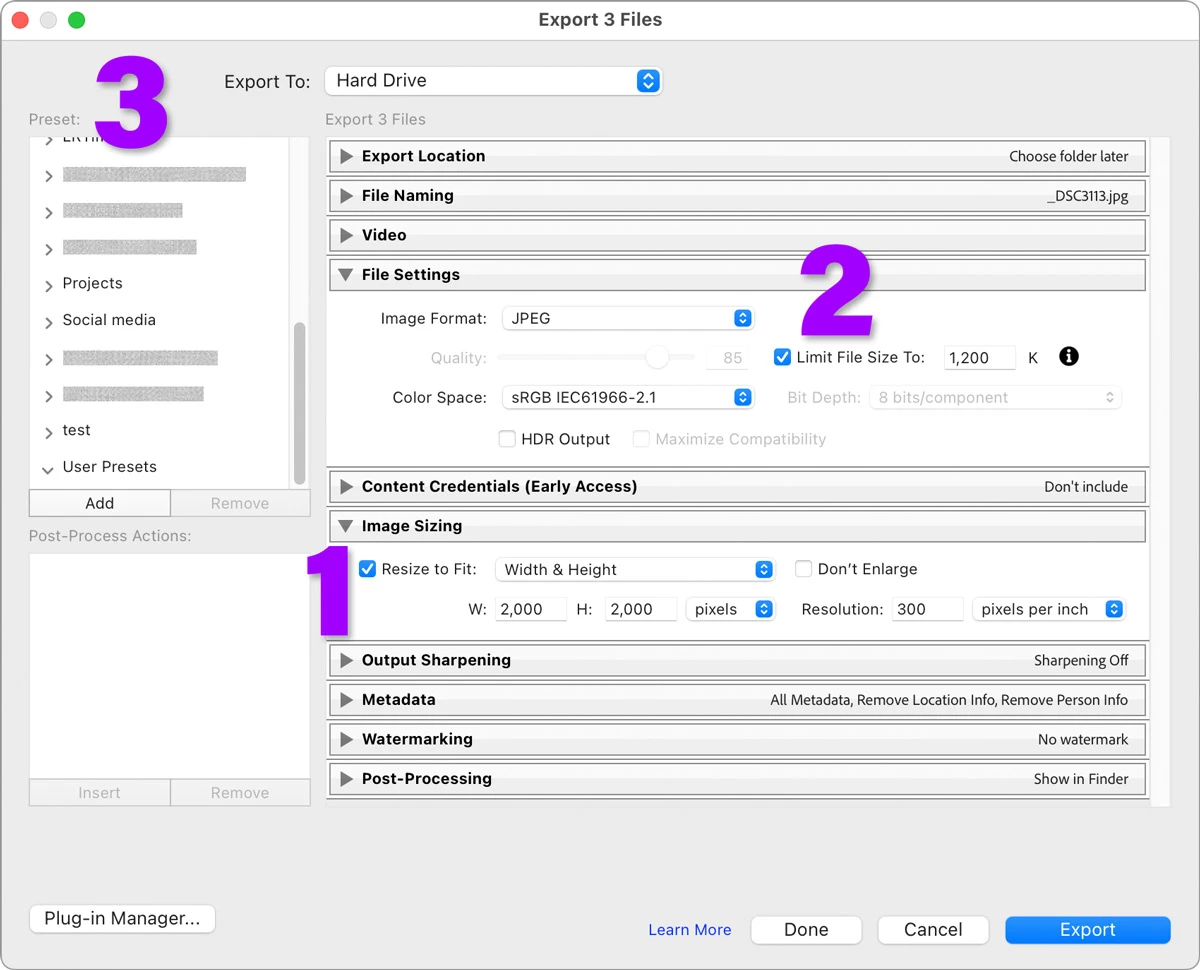
The Export dialog box in Lightroom Classic is shown below, with the sections numbered according to your criteria. Of course, it’s possible to select any number of images before going into Export; all of the selected images will be exported with the current settings.


1. In Image Sizing, the Resize to Fit option allows limiting the maximum height, width, or both. 

2. In File Settings, the Limit File Size To option allows limiting the maximum file size. 

3. Using the Preset section, you can save the settings in the right side panel stack as a named preset. You can organize presets into groups. Your requirements can be enforced consistently as long as your operators know that they must select an appropriate preset and not change the settings it applies. Not shown: When each preset group is expanded, check boxes are visible so that you can run more than one preset per export batch.


Adobe Camera Raw can similarly batch-process multiple images loaded into it, but it’s a little more restricted because compared to Export in Lightroom Classic, Camera Raw supports fewer image file types and its Save dialog box (same features as Export in Lightroom Classic) has a slightly less useful design than in Lightroom Classic, particularly with presets.


One potential issue is that you mentioned scalability. In Lightroom Classic the images have to be loaded into a catalog, which cannot be located on a network file server, and Lightroom Classic doesn’t support multi-user access. If this turns out to be a roadblock, you may have to turn to other tools. I use a Mac where I can name several applications that should do it, such as Retrobatch, but on Windows I only know of xnView MP (because it has a Mac version) and ImageMagick (open source, cross platform, widely used) but I’m sure there are more options. 

3 replies

Stephen Marsh
Community Expert
Community Expert
July 29, 2025

For many reasons, I second the recommendations made by @Conrad_C


Otherwise, more info would be required for custom batch scripting.

Conrad_C
Community Expert
Conrad_CCommunity ExpertCorrect answer
Community Expert
July 29, 2025

If you have to do this in Photoshop, it will probably have to be a script, plug-in, or maybe an action.


If you’re open to other software, you’re more likely to have a ready-to-go solution. For example, instead of Photoshop, I would much rather use one of the Adobe batch processors for this such as Adobe Bridge, Adobe Camera Raw, or Adobe Lightroom Classic. Partly this is because they can efficiently batch-process images in parallel with GPU acceleration. However, out of those three, the only two options that fulfill all three of your criteria are Camera Raw and Lightroom Classic, which have basically the same export options.


The Export dialog box in Lightroom Classic is shown below, with the sections numbered according to your criteria. Of course, it’s possible to select any number of images before going into Export; all of the selected images will be exported with the current settings.


1. In Image Sizing, the Resize to Fit option allows limiting the maximum height, width, or both. 

2. In File Settings, the Limit File Size To option allows limiting the maximum file size. 

3. Using the Preset section, you can save the settings in the right side panel stack as a named preset. You can organize presets into groups. Your requirements can be enforced consistently as long as your operators know that they must select an appropriate preset and not change the settings it applies. Not shown: When each preset group is expanded, check boxes are visible so that you can run more than one preset per export batch.


Adobe Camera Raw can similarly batch-process multiple images loaded into it, but it’s a little more restricted because compared to Export in Lightroom Classic, Camera Raw supports fewer image file types and its Save dialog box (same features as Export in Lightroom Classic) has a slightly less useful design than in Lightroom Classic, particularly with presets.


One potential issue is that you mentioned scalability. In Lightroom Classic the images have to be loaded into a catalog, which cannot be located on a network file server, and Lightroom Classic doesn’t support multi-user access. If this turns out to be a roadblock, you may have to turn to other tools. I use a Mac where I can name several applications that should do it, such as Retrobatch, but on Windows I only know of xnView MP (because it has a Mac version) and ImageMagick (open source, cross platform, widely used) but I’m sure there are more options. 

creative explorer
Community Expert
Community Expert
July 29, 2025

@cars_dailys JavaScript is likely going to be the recommended way. But, it will also depend on the resolution of the images (web quaity or print quality), type of format (JPG, PNG, Tiff, etc — lossy or lossless) and the the actual size of the images too. 

m
