


Abed.K
Participating Frequently
November 13, 2021
Question

Batch naming repeats added specific text for each save as

  • November 13, 2021
  • 3 replies
  • 1600 views

Hello,

My action opens up a PDF, do whatever it needs to be done, then "Save as" .JPEG .PNG and .TIFF

When I run batch on a folder that contains multple PDFs (in subfolders), I want batch naming to add _RGB at the end of the file name as per screen shot:

But I keep ending up with multiple "_RGB" added to the names for each "Save as"!

I want one _RGB added to all file names only once. and no files named like this: XX_RGB_RGB_.tiff
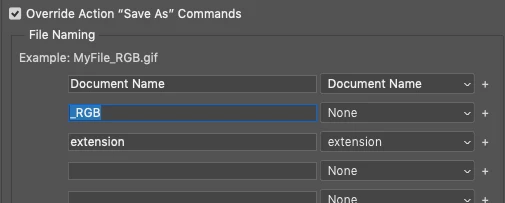

(I tried "Save as copy" that did not fix the problem, and Actions could not record "Export")

Please help

Another Batch question while at it: Can you set Batch to save the files in the same "Sub folders" that they open the PDFs from?

Thanks for any help


This topic has been closed for replies.

3 replies

Stephen Marsh
Community Expert
November 15, 2021

@Abed.K – Is there a correct answer/s?


https://github.com/Paul-Riggott/PS-Scripts/blob/master/PDF%20ProcessorII.jsx

https://prepression.blogspot.com/2017/11/downloading-and-installing-adobe-scripts.html?m=1

P.S. Now that the issue has been found, do you need to batch rename the existing files which have incorrect names? Or will you just run the batch again?


Abed.K
Abed.KAuthor
Participating Frequently
November 15, 2021

Hi @Stephen Marsh

I got PDFs saved in subfolders sourced from Indesign (over a hundred of them), this workflow will be repeated and consistantm so i need to find a way to do it efficiently and fast that can also be used by other colleagues.

I made an action that will import the PDF into Photoshop then crops a part of it that i will then need to save as JPEG and PNG in the same subfolder of each of those PDFs, and add _RGB to the name of them.

There is no change or save to be made to the original PDFs

Batch saving does the trick, but I got 2 issues with it:

1- It adds another suffiex _RGB to the name of the 2nd save ( XX_RGB_RGB.png)

2- I cannot get it to save in the same subfolder of the source PDF.


With @JJMack help here, I have changed my "save as" steps using Image Processor Pro and included that step in my actions. Image Processor Pro does indeed save with the desired suffix. and it manages to save in the same sub folder.

The problem I got here is that when the image to process is set to "Current Image" (which is what i need it to be set, in order to include it in my Action then Batch), Image Processor Pro wants to save the Current Image before proceeding with creating JPEG and PNG which is not possible considering it is an Acrobat PDF.


So I guess the correct answer would be any way around any of these:

- a way around Image Processor Pro saving the PDF (Current Image)?

- a way to make batch save in the same subfolder location of the origin PDF? 

- or a way to get Batch not to add another Suffix (_RGB) to the naming of the 2nd saved as file?


JJMack
Community Expert
November 16, 2021

@JJMack  I just trying addind this step, hoping it will convert the PDF i got open and edited into a Phtosohop PDF before it moves on and saves as JPEG and PNG. but still got the same result:

 my conclusion is that:

- Batch naming convention that keeps adding a suffix after the other with each save as is just senseless, perhaps something Adobe needs to look itno.

- Batch needs to have an option of saving in the same location.

- Image Processor Pro forcing users to save file before running its process is also senseless and useless.

Thanks for all the help anyway


If you are having image Processor Pro process open document in Photoshop The document  need to have been saved new document that have not been saved have no  path  or parent path no fixed name on your system.  They can not be used with the image processor. The message you are getting state your new documents can not be processed by images Process. New documents names are not even harden till you save them.  Save the open document with  the name you want the files saved by image Processor pro to have, before using image processor.  Image processor type scripts often they require things like parents, paths,  nanes  etc that are not in new document yet..  

JJMack
JJMack
Community Expert
November 13, 2021

It look like the Bacth Processor  Save as override add the _RGB and the file is saved and Photoshop switch the active document nane to the saved file name.   AU_RGB.png is saved first then  AU_RGB_RGB.jpg is save then AU_RGB_RGB_RGB.tif  file is saved because the current document's name changed with each save.   You could try downloading and installing Image Processor Pro... Plug-in.  Try using it instead of your action to save your png, jpg and Tif  no action is needed with the Plug-in for a simple Save AS file types. The Image Processor Pro script File Save may not change the current document name during its process it will remain AU  the _RGB will just be added to the saved files names so  will be AU_RGB for each file type. Adobe Images Processor has no option to save png files.  Image Processorp Pro is a better image processor.

JJMack
Abed.K
Abed.KAuthor
Participating Frequently
November 14, 2021

Thank you for your reply, I found some positives as you have mentioned using Image Processor Pro, such as it does indeed fix the naming issue of adding another _RGB after each save, it does save in same location as my PDF, and can be included in the Actions steps.

However, when Batch running my new Actions that now include only Image Processor Pro save steps instead of my previous save as steps, and the Batch save as destination is set to none. Image Procesor Pro and/or Actions also open the newly created JPG and PNG files by Image Procssor Pro and also running the Actions again on them! resulting in too many files thaty I would need! (I only need 1 JPEG and 1 PNG,  do not need a tiff anymore)


JJMack
Community Expert
November 14, 2021

That does not compute right to me.  I believe you ran the image processor pro twice on your source image folder.  Image processors create a file  list of files to process from your source image folder and then process the files in the file list the image processor also only save new files and would not process any new file created for that file did not existed whet  the file list  was created. Image Processor Pro do not overwrite existing files.   When you ran the Image Processor the first time if it save new files into the source image folder the second  time you ran the image  processor Pro the files created during the first run would be in the File list of files to process.  If during the second run you had files saved to  an output folder no new files would be added to the source image folder during the second run. If you did not specify an output folder  and ran the image processor pro  like the first run there would be additional new files added the the source image folder  no file create during the first run would  over written the new files saved name would have version suffix number added.  Image Processors  Pro does not overwrite existing files.


What you are seeing is how Image Processor Pro does  not overwrite file.


The first run you added  _RGB suffix and save it in the  source image fldet. The second  secon run also added the _RGB suffix and since the file exists and addition suffix version _01 gets added. Whe the file creat in the first run with the  addedd  _RGB suffix was Prossed  a _RGB suff is was addeed so this created  the first version of  FileName_RGB_RGB no additional suffix would be added.


You had Image Processor Pro  process your output files  with the _RGB  to add a second RGB suffix the  First RGB Suffix.  You may not want to do that in the future


If you add no suffix Image Processor Pro will add a version number if the output file exist in the output folder.  


However there need to be separation between Source and Output. You making all file source files binary builds up rapidly 1,2,4,8,16,32,64,128,256,512,1024,2048,4096 in no time you will fill your disk. Well that wrong Photoshop will need a lot of time to fill your disk with image files.

JJMack
Abed.K
Abed.KAuthor
Participating Frequently
November 13, 2021

I am still struggling with this! please help

each "save as" adds a another of whatver in the added file name.

jane-e
Community Expert
November 13, 2021


Hi @Abed.K 

Can we see the entire batch dialog including the destination? If, for instance,

  • you have a psd and save it as a tiff, it will be filename_rgb.tiff
  • if you do a save as on the tiff and save is as a png, you will get filename_rgb_rgb.png
  • if you then do a save as on the png the last file will be filename_rgb_rgb_rgb.jpeg.


You need to make sure you are always starting with the original file and we can't see that from here or with what you've told us so far.


It's Saturday and most of us are volunteers. An hour is not a long time to wait for a response.

Abed.K
Abed.KAuthor
Participating Frequently
November 13, 2021

Hi @jane-e 

Thank you for your reply.

this is my "BATCH" dialogue:


and if it helps, this is the save as steps in my actions:

Totally understand about Saturday and me being in a bit of a rush, but this is work related and I am working on a Saturday, getting bit desperate here.