Ram1el
Participating Frequently
September 30, 2021
Question

Batch Replace Of Smart Objects

  • September 30, 2021
  • 3 replies
  • 1695 views

Hi to all experts in here.

I'm trying to solve an easy task but very time consuming. I have many "Canvas Prints On Wall Mockups" and many designs that needs to be applied on this mockups and saved. I've read similar qustions in here about "Batch Replace Of Smart Objects" but my task is a little more complex and I'm curious to know if it's even possible from technical stand point. 

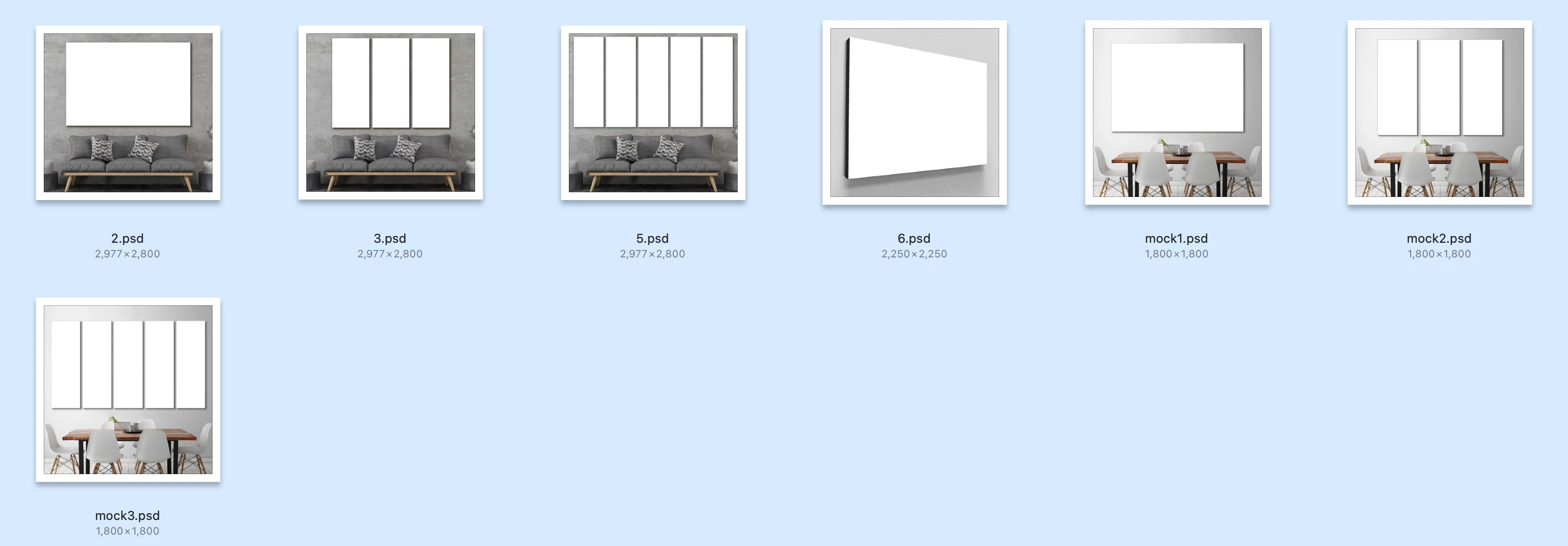
Bellow I attached a screen shot of the mockups and designs that I have as an example: 
 

And here is a link to a video with my specific thing:

Photoshop script for actions and smart objects then save 2 RIGHT ONE


Thank you very much in advance.

This topic has been closed for replies.

3 replies

Earth Oliver
Brainiac
September 30, 2021

It can be done using stacks of layers inside of Linked Smart Object and Layer Comps, but you'll probably need to pay someone to create the scripts for you.

Ram1el
Ram1elAuthor
Participating Frequently
September 30, 2021

I'm ready to pay to someone who can do this for me and who can show me how to use it. Can you refer someone? I'm about to give up.

JJMack
Community Expert
September 30, 2021

You should not expect  Photoshop to magicly work for you. You need to learn how to use Phooshop and Photoshop add ons.  There is no magic.


You need to be careful  tha your replacement images have an appropriate Aspect Ratio for the area they will be populated into.  You can do just so much  taking of populated templates. If the Aspect Ratio are far off you need to us different images. Here is a two image  collaget whet I userd random Aspect Ratio imags Some work other doe not.


If you know how to use Photoshop Templates are easy to create....

JJMack


If you create the mockup you should know what Aspect Ration Images and the size you use creating the mockup.  Hers I used a 16:9 Aspect Ratio 4K 3840x2160 image smart object layer.  Even  though the Mockup is a small web size  Image.  The Smart Object Layer Object transform scaled the 4K image to the mockup Wall Image Picture size. I did not use the Edit option  this time I use 4K replacement images the script just uses its default replace content mode of operation.


What I see in you post is 3 Collage Templates and a mockup template and 6 different Landscape Aspect Ratio image.  The First collage a square Background images and a Landscape image on top of the background. The second collage has a Square background image and three Portrait image on top of the back ground. The third collage has a square background image and 5 portrait images one top of the background.  None of you image have a Square or Portrait Aspect Ratio.   2 of  you landscape images are quite wide panoramas.


I created the 4 templates for you 12" x 12" 300PPI PictureWallTemplates.zip 

If the link does not work enter it in your browser it below copy paste it

http://www.mouseprints.net/old/dpr/PictureWallTemplates.zip

JJMack
JJMack
Community Expert
September 30, 2021

There is no problem problem batch replacing smart object layer content  using  Layer>Smart Object>Replace Content other then  the replacement object need to be exactly like the Object in the  template file.  Same Aspect Ratio, same number of pixels, same Print resolution as the object in the template.  For Replace Content uses Photoshop Place function.  Also the existing Smart object Object transform and warping setting are not changed by replace content.  They  are for the object in the template file that object can be shared with other smart object layers the have different transform that distort the object for that layer.  Smarts object layers can also have unlinked layer mask and smart filters and layer styles all set for the original object.  Replacement objects must be the correct size for them to work correctly is templates.


My Batch mockup template populating script can populate replacement that are not the correctly size  by editing the  replacement objects into the templates existing object in the template file.  However, there are some limitations the  not  smart objects are Photoshop objects  in the Template Smart object layer that need to be replace with edit need to be Photoshop objects.  For RAW object  and vector smart object will not open in Photoshop they will open in ACR or AI.  My Photoshop scripts can not edit the RAW File or the Vector File.  So if a template smart object that need to be edited is a RAW or Vector Object my scripts will can not edit the object  it will note the template object can not be edited.  If the replacement object dose not have the correct aspect ration the edited in replacement will not be a perfect fit.  The are additional option you can use to have  my script to Fit content to the object not fill the object  the content within the object. you will lose some content or there will be boarders.


Also each smart object layer the needs to be  populate need to has a separate image collection of replacement images in a paticular folder,  All the collection of image need to have the same number of replacement images. 


 In this example there are 6 smart object layers and the are 6 replacement object for each smart object layer.

Picture in a wall Replace content wronf size images and sane with edit option

JJMack
Ram1el
Ram1elAuthor
Participating Frequently
September 30, 2021

Thank you sir for taking your time to reply.


Honestly, it's super hard for me to understand your explanation. 


Let me ask you this way: You have 1000 stock images and 20 images of interior design with an empty wall (both cases are jpg files) and you want to place all 1000 images with shadows and Bevel and Emboss options on 20 other images so they can look like real canvas prints hanged on the wall so in total we can have 20.000 saved images. What steps would yo take?


The example you showed with pictures is exactly what I need!!!! PLEASE LET ME KNOW HOW TO REPLICATE THIS RESULT.


THANK YOU.

JJMack
Community Expert
September 30, 2021

Make a template  for each picture wall layout you want then set up image collections that have  images with a proper  aspect ratios and  batch populated the  mockup templates. Templates are easy to create.... However, you need to know how to use Photoshop to create templates.  The there are only four rules you need to follow to create collage templates and four different rules for creating mockup template that are compatible with my scripts.   All of the layout you showed can be done using a Collage templates.  Only the one I showed needed to be a Mockup template. It is the only one you showed that needs to have perspective distortion.  


Collage Template are extremely easy to create there are no smart object layers required just alpha channels  to Map  Image location Size and shape.  You wall background layer with Alpha channels that map the image locations.  There is only a single image replacement folder all images are in they  will be positioned, sized and masked to shape.  Image will be populated in file name order. Image will be placed in Smart object layers that are sized by the scripts for  the image locations.  There are no image layer in a collage templates that are replaces  Image layers are created by the scripts using Photoshop Place feature.  Populated Collages are save as PSD file so you can edit and tweak the collage. However there is a save JPEG option a jpg file will be save in addition to the PSD.  You can delete the PSD files.  Populated mockups can optionally be saved as PSD in addion to the default jpg.


Free Photoshop Photo Collage and Mockup Toolkit 


JJMack
c.pfaffenbichler
Community Expert
September 30, 2021

Please provide a meaningful description of the process. 

What do you want to select (a file, several files, folder, …), where should the resulting images be saved to, what file format, …? 

Have you set up the template files in a reasonable fashion by now (is the active Layer the Smart Object, must the Script look for the SO, …)? 


I seem to recall thread/s on fitting placed images inside an open image, so what part of Scripting are you actually lacking so far? 

Ram1el
Ram1elAuthor
Participating Frequently
September 30, 2021

Thank you for your reply.


Sorry for lack of details in my description. I recorded a video and attached a link to it with more information. However I'll try my best to explain what I need.


Let's say I have 7 Mockups .PSD in folder1 and 15 designs .JPG in folder2. So one designs have to be placed in all 7 mockups and saved in a separate folder as a .JPG. From this example we have to have 105 images at the end.


Yes, the active layer is a smart object.


c.pfaffenbichler
Community Expert
September 30, 2021

But are the images always in those two folders (so the two folders’ paths can be permanently fixed in the script) or do you want to have a selection dialog for the files/folders or …?