The simplest way to do this is to leave the original unchanged, and use one of the export commands to export a copy that’s resized to the required pixel dimensions and file format.
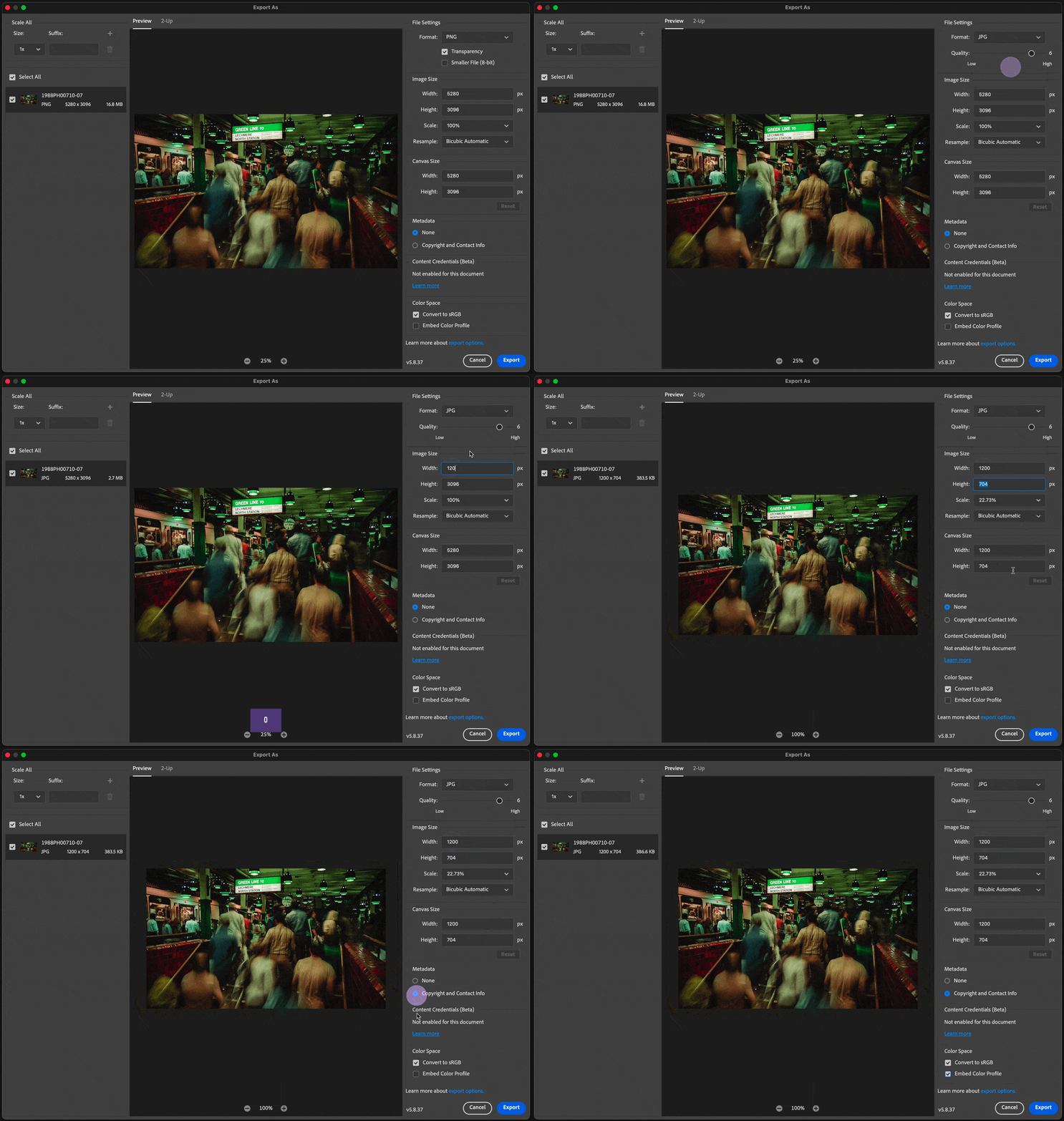
These are the steps In the demo below:
1. Choose File > Export > Export As.
2. Select the Format (file format). Most art competitions require JPEG, but verify that for the one you’re applying to.
3. Set the long side to 1200 px. When you apply that by clicking in the short side field or pressing Tab, you’ll find that the short side is automatically calculated (to maintain the image’s original proportions).
That’s it, you’re done with resizing. The rest of the steps are optional.
4. You might want to select Copyright and Contact Info if that metadata is already entered in the image and you want that info to be included with the exported copy.
5. To help ensure that the original colors are reproduced as closely as possible on whatever computer or device the judges are using, select Embed Color Profile.
There is no resolution option because it won’t matter, because with these settings the long side of the exported copy becomes 1200 px regardless of the original resolution.
Now, if for some reason you do want to use Image > Image Size, first make sure it’s on a duplicate of the original, because saving the original after reducing it to 1200 px would permanently reduce the resolution of the original, and you don’t want that.
Do I save as 72 DPI first, then go in and change pixel diminsion?
By @LosFelizGirl
In Image > Image Size, the steps are more confusing than in Export As, so it is good that you ask those questions.
If you still want to use Image Size, then these would be the steps:
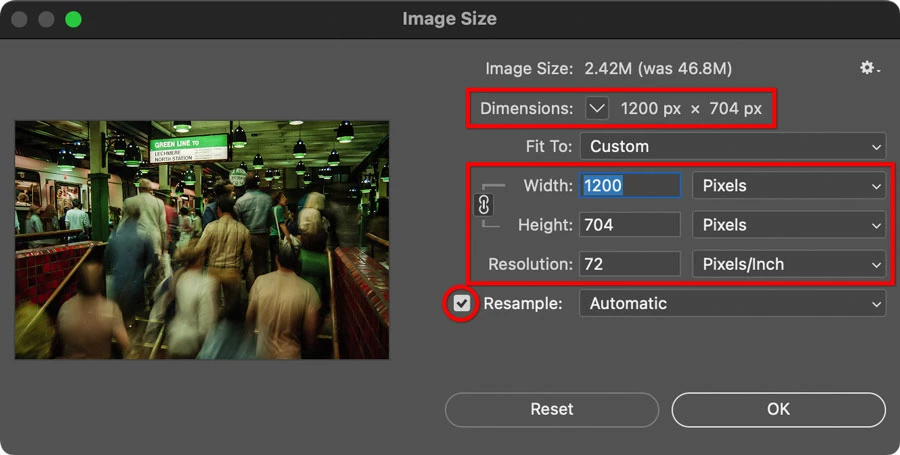
1. You must enable the Resample option, for two reasons. One, you want 1200 px on the long side, and the only way photo software can change 5280 px to 1200 px is to downsample, which means resampling down. If Resample is not selected, the image must stay at 5280 px. The second reason is related to that: If Resample is not selected, there is no way to set it directly to 1200 px because the Pixels option is not available in the unit of measure menu; enabling Resample makes the Pixels unit available.
2. In the unit of measure menu for the long side (in your case, Width), choose Pixels.
3. Change Resolution to 72 ppi.
4. Change Width to 1200 pixels.
So the tricky thing with Image Size is that the way you fulfill the competition requirements is not by simply setting the options from top to bottom; it’s a different order.
If you do it correctly then when you finish, the numbers and menus should look like this picture:
After you click OK, now you still have to remember to save the copy in the file format and color settings that are appropriate for the competition requirements. If you had use Export As, all of that could have been set in one place and you’d already be done.




 AdChoices