dSalieri
Inspiring
September 9, 2018
Answered

Blend alpha layers

  • September 9, 2018
  • 2 replies
  • 1921 views

I do not know where to start, perhaps I'll start with a link to a similar question.

As you could see, the problem was that when we grouped a layer with a transparency different from 100%, the photoshop gave us a different result when mixed with another layer. But how do you see it removed and why it is not clear, what were the motives for it? By the way, if I turn a layer that has transparency into a smart object and then set it to the color dodge blending mode, nothing will change absolutely.

Now what you heard remember. Now I want to show the picture I made for the demonstration.
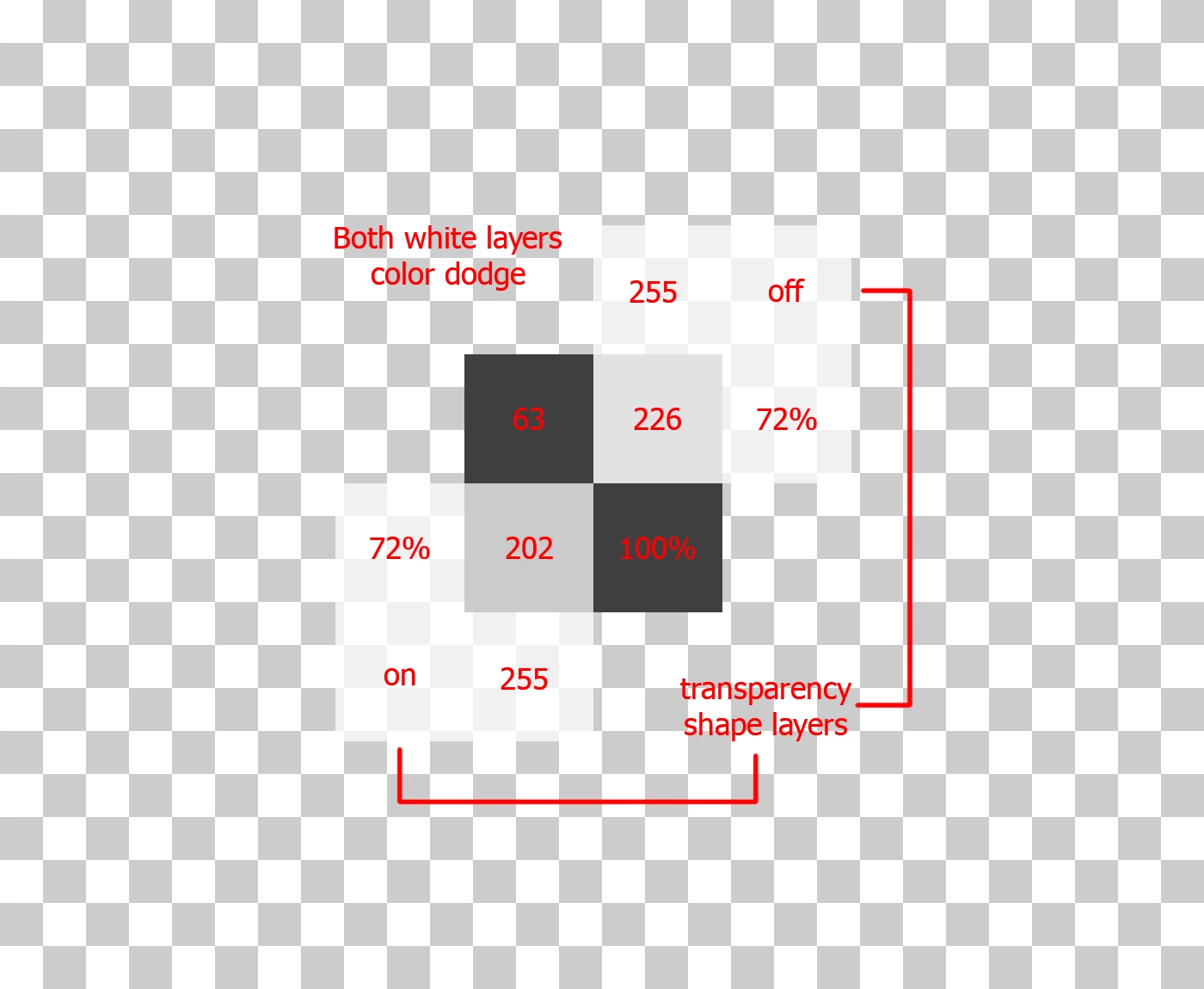
Here 3 layers are one main and two overlapping it. And what is most remarkable is that they are in the same blending mode. But the resulting pixels are different. You will ask why? I do not know, but I know that it's because of the checkbox in the properties of the layer that it's called "transparency shape layers". And why is he doing a different mix of pixels with the same color with the same blending modes.

I can also add something, the layers created using gradient fill and shape tool do not need to switch the "transparency format layers" checkbox. Than it is reasonable - a question. But I would like to know the answer of the developers about this.

I'll add one more thing, saying that with the checkbox "transparency shape layers" color dodge does not work - it's not true. Since if you mix the brightness of 0 and the brightness from 1 to 255, we get 0, which completely corresponds to the formula color dodge. But the rest of the blending is like a simple blending of two layers with some opacity.

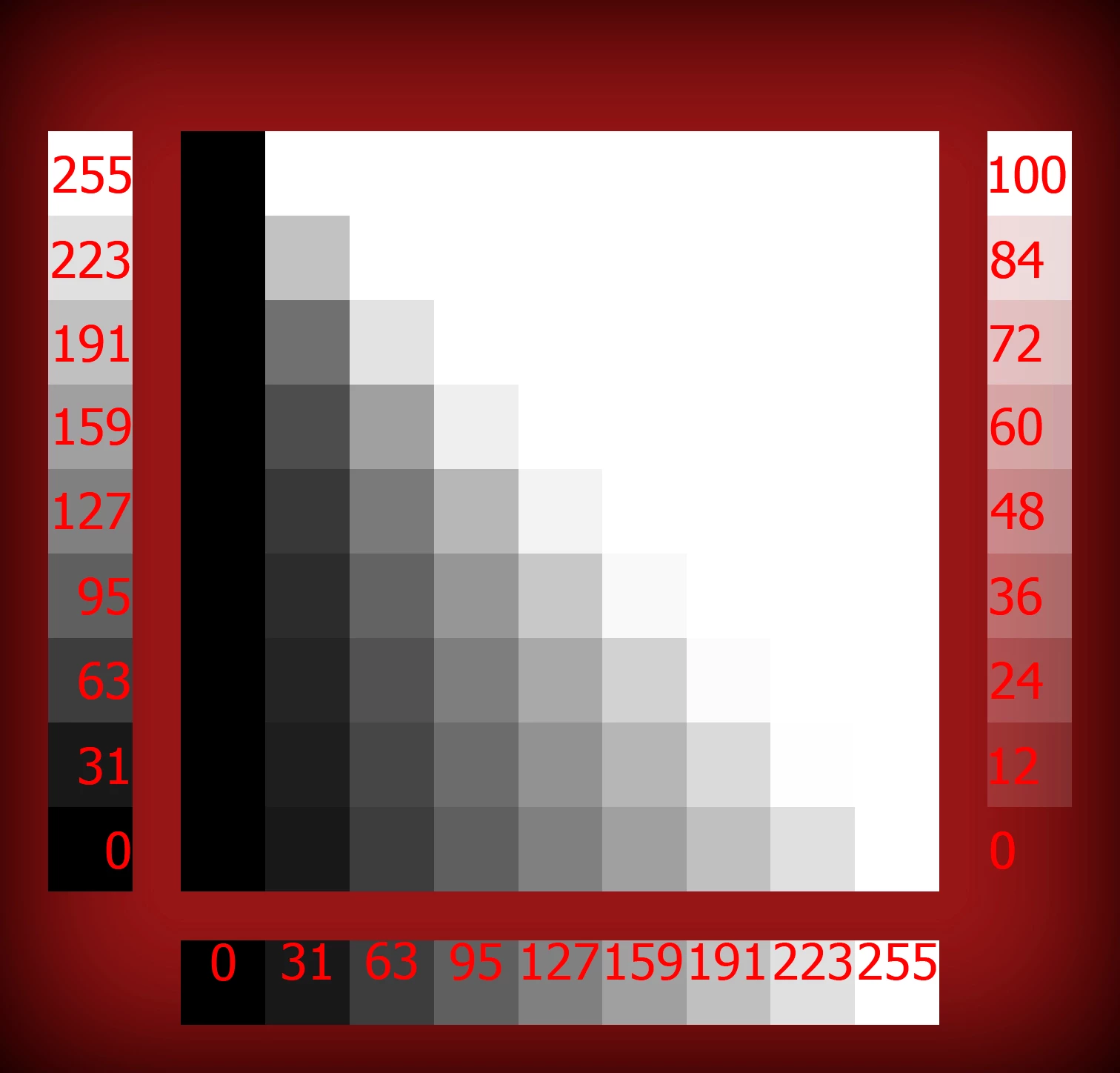
1. Blending: Normal, transparency shape layers: disabled

2. Blending: Color Dodge, transparency shape layers: disabled
3. Blending: Color Dodge, transparency shape layers: enabled
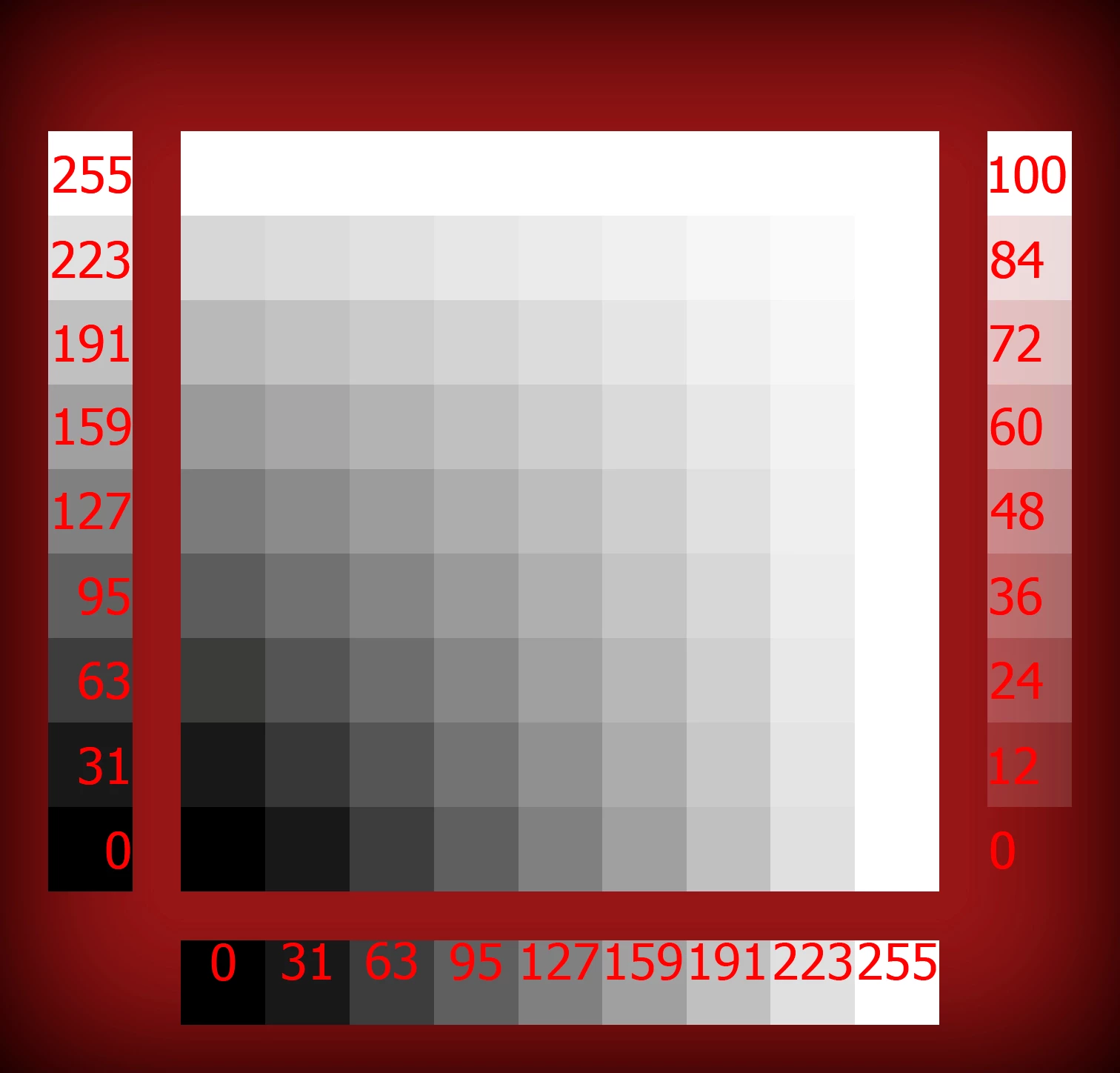
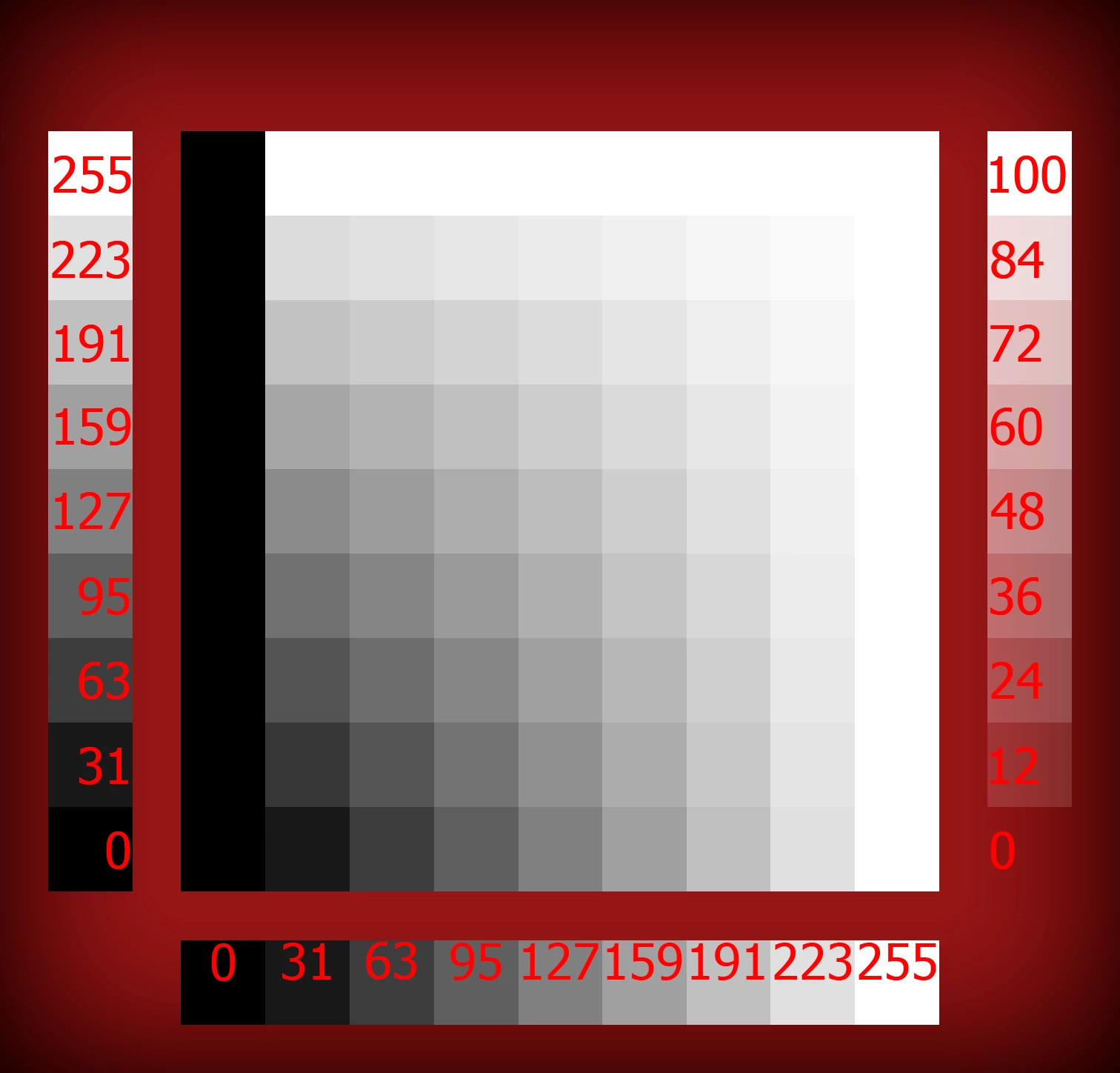
left scale do not involved in blending

And the checkbox "transparency shape layers" is very similar to gradient fill or color fill or pattern fill, since it covers the entire workspace. In fact, this option is to apply layer effects to the pixels that you drew on workspace. The semantics of the "transparency shape layers" is clear, but it does more than just switch the modes of applying effects from the entire canvas to specific pixels.

By the way, if you create two uniform gradient layers one with 100% opacity and the other is different from 1% and 99% and give it a color dodge overlay mode, then you'll be surprised that it does not need a checkbox "transparency shape layers" that mixes it as needed without it.

Do not you think there is some understatement in all this?

This topic has been closed for replies.
Correct answer dSalieri

I correctly understand that you have transferred a layer that has a white color with ladders of transparency in a full white color fill with a mask that displays the same ladder of transparency?

I simply applied Layer > Layer Mask > From Transparency on the Layer from your file, see the Layer Panel in the screenshot.

What do you advise to write to this forum? All the same thing I wrote here?

Maybe try to keep the explanation more concise and post screenshots that include the Layer Style dialog (so that the Blend Mode and »Transparency Shapes Layer«-setting are clearly indicated) and the link to the file.

That Forum is the official Photoshop Feature Request and Bug Report platform, so whether you get an official response or not your post will get noticed.


I made my question on Photoshop Family Platform.
I left here link on my question for all willing.

I did upgrade quality my question

2 replies

c.pfaffenbichler
Community Expert
Community Expert
September 9, 2018

To me it seems your screenshot examples are well-intentioned but meaningless if they don’t at least include the Layers Panels; or better yet please provide the layered files.

Mylenium’s post may seem a bit harsh but I for one have a hard time recognizing merit it your post, too.

dSalieri
dSalieriAuthor
Inspiring
September 9, 2018

I do not want to seem arrogant, but when I get down to work that intereses me, I do everything possible that I can do. Well I will provide PSD files, but I'll simplify them so as not to dig into the hierarchy of layers that create such images.

P.S I can't edit my question, so then I will attach my PSD file here. So you can reproduce these 3 images. You must change "transparency shape layers" and blending mode. I am waiting your answer.

c.pfaffenbichler
Community Expert
Community Expert
September 10, 2018

Thank you for the file.

Now I see what you mean and as far as I can tell the issue should indeed qualify as »unexpected behaviour« (at least) as »Transparency Shapes Layer« should affect Layer Styles.

Also invoking Layer > Layer Mask > From Transparency and thus creating an opaque Layer with a Layer Mask (see screenshot) results in a changed appearance.

At a quick search over at

Photoshop Family Customer Community

I could not find an existing report ton the issue, so you could post over there, too, and maybe an Adobe employee might chime in.

Mylenium
Legend
September 9, 2018

The simple answer would be that you totally don't seem to understand how blending modes and transparency in PS work. You seem to mistakenly assume that transparency would be part of the actual blending modes (which it isn't) and then you are also not considering the actual rendering order of layer operations, group blending or for that matter layer styles. They're all different. I'm sure there are some longwinded explanations out there, but generally there is nothing wrong. you need to work on your understanding of these things, educate yourself and practice to know when to use what.

Mylenium

dSalieri
dSalieriAuthor
Inspiring
September 9, 2018

You, as it were, answer my question and, as it were, no. I described in detail my question and made images on which I spent, say not a small amount of time. I decently know the toolkit of Photoshop and have been using it for several years. But it was this issue that arose accidentally. When I wondered why exactly this works?

All these images perfectly illustrate my question, but you just say that I do not understand something. What I do not understand explain!

Let's just say I've been doing graphics for a while and there was a term premultiplied. This is the brightness of the image multiplied by the transparency. And judging from this I can say (but I'm not sure) that from 3 graphs the superimposed transparent image of the program reads that it is not really transparent, but has a brightness of 255, but since this normal mode triggers the usual mixing of a transparent image, the second image approximately Also works, but there we have the color dodge blending mode and the result is similar to normal except that where the main color black blending occurs differently and the third picture there we have the so-called premultiplied image called "transparency shape layers" where all the transparent colors are recalculated into opaque and then combined with each other. Actually, this is my assumption and I do not understand why such non-trivial things are not described in help?