


NM MSDK
Inspiring
November 26, 2024
Question

blending textures to even colors

  • November 26, 2024
  • 5 replies
  • 1963 views

Hi,

I have made about 40 image's wich take about 1,5 hours to render per image with the texture/ pattern as shown below.
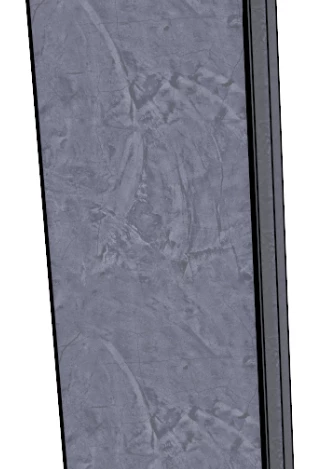
But now my client does not want this texture/ pattern anymore but just a grey blended texture.

I always use PS to edit this post production. But is there a clever way to also accomplish this job?


I myself first thought about the fade tool, but this does not get the desired result.


Someone got any tips?


Thanks!


-Nick

This topic has been closed for replies.

5 replies

c.pfaffenbichler
Community Expert
Community Expert
December 15, 2024

So any progress? 

NM MSDK
NM MSDKAuthor
Inspiring
December 24, 2024

I am sorry, i could not understand what was happening and i felt stupid if i kept asking the same question. so i just used the blur tool...

Participating Frequently
December 4, 2024

Try using Photoshop's Blend Modes and Gradient Map adjustment layer. Apply a gradient map with shades of gray to the texture layer, and experiment with blending modes like Overlay or Soft Light. This should help achieve a smooth, blended gray effect efficiently.

Alex
NM MSDK
NM MSDKAuthor
Inspiring
December 4, 2024

I got a lot of handy tips here, but i still dont know how to actually do a single one of these, anyone got a bit more info on how to achieve this?


c.pfaffenbichler
Community Expert
Community Expert
December 4, 2024

Please provide one of the layered images (if layers exists, that is), the snippet you posted in the original post seems fairly useless. 

NM MSDK
NM MSDKAuthor
Inspiring
December 4, 2024

Sadly, there are no layers yet.

And this snippet is what its all about, its grey textured, and i want a smooth, evened out color.

davescm
Community Expert
Community Expert
November 26, 2024

Hi,

Try Filter > Blur > Surface blur. If you do that on a copy of your render in a smart object, you can easily mask out any areas that don't need that treatment.


Dave

NM MSDK
NM MSDKAuthor
Inspiring
November 26, 2024

Thanks!

It seems like it is about the same action as Anshul suggested. But how do you easily mask out area's? Is there like an inverted eraser where you can add layer material? 

michelew83603738
Community Expert
Community Expert
November 26, 2024

You can create a smart object out of all of your layers and then the filters that you add are smart filters and come with a mask. You could then use the mask using black to mask out areas you don't want it to affect.

Anshul_Saini
Community Manager
Community Manager
November 26, 2024

Hi @NM MSDK,


It sounds like you need to replace the textured pattern in your images with a smooth, evenly blended grey tone. Photoshop has a few efficient ways to handle this type of task, especially when dealing with a large batch of images:


•Add a new solid color fill layer with the desired grey tone on top of your texture.

•Set the blending mode of this layer to Color or Soft Light, depending on how much of the original image details you want to retain.

•If you need a gradual blend, use the Gradient Tool to apply grey blending selectively.

•Apply it as a layer mask to ensure flexibility.


If precision is needed, you can manually create a smooth grey texture:

• Duplicate your current texture layer.

• Use Filter > Blur > Gaussian Blur to soften the texture.

• Adjust Brightness/Contrast or use a Levels Adjustment Layer to even out the colors.


I hope this helps!


Best,

Anshul Saini

NM MSDK
NM MSDKAuthor
Inspiring
November 26, 2024

You are completely right!

But it is indeed only on specific  places, background frame is the one with the textures that need to get blended to an even color.


But i tried your second option, the one for precision, only it affects my entire image, could you maybe give a tiny bit more explanation?


Thanks


-Nick