

Participant
February 19, 2020
Answered

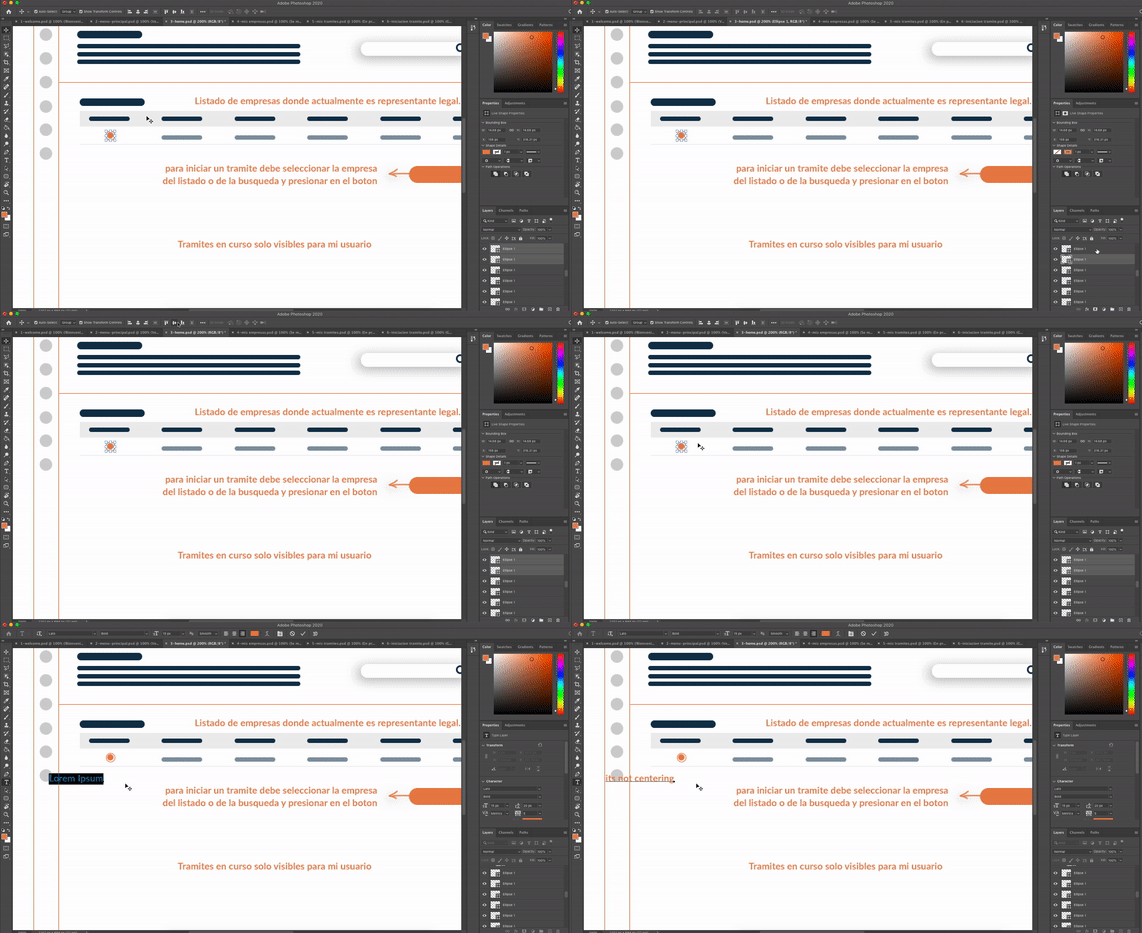
Bug- Photoshop align tool is not working

  • February 19, 2020
  • 3 replies
  • 7244 views

Bug- Photoshop align tool is not working, 
This topic has been closed for replies.
Correct answer c.pfaffenbichler

After a little testing I suspect that it may be about a rounding issue … 


First: Did you create the Shapes with Photoshop > Preferences > Tools > Snap Vector Tools and Transforms to Pixek Grid checked? 

Second: Does one of the two objects have an even-numbered width (in pixels) and the other an odd-numbered one? 

3 replies

c.pfaffenbichler
Community Expert
c.pfaffenbichlerCommunity ExpertCorrect answer
Community Expert
February 19, 2020

After a little testing I suspect that it may be about a rounding issue … 


First: Did you create the Shapes with Photoshop > Preferences > Tools > Snap Vector Tools and Transforms to Pixek Grid checked? 

Second: Does one of the two objects have an even-numbered width (in pixels) and the other an odd-numbered one? 

Participant
February 19, 2020

The answer is yes for both questions, but in previous versions of PS there was no problem centering elements. I think it is because the width of the shapes are even and oddas you said. I had to select the two forms, make them bigger and center them, then it could be centered well. thaks for your help.

c.pfaffenbichler
Community Expert
Community Expert
February 19, 2020

When combining the Paths one can align them as Paths and the alignment will go »below« 1px. 

c.pfaffenbichler
Community Expert
Community Expert
February 19, 2020

Could you please post a screenshot of the non-aligned Shape Layers at something like 400% magnification? 

Participant
February 19, 2020

thaks for your help...

Video link: https://adobe.ly/3bKYTOV

c.pfaffenbichler
Community Expert
Community Expert
February 19, 2020

It seems the larger circle has a diameter of 29px and the smaller one of 20px – so that would combine even and odd numbers which doesn’t work out well. 

Could you try changling the smaller one to 19px for example? 

c.pfaffenbichler
Community Expert
Community Expert
February 19, 2020

I think you may have to elaborate. 

What exactly is the screenshot showing? 


Please read this (in particular the section titled "Supply pertinent information for quicker answers"):

https://community.adobe.com/t5/Community-Help/Guidelines-Tips-for-the-Adobe-Forums/td-p/4788157

c.pfaffenbichler
Community Expert
Community Expert
February 19, 2020

Ah, sorry, I had missed that the screenshot is an animated gif.
