The reason PDF is confusing is because PDF can contain both vector data (fonts, paths) and raster data (pixel images). How well a PDF scales depends on the quality of the contents:
- Type and vector data in the PDF will scale at full detail at any resolution.
- Images in the PDF will appear more pixelated as you scale up the PDF, because a pixel image has a fixed resolution.
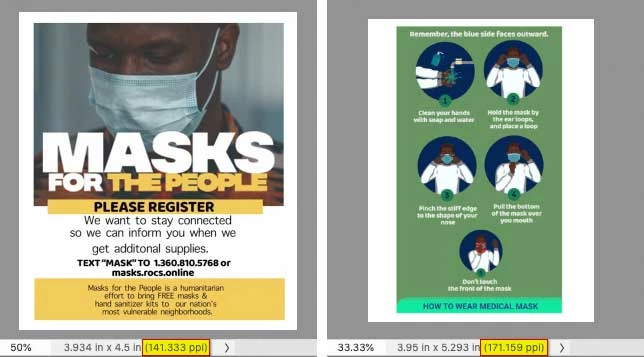
I had Acrobat open the PDF you attached, and had Acrobat pop open the embedded images in Photoshop. This revealed several problems with the attached PDF:
- Photoshop says the two embedded images are far below 300 ppi to start with (highlighted at the bottom of the graphic below), so the type in the PDF is already not 300 ppi at print size; it looks fuzzy.
- The reason the type is already not sharp is that the type was rasterized into an image. There are no editable text layers. If the type had been left as original text, it could have been scaled freely, but in its current pixel form it won’t scale well.
The ideal way to do this:
- Make sure the original graphics are either vector, or at least 300 ppi at the final print size (which is now 5.5" x 7").
- Go back to the original documents used to set the type, and add the graphics to them so that the type stays vector.
- Don’t use any step that rasterizes the type, so that it remains freely scalable.
- Export as PDF.
Also — if you used Image Size in Photoshop to preview scaling it up, and it said it was still 300 ppi, that’s probably because the Resample option was turned on. When Resample is on, Image Size will maintain or increase the resolution by “making up” additional resolution from the existing pixels, but that never looks as good as having full resolution graphics in the first place. If you want to see how ppi is really changing as you scale it up to 5.5" x 7", turn off Resample.


 AdChoices