


Known Participant
March 16, 2021
Answered

Canvas shifting image 0,0 reference. Action help

  • March 16, 2021
  • 5 replies
  • 1649 views

Hi, I am new to graphics design and photoshop and would appreciate some help with an issue I am having.


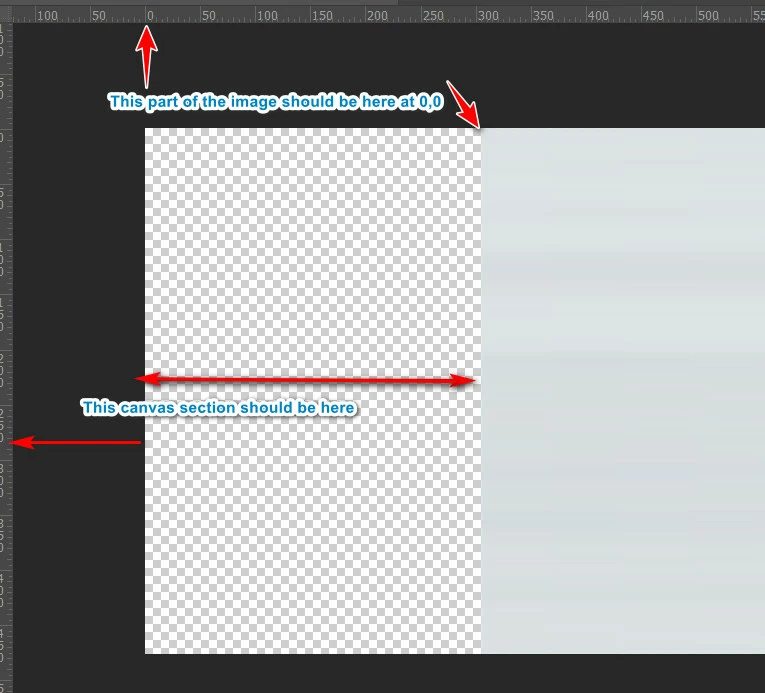
I would like to keep an image in place with reference to the ruler's 0,0 point. The problem I am having is that when I increase the canvase size on the left, the image moves right accordingly thereby also shifting the point in the image I would want to stay on 0,0. I am trying to create an action that will adjust the proportions of various sized images but it seems the 0,0 reference is key to getting the action working.


For example, one image I am trying to resize to 1920px is 1615px wide (they are all different widths). So when I increase the canvas, 305px of canvas must be added to the left of the image. The problem comes in that the reference of the image will now be at 306px instead of 0,0 (the canvas now starting at reference 0,0). What I need is for the image reference to still be 0,0 and the additional canvas space to be between -1px and -315px of the ruler for this example. Is this possible?
 

This topic has been closed for replies.
Correct answer JJMack

"I would like to keep an image in place with reference to the ruler's 0,0 point. The problem I am having is that when I increase the canvase size on the left, the image moves right accordingly thereby also shifting the point in the image I would want to stay on 0,0."


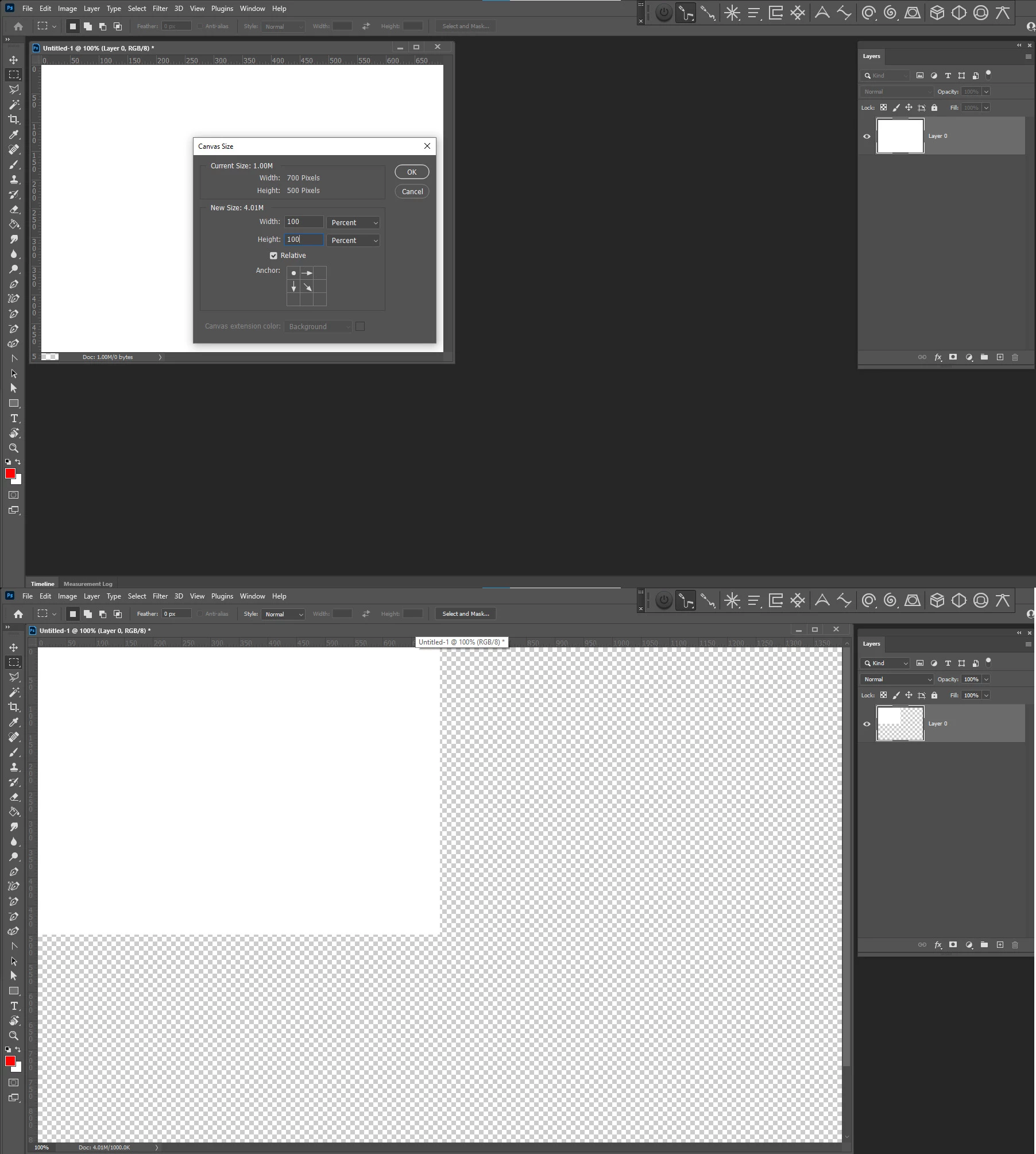
That is not possible in our universe.  In our universe the image will only stay put if you add canvas to the right and bottom you neeed to anchor the image to the top left. Here is a 4x expansion.  Easy to do in an Action.

5 replies

Trevor.Dennis
Community Expert
March 16, 2021

I am not entirely sure what you are trying to achieve, but when interacting with canvas size , and relative positions, it tends to work better if you set the rulers to Percent before you create the Action. The action will then work with different sized image documents.   This was something I learned from a Julieanne Kost blog post a good few years ago.


DavidDDDAuthor
Known Participant
March 16, 2021

I will try to create the action using percentage, but I think I did try it as I recall going through most of those options. If I remeber correctly, the issue was with the differences in image aspect ratios. Our clients unfortunately are sending us various aspect ratios and we have to then resize them to suite the site, so the percentage would not be the same across the board which I think is why that didn't work, but maybe I remember incorrectly.

c.pfaffenbichler
Community Expert
March 16, 2021

If you expect one Action to provide perfect examples for filling in whitish studio backgrounds in object-photographs and elongating illustrations I think you are being overly optimistic. 


I think you may have started off on a tangent and maybe you should start over with a very plain description of what you want to achieve.  

DavidDDDAuthor
Known Participant
March 16, 2021

This will be for a the slider of a website. The problem is there will be thousands of images that need uploading and we want to make them all compliant for the slider dimensions. Since the slider will pick up random new banners every couple of days from a central repository, doing this one by one is not feasable which is why we are looking to automate the whole thing (there will still be QA checks on the final images before they get thrown in the repository).


In the case of the dimensions, they are 1920px X 477px. The image is slightly off center for look and feel but we can adjust it depending on preference. As per image below, the 1020px area is where the image will reside and through content awareness fill either side of the canvas. The 900px section to the left will be text overlay.


We could just automate strecthing the image but that looks hideous, so we resize the image to height of 477px and the width will automatical adjust itself to keep its aspect ratio. For example an image of 5304px X 7952px will adjust to fit the canvas at 318px X 477px. The height in this situation is taken care of at the 477px, leaving just the canvas on the right and left side of the image to be filled. This is where we want to use content awareness. 

JJMack
JJMackCorrect answer
Community Expert
March 16, 2021

"I would like to keep an image in place with reference to the ruler's 0,0 point. The problem I am having is that when I increase the canvase size on the left, the image moves right accordingly thereby also shifting the point in the image I would want to stay on 0,0."


That is not possible in our universe.  In our universe the image will only stay put if you add canvas to the right and bottom you neeed to anchor the image to the top left. Here is a 4x expansion.  Easy to do in an Action.

JJMack
DavidDDDAuthor
Known Participant
March 16, 2021

It does make sense that such should not be possible. I am more curious as to the additional area of the ruler, eg. 300, 200, 100, 0, 100, 200, 300, 400, etc. One would think that the area beyond the 0 to the left should be usable if it is there.


I guess the need to ask the question was from this page where one of the authors images seems to be using the area beyond 0. https://jkost.com/blog/2017/05/grid-guides-and-ruler-shortcuts-in-photoshop-cc.html

c.pfaffenbichler
Community Expert
March 16, 2021

I think you might be overcomplicating things and Content Aware-Scale is unappropriate here. 

To limit the effect of Content-Aware Fill you can create a Layer of its own based on a contracted, inverted selection based on the Transparency. 

DavidDDDAuthor
Known Participant
March 16, 2021

Thank you, but I must be doing something wrong as I tested with one of my other images. The thing is that the images will not be consistemt in colour similar to the mirror one you posted. Not sure if the color differences of the image would affect what you did there with the additional layer.


As I am still learning this, can you please post the atn for it cause I figure I did something wrong on my side. Below is an image I get with the second layer added. As per the ATN's I posted, the image is not supposed to be centered but is slight more to the right. It basically is within the right blocks of the 1020px of the 1920px range with the leftest 900px basically blank or colored to the backgroung of the image.

.

This is what I get on the other image I tested with a second layer (ot sure if I setit up corectly):


Manually done using content aware scaling on a single layer, this is what it is supposed to look like


This is the image I am testing with if you want to try it on your side

DavidDDDAuthor
Known Participant
March 16, 2021

I realised that I posted the imagesthe wrong way so they are shrunk. I think the first two are still viewable but for the source, here it is again

c.pfaffenbichler
Community Expert
March 16, 2021

It might be possible with a Script but Actions are probably not enough. 


What significance does the Reference Point have anyway for your intended procedure? 

DavidDDDAuthor
Known Participant
March 16, 2021

Its for content aware scaling. For example, I believe an image of 1200px will need 620px additional canvase to give me the desired 1920px. Two examples of images I have run the action from and of where the transform references its start point are in the image below.


I used a reference image to create the action. From one image it required an additional 363.5 pixels to fill the 1920px of the canvas, the other 181.5 (I think this one a test for the right edge of the image). The problem is both 363.5px and 181.1px is a bad point on the other images. I am thinking that if image stays on ruler reference 0,0 , then it wont matter what translate value is in the action as I will have selected only a few pixels of the left edge of the image to transform/content scale.


I hope the terminology I am using is understandable as I am not familar with the terms used in garaphics.


c.pfaffenbichler
Community Expert
March 16, 2021

I do not understand what you describe. 

Please post meaningful screenshots. 


And are you sure you might not be better served with applying Content-Aware Fill on the »empty« area?