Chrispswanabe
Participating Frequently
November 23, 2020
Answered

CARTOON - Photoshop trick - how to do it

  • November 23, 2020
  • 4 replies
  • 1358 views

Hi All,

I hit one button or did something and it worked. Now I can't repeat it, but I'm sure it can be done.


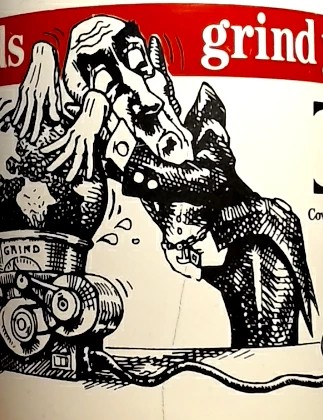
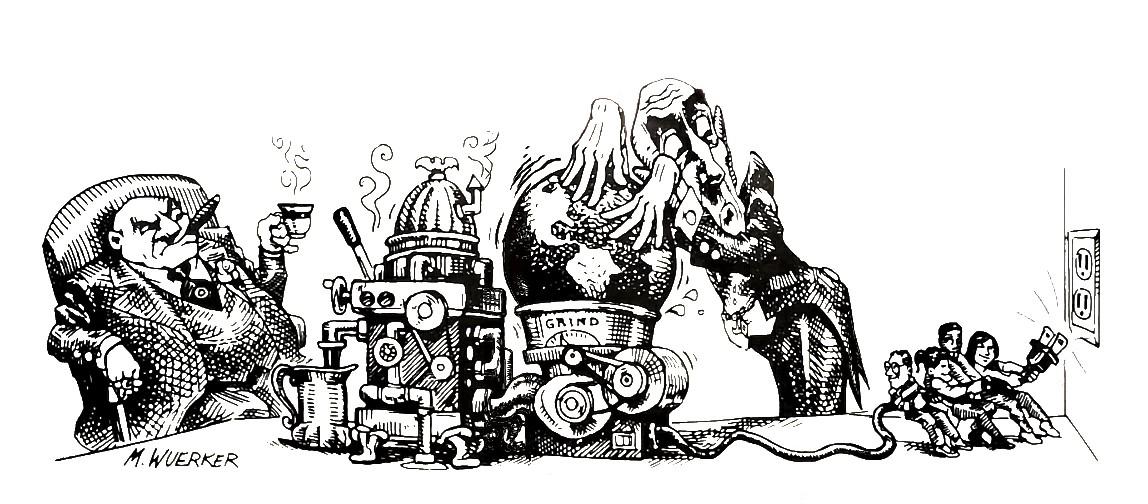
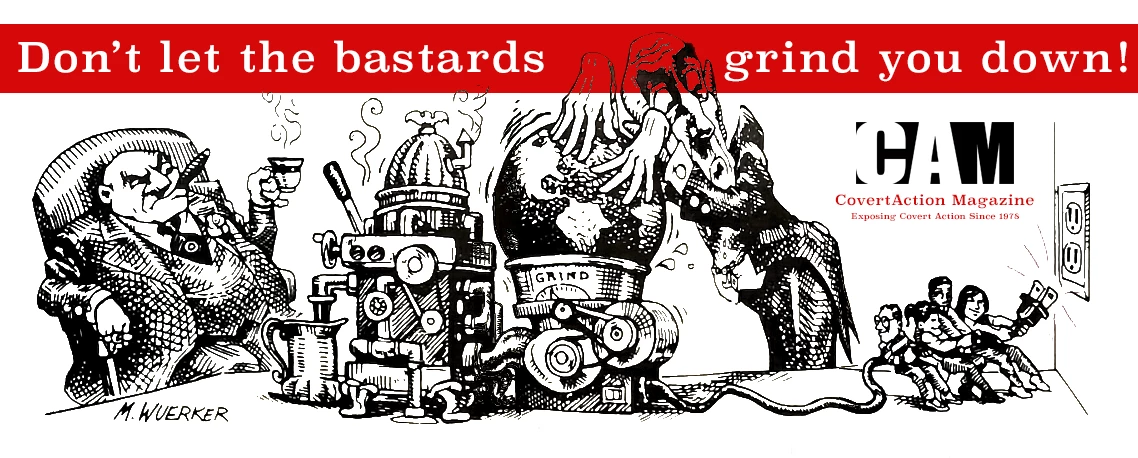
I have a cartoon layer. Then a red bar layer above the cartoon. But I want the upper portion of the cartoon (head of man) to appear on top of the red bar layer. WHAT'S THE TRICK?


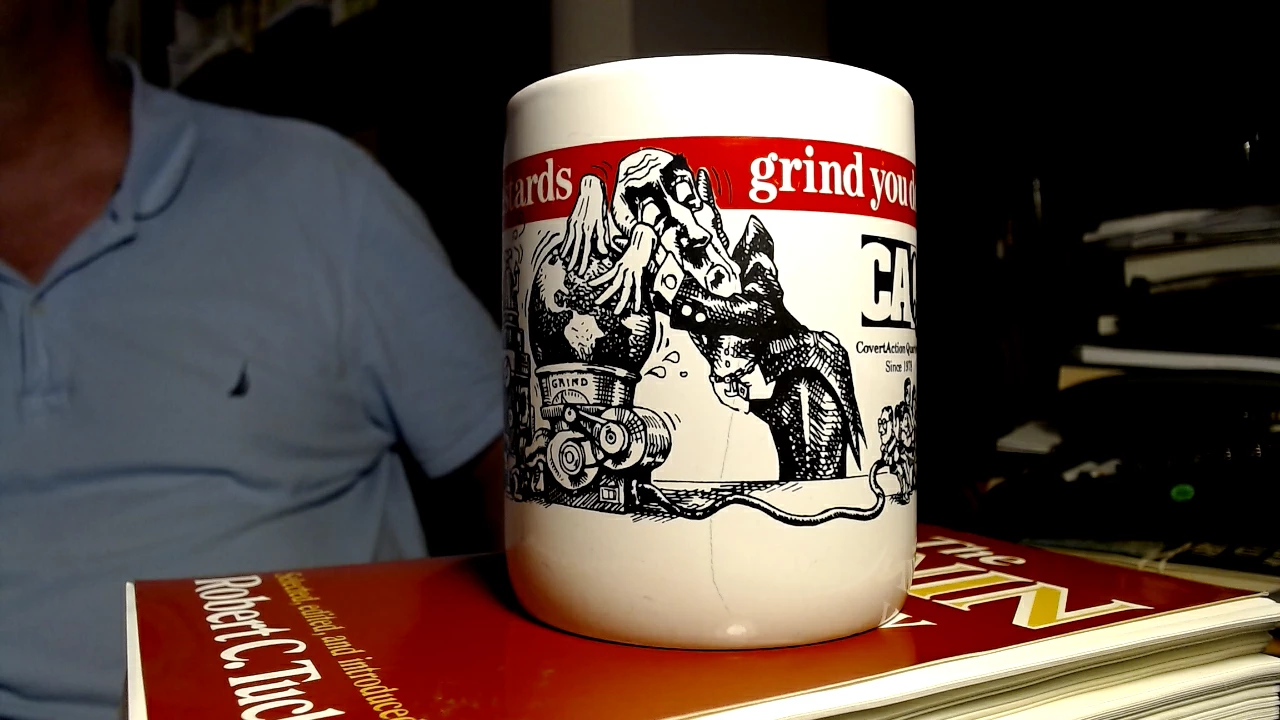
I have included pictures to demonstrate. (Note the actual mug where we originally did the cartoon some 25 years ago. HOW DO WE REPLICATE?)
This topic has been closed for replies.
Correct answer davescm

Use a mask to cut out the red bar around the head. When painting on a layer's mask, - white shows the associated layer , black hides it and shows the layer(s) below

Dave

4 replies

Chrispswanabe
Participating Frequently
November 23, 2020

jane-e
Community Expert
Community Expert
November 23, 2020

Hi

Look again at my screen shot. The red layer needs to be above the cartoon layer, not below. Then create the mask on the red bar layer and read my directions and Dave's post again.

~ Jane

Chrispswanabe
Participating Frequently
November 23, 2020

ok! thanks!

Chrispswanabe
Participating Frequently
November 23, 2020

still trying to fix this. I tried C.P suggestions and tinkered in many ways. no luck. I did this accidently before (about 2 months ago) but did not see how I had done it...

gener7
Community Expert
Community Expert
November 23, 2020

If you have the original layered file where you got it right, check each layer, the stacking order, blend mode, effects (fx) and see if you can get it.


"One button" might be Q or quick Mask where selections are shown as red.

Chrispswanabe
Participating Frequently
November 23, 2020

believe it or not, i recreated from pictures of the mug! 😉 So, no original. 😞

davescm
Community Expert
davescmCommunity ExpertCorrect answer
Community Expert
November 23, 2020

Use a mask to cut out the red bar around the head. When painting on a layer's mask, - white shows the associated layer , black hides it and shows the layer(s) below

Dave

Chrispswanabe
Participating Frequently
November 23, 2020

am trying to implement your suggestion, but my knowledge of the features are limited. Is there a way I can send you the PSD and you do it and send it back?

[email address removed by moderator]

jane-e
Community Expert
Community Expert
November 23, 2020

Create a layer mask for the layer with the bar.

Paint (Brush tool) with black on the layer mask (not the layer).


You might want to start by selecting the image layer and Select > Subject to restrict the painting area first, then select the mask on the red bar layer and paint with black to reveal the underneath layer.


~ Jane

c.pfaffenbichler
Community Expert
Community Expert
November 23, 2020

Set the linework-Layer to Blend Mode Multiply and add a white Solid Color Layer with the appropriate Layer Mask under it. 

Chrispswanabe
Participating Frequently
November 23, 2020

am trying to implement your suggestion, but my knowledge of the features is limited. Is there a way I can send you the PSD and you do it and send it back? chris.agee@icloud.com