


Lou_Chou
New Participant
June 5, 2018
Answered

Change same text across multiple PSD files?

  • June 5, 2018
  • 1 reply
  • 3327 views

Hi,

I've searched for a solution like this around the forums, and while a lot of variations exist on this idea, I've not found one that does exactly this as yet, perhaps you could help?

So, I've got a handful of PSD files, let's say they're called

- poster.psd

- cover.psd

- advert.psd

In each of these files exists the same text, let's say it's social media info, for this example we'll say

- twitterusername

- instagramusername

Is there a way, via one script, to change the social media info across those 3 PSD files, without me running the script one each PSD, one at a time? Perhaps if I simply have them all open, it checks them each and replaces text?

Many thanks in advance. If anyone can provide a solution it'd be a huge time saver, and I'd be more than willing to pay/donate some money for the effort.

Edit: Sorry, I'm using Adobe Photoshop CC v19.4.1
This topic has been closed for replies.
Correct answer sidpalas

You can open the files from within the script and there are multiple ways to specify the files:


1) If it is always the same files, you could hard code the paths to each into the script (this is the easiest, but not very flexible)

2) You could have the script call app.openDialog() which will bring up a file selection window where the user can select all of the relevant files


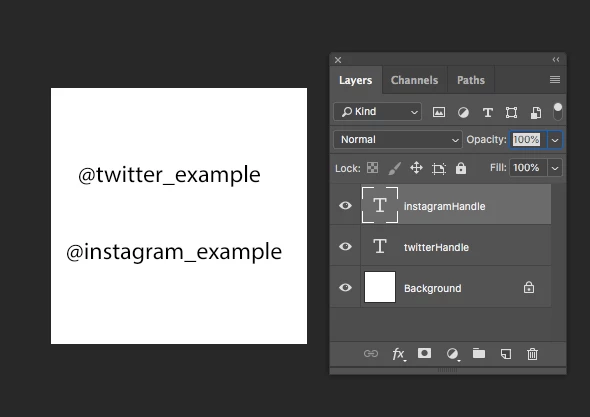
How you go about finding and replacing the text will differ based on how you have structured the .psd files (for example, is the text in its own layer?). Also if you make the structure and naming conventions (for layer names, etc...) the same across the documents it will make scripting the solution much easier.


If you posted an example or two of your files, I can help.


I created the minimal example below:


and wrote the following script which (I think) accomplishes your goal:

#target photoshop

var files = app.openDialog("Please select the relevant files");
var newTwitter = prompt("Type the new Twitter handle:");
var newInstagram = prompt("Type the new Instagram handle:");

for(var i = 0; i < files.length; i++) {
	var file = new File(files[i]);
	var docRef = app.open(file);
	var twitterLayer = docRef.artLayers.getByName("twitterHandle");
	twitterLayer.textItem.contents = newTwitter;     
	var instagramLayer = docRef.artLayers.getByName("instagramHandle");
	instagramLayer.textItem.contents = newInstagram;
	docRef.close(SaveOptions.SAVECHANGES)
}


Let me know if this makes sense of if you have additional questions!

1 reply

sidpalas
sidpalasCorrect answer
Inspiring
June 5, 2018

You can open the files from within the script and there are multiple ways to specify the files:


1) If it is always the same files, you could hard code the paths to each into the script (this is the easiest, but not very flexible)

2) You could have the script call app.openDialog() which will bring up a file selection window where the user can select all of the relevant files


How you go about finding and replacing the text will differ based on how you have structured the .psd files (for example, is the text in its own layer?). Also if you make the structure and naming conventions (for layer names, etc...) the same across the documents it will make scripting the solution much easier.


If you posted an example or two of your files, I can help.


I created the minimal example below:


and wrote the following script which (I think) accomplishes your goal:

#target photoshop

var files = app.openDialog("Please select the relevant files");
var newTwitter = prompt("Type the new Twitter handle:");
var newInstagram = prompt("Type the new Instagram handle:");

for(var i = 0; i < files.length; i++) {
	var file = new File(files[i]);
	var docRef = app.open(file);
	var twitterLayer = docRef.artLayers.getByName("twitterHandle");
	twitterLayer.textItem.contents = newTwitter;     
	var instagramLayer = docRef.artLayers.getByName("instagramHandle");
	instagramLayer.textItem.contents = newInstagram;
	docRef.close(SaveOptions.SAVECHANGES)
}


Let me know if this makes sense of if you have additional questions!

Lou_Chou
Lou_ChouAuthor
New Participant
June 5, 2018

Wow, that's awesome! I've been using Photoshop for half my life and didn't even know you could do this kinda thing.


Can I pay you for your time on this?


In fact, sorry, just one thing I'm realising - is it possible to target text inside a group, as well as outside? This would really be quite useful. Let's call the groups "twitterWrapper" and "instagramWrapper" for consistencies sake.

Kukurykus
Brainiac
October 11, 2021

I have been able to use this script for a single file but I get this error when trying to open multiple files:

Error 1233: Expected a reference to an existing File/Folder

Line: 11     ->      var docRef = app.open(file);

Any guidance would be much appreciated.

Doug

CC Photoshop 22.5.1


I corrected the codes. Try again...