Hugh5FEC
Inspiring
June 25, 2021
Answered

Clearing out small particles in image

  • June 25, 2021
  • 4 replies
  • 1341 views

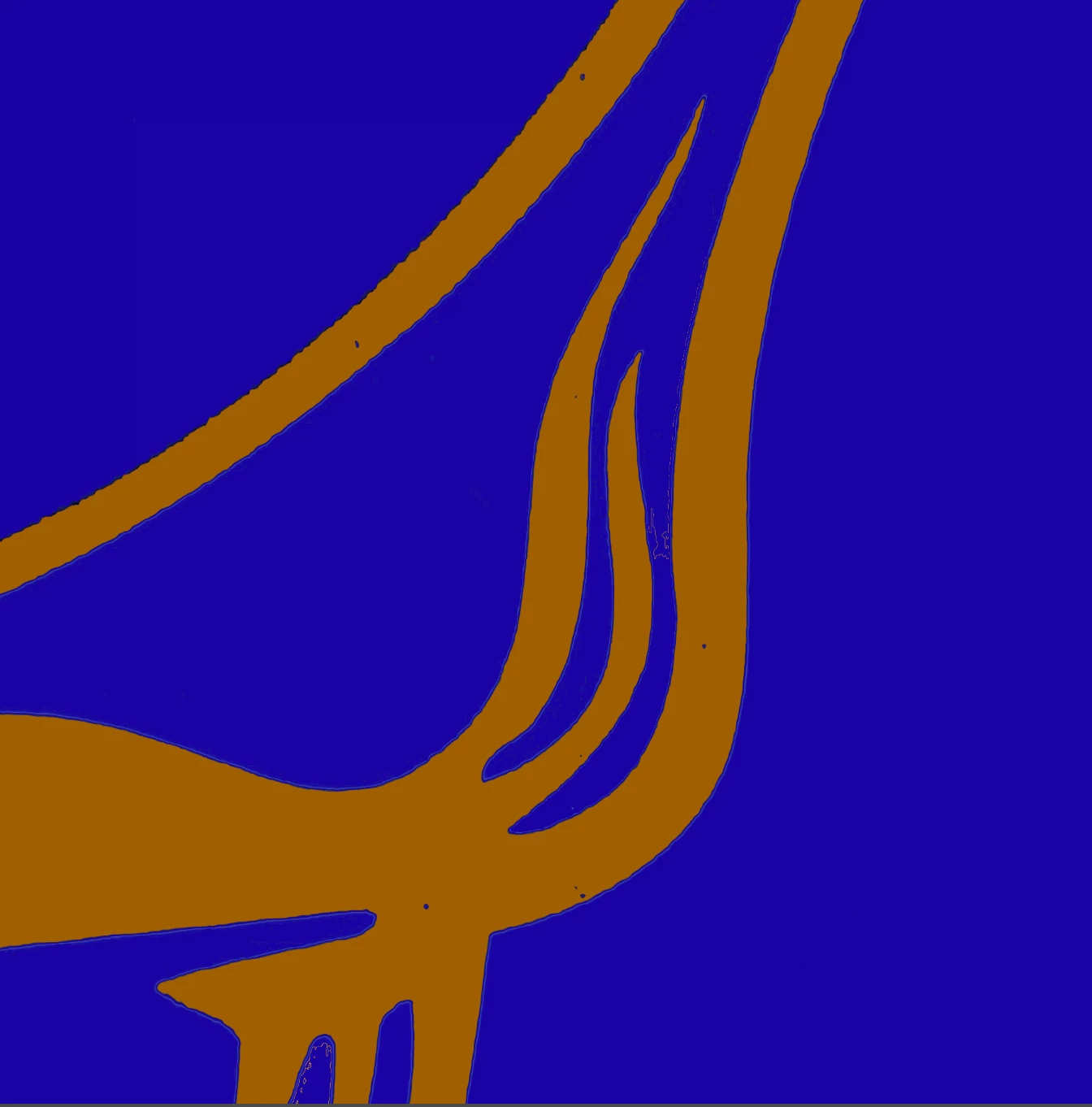
Hey! I've had this problem for a while and I was hoping someone could help me out! I was clearing out an image of The Greatful Dead's "Stealie" logo and I had used the paint bucket tool to do a rough idea on what the final product for recolorization would look like (another probelm for another post). Anyway I'm trying to clear out hte inside of this image for a nicer "recolor" / other touch ups, and there are these small particles both inside the design in random places and surrounding the edges of the design. I really don't feel like lassoing the percise insides to this art... is there an easier way to do this? And if someone has time, is there a way to sharpen up those crusty edges? Thanks!
This topic has been closed for replies.
Correct answer Trevor.Dennis

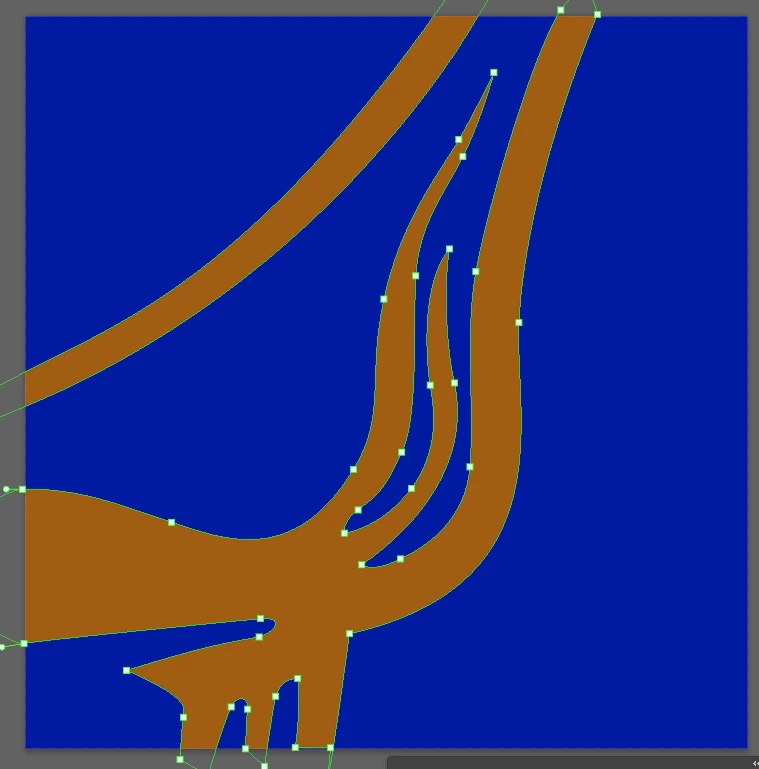
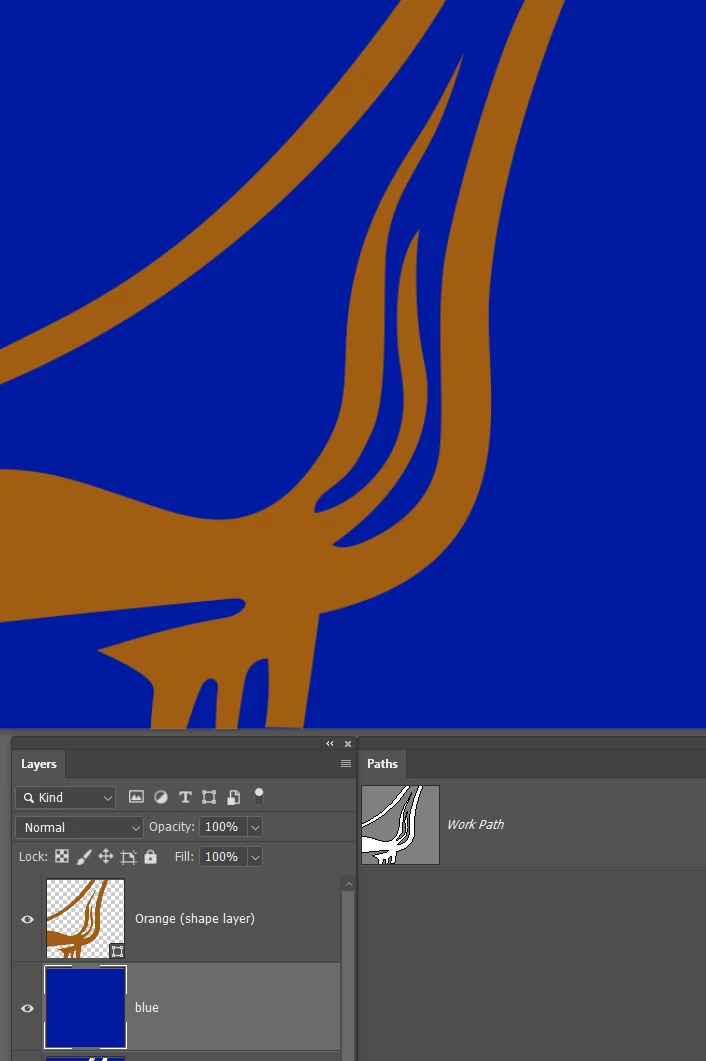
I have told you how to smooth a jaggie ridden raster layer, but if it was me I would absolutely do what JJ said and make a clipping mask with the Pen tool.  Here you go. Two minutes and so much cleaner.  To make a clipping path into a shape layer go Layer > New fill layer > Solid Color


A big advantage to this approach is that the shape layer is editable with the Direct Selection tool (White Arrow)

4 replies

Trevor.Dennis
Community Expert
Community Expert
June 25, 2021

This is a bit rough and ready, but might get you close to where you need to be.


Copy the layer and use Gaussian Blur — I used a value of 5

Use Select > Color Range with the fuziness all the way to max

Fill the resulting selection with the blue colour on a new layer.

Turn off the selection, (Ctrl D) and fill a new layer (beneath the blue layer) with the dirty orange

I tried comparing this to the original by turning off the new layers, and found the orange was a tiny bit fatter, so I Ctrl clicked the new blue layer to reselect it, and used Select > Modify > Expand with a value of 2, and filled with blue again.  That matched a lot better, but the Gaussian blur will have rounded off the sharp pointy bits. So I used the lasso tool to select the points and deleted the selection from the blue layer.


I also thought the blue/orange interface was a bit soft. So I Ctrl clicked to select it again. Turned on Quick Mask (Q) and used Levels to harden the edge (move black and white sliders towards the middle — not all the way or you'll lose the anit alias and get jaggies). That done turn off Quick mask and fill with blue again. The invert the selection (Shift Ctrl I) and hit the delete key to remove the soft fringe.


About 30 seconds to do, and five minutes to write this post.


Trevor.Dennis
Community Expert
Trevor.DennisCommunity ExpertCorrect answer
Community Expert
June 25, 2021

I have told you how to smooth a jaggie ridden raster layer, but if it was me I would absolutely do what JJ said and make a clipping mask with the Pen tool.  Here you go. Two minutes and so much cleaner.  To make a clipping path into a shape layer go Layer > New fill layer > Solid Color


A big advantage to this approach is that the shape layer is editable with the Direct Selection tool (White Arrow)

Hugh5FEC
Hugh5FECAuthor
Inspiring
July 3, 2021

Thanks! I might need to make multiple layers and combine them when trying to make a full shape with the actual stealie image but this method works great. I appreicate your help, means a ton!! Take it easy. 

barbara_a7746676
Community Expert
Community Expert
June 25, 2021

On the other hand, you could do a search for a downloadable vector version of the logo. Many popular logos can be found that way.

Try https://www.brandsoftheworld.com/logo/grateful-dead

barbara_a7746676
Community Expert
Community Expert
June 25, 2021

I concur with JJMack. The Pen tool will give best results. 

You could try Adobe Illustrator's Image Trace command but it probably won't be accurate enough to perfectly reproduce the logo.

JJMack
Community Expert
Community Expert
June 25, 2021

You would be best off to use the pen tool to create a custom Shape for that  design.

JJMack