


billh34662628
Participant
February 6, 2021
Answered

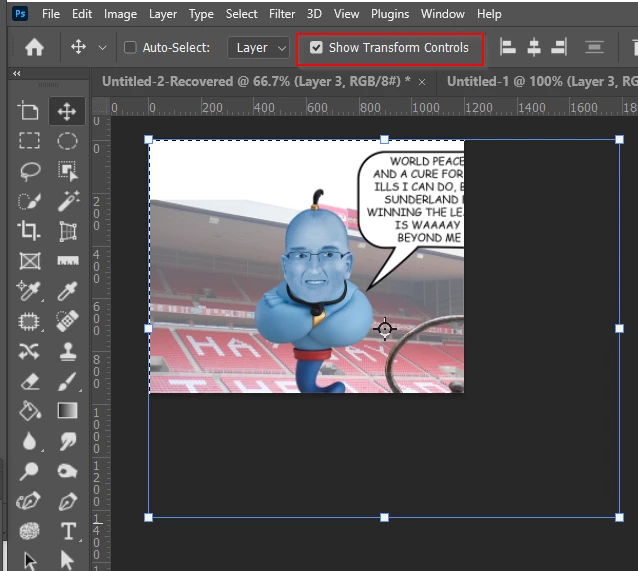
Click the move tool but bounding box does not appear to edit/transform layer.

  • February 6, 2021
  • 2 replies
  • 17613 views

For years I have been able to click the move tool and the bounding box appears and I can edit/transform size as needed for composites for sports banners (text, images. graphics).


The only way I can do it right now is hitting Ctrl T after selecting the layer. What happened? How do I get the old way back? This is adding an extra step and hoping there is a solution. 


Thanks!
This topic has been closed for replies.
Correct answer Trevor.Dennis

2 replies

Participant
October 25, 2023

Thank You for asking that question. I have used ADOBE for years and such a simple thing that I had forgotten and was driving me nuts

jane-e
Community Expert
Community Expert
October 25, 2023

@1Nildzgnr 


As soon as something starts driving you nuts, you can always start a new post and ask here. It might be a bug or it might be a change, but we can usually tell you.''


"Show Transform Controls" is now optional — it used to be required.


Jane

Trevor.Dennis
Community Expert
Trevor.DennisCommunity ExpertCorrect answer
Community Expert
February 6, 2021

billh34662628
Participant
February 6, 2021

Thanks Trevor. How do I get the Show Transform Control back on to my workspace?

billh34662628
Participant
February 6, 2021

Never mind. I just realized I have to click the 9 dotted box (pardon me for not knowing the correct name) next to layer. I guess on the last update it gave me that box. Anyway, I think I can now go back to my normal workflow.


You have to click the center dot to get access to the transform tool. I have no idea what the other dots do.