


Valentina Remenar
Participant
July 17, 2016
Answered

Color Lookup issue in Photoshop CC 2015.5.0

  • July 17, 2016
  • 5 replies
  • 13244 views

Hello,

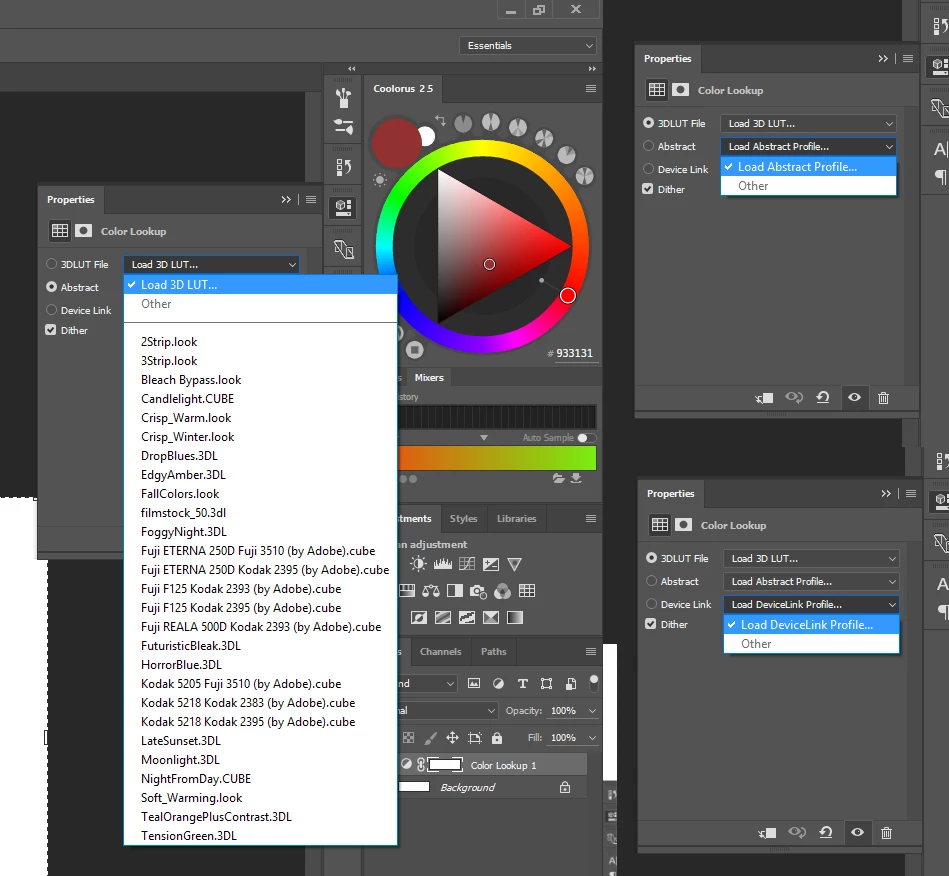
I've noticed some issues in Photoshop, more specific, with Color Lookup Adjustment layer. It seems to load profiles only from 3D LUT... profiles from Abstract and Device Link section are not visible. Recently I've upgraded my OS to Windows 10 and I have latest version of Photoshop CC 2015.5.0... I uninstalled Photoshop and installed it again, but this didn't help me with the problem. Under C drive I manage to find folder only with 3DLUTs...I'm not exactly sure where to look up for remaining profiles. I tried to search them by their name, but Finder can't find any files. Is there any way to restore them?

Best

-Valentina
This topic has been closed for replies.
Correct answer echn-aton

Found a solution that works for me on a Mac:

Among others there are two folders in Macintosh HD/Library/Application Support/Adobe/. One is named "Color", the other one is called "Color Profiles" (NOTE: It's not the user's Library.)

I copied the needed smokey.icc from the folder "Color Profiles" to the folder "Color/Profiles" (subfolder within the folder "Color"!)

Now this DeviceLink Profile appears regularly in the list and can be used as normal.

Best, Olaf.

5 replies

AgaW
Participant
April 29, 2017

I have just purchased Photoshop CC and have the same issue. None of the ideas listed above helps. I previously had photoshop CS5. How can I get abstract and device link profiles into my photoshop cc?

Participating Frequently
December 14, 2016

I don't know if you are still looking for an answer or not. But I had this experience.
My Windows 8 laptop required repair and came back with a wiped hard disk. I installed Windows 10 then Photoshop CC2017
I had the same issue with the Abstract and Device Link drop downs being empty.

Fortunately I also have my desktop machine that has been updated over time from Win 7 to Win 10, as well as from Photoshop CS6 to CC 2015.5. I still haven't updated it to CC 2017. So while I could not find any of the previous LUT .icc files on my recently repaired laptop, I found 3 sets of them on my desktop box.
- Program Files > Common Files > Adobe > Color > Profiles (the .icc files there were dated 5/29/2015)
- Program Files(x86) > Common Files > Adobe > Color > Profiles ( the .icc files there were dated 4/23/2013)
- WIndows > System32 > spool > drivers > color (the .icc files there were also dated 4/23/2013)

So I copied all three folders to a thumb drive and stuck it into the laptop. I figured I would copy the most recent Profiles folder to Program FIles > Common FIles > Adobe > color, but lo and behold, there was no color folder in that tree. I made a new folder, named it color and copied the entire Profiles folder there.
While I was at it, I also copied all the other "missing" .icc files to the appropriate folders.
Then restated Photoshop and all was back the way it should.

I have no idea why performing a "clean" install of Photoshop 2017 didn't include those files. I suspect some kind of quality failure at Adobe in building CC2017. But if the .icc files are present from a previous install, things are fine. And there seems to be no issue with copying them from an older install on another machine.

I guess if you have the same situation I did, i.e. a clean install of Photoshop, on a clean drive with a clean OS, you could install an old version of Photoshop CC from Adobe CC. Hopefully the LUT files will be there. Then update to Photoshop CC2017.

I hope this completes this thread and is of use to anyone else wrestling with this. Me included. I have a feeling I will be doing this again some day.

echn-atonCorrect answer
Participant
September 20, 2016

Found a solution that works for me on a Mac:

Among others there are two folders in Macintosh HD/Library/Application Support/Adobe/. One is named "Color", the other one is called "Color Profiles" (NOTE: It's not the user's Library.)

I copied the needed smokey.icc from the folder "Color Profiles" to the folder "Color/Profiles" (subfolder within the folder "Color"!)

Now this DeviceLink Profile appears regularly in the list and can be used as normal.

Best, Olaf.

davescm
Community Expert
Community Expert
July 18, 2016

Try
C:\Windows\System32\spool\drivers\color

Dave

Valentina Remenar
Participant
July 18, 2016

I tried this now... but if I try to load any of these profiles in Photoshop then I keep getting messages like "The selected profile is not an abstract profile." and "The selected profile is not a device link profile."

davescm
Community Expert
Community Expert
July 18, 2016

OH... I couldn't find these. I tried to search for them, cause I use these profiles quite often, but I don't have them anywhere on the list. On the image below are all profiles which are listed in that folder on my C drive.


OK - I also found these on my PC in a different folder.

Try looking in C:\Program Files\Common Files\Adobe\Color\Profiles

Dave

Sheena Kaul
Community Manager
Community Manager
July 18, 2016