


K Sabrina
New Participant
September 5, 2017
Answered

Color Overlay Not Working

  • September 5, 2017
  • 5 replies
  • 47932 views

Hi everyone,

I have followed the steps for adding an overlay color to my layer and none of the colors are working.  Here are my steps:

Select Layer > Fx > Color Overlay > Choose color e79d46 > Ok

I get no color change at all - just a white page. I have even tried opening a new document and immediately trying to add a color overlay and it still isn't working. Any suggestions?
    This topic has been closed for replies.
    Correct answer davescm

    Hi Dave,

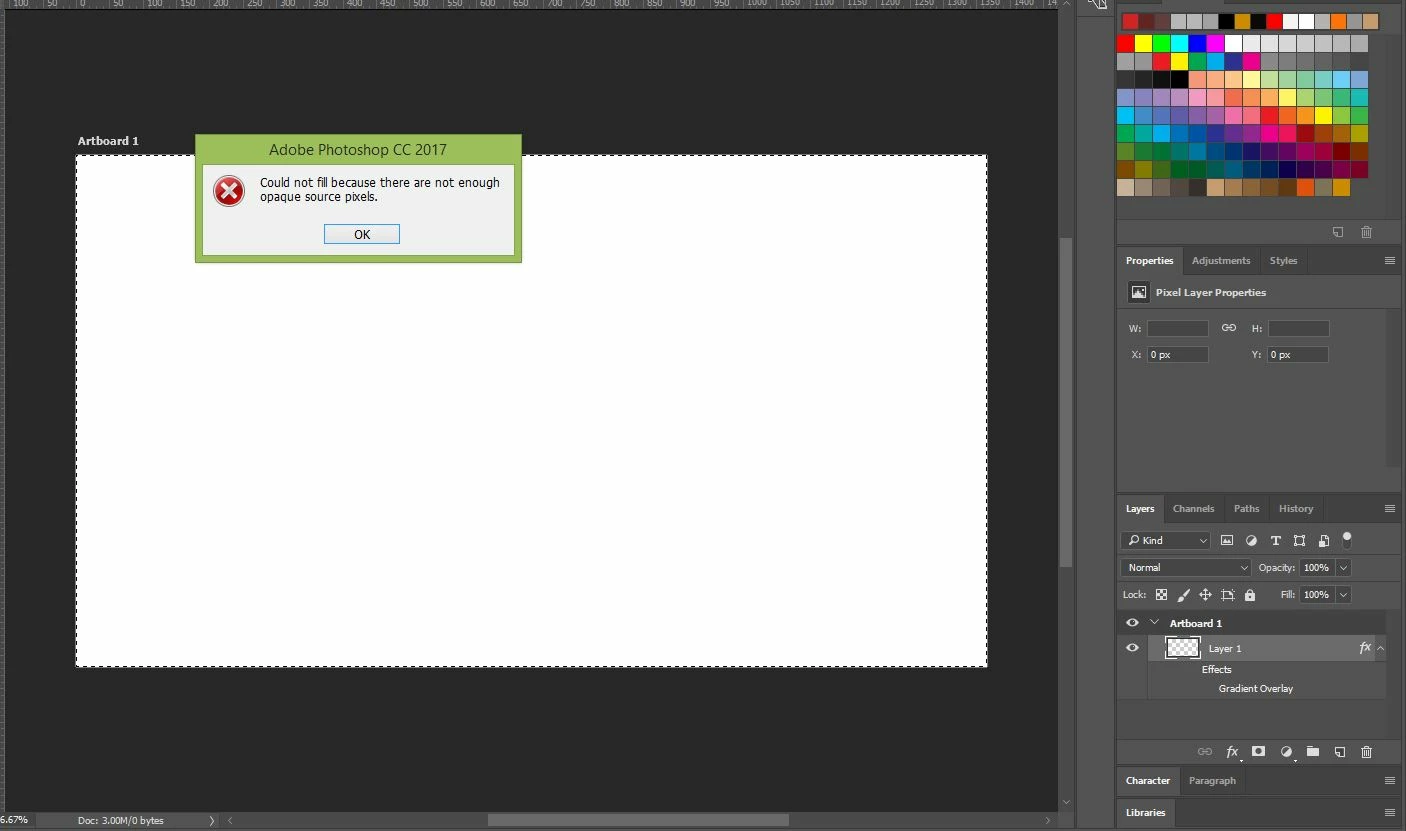
    Here is what I got when following your above instructions - something is not right here. Is this something I have to do each time I open a new template?


    Hi

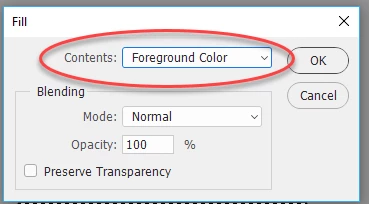
    When you use Shift -F5 you should get a dialogue on how to fill. Choose a solid colour (e.g. foreground color) not Content Aware

    Dave

    5 replies

    New Participant
    May 8, 2020

    when I clicked shift and F5 nothing happened.

    I want to change the colour but I can't and I don't understand why I go to colour overlay and try to change the colour but the colour remains the same grey what should I do I have a photoshop cc

    jane-e
    Community Expert
    May 10, 2020

    Hi FarFetched,

    Shift+F5 is the shortcut for Edit > Fill. Try it from the menu, and if that doesn't work, please give us screenshots as shown earlier in this thread.

    ~ Jane

    New Participant
    April 20, 2020

    Hi Dave, I have a problem with trying to do a drop shadow of an elephant. I have copied the layer then went to FX to select a color overlay which I want black, however it blacks the entire screen and not just the elephant. What am I missing?

    jane-e
    Community Expert
    May 10, 2020

    Hi AC,

    Did you make a selection of the elephant first? Without a selection, the entire layer will get the color. An alternate method is to paint the shadow in with a soft brush on the underneath layer. Can you show screen shots of your layers and image so we can better advise?

    Jane

    emmanuela19068638
    New Participant
    May 6, 2019

    The same problem is happening to me and I have made sure that all my setting are correct

    jane-e
    Community Expert
    May 10, 2020

    "The same problem is happening to me"


    Hi Emmanuela,

    Several slightly different problems have been asked in the thread. Can you clarify your issue and show screen shots?

    ~ Jane

    New Participant
    February 22, 2018

    Hi Everyone,   I'm am trying to add an overlay to a photo in Photoshop, but it turns into mosaic pixels once I transfer it in to PS.  Here is a snapshot of what I mean.   Can anyone provide guidance or tips on how to fix this?  The overlay is in my downloads as bokeh stars.

    davescm
    Community Expert
    February 22, 2018

    Hi

    It looks like you are trying to embed a png file. There is a bug affecting that process on the Mac that Adobe developers have acknowledged.

    In the meantime, as a temporary measure, go to Preferences > Plug Ins and uncheck "Allow extensions to Connect to the Internet" and "Load Extension Panels". That should get you working.

    Dave

    New Participant
    February 22, 2018

    Thank you!  That worked!  It didn't work when I unchecked both but it did when I only unchecked 'Allow extensions to Connect to the Internet'.   Really appreciate your help!

    davescm
    Community Expert
    September 5, 2017

    Can you show a screenshot of your layers panel (with the layer you are adding the color overlay to selected)  and your layer style color overlay settings (as below)

    Dave

    K Sabrina
    K SabrinaAuthor
    New Participant
    September 5, 2017

    davescm
    Community Expert
    September 5, 2017

    Hi

    Your layer is empty. Fill it with pixels (any colour it doesn't matter) and the overlay will work

    Dave