


Known Participant
April 19, 2023
Question

Combining masks to create a new one - Script

  • April 19, 2023
  • 3 replies
  • 1534 views

Hi everyone!
My coworker and I thought of something that would help us a lot, but we don't know how to develop it.


We receive PSDs from the client with separate groups within the PSD. And we use the groups with the names "Alpha", so we have Alpha 1, Alpha 2 and so on. In most cases, we have to merge the selection of some of these groups and create a new group with this new mask.
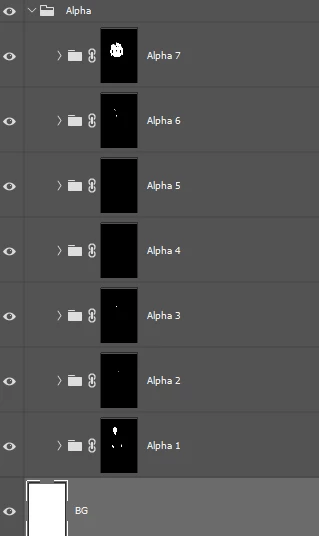
The problem is being able to see the masks and know which ones to join, due to the size of the thumbnail. Even increasing the size in the configuration, some are hard to see.

Our idea would be, if possible, a script that generates a window, showing the masks in a larger size, and allowing us to select which ones to join, and in the end already create the group according to the numbering and the mask.

I made a simple interface on the site https://scriptui.joonas.me/ to try to illustrate the idea:
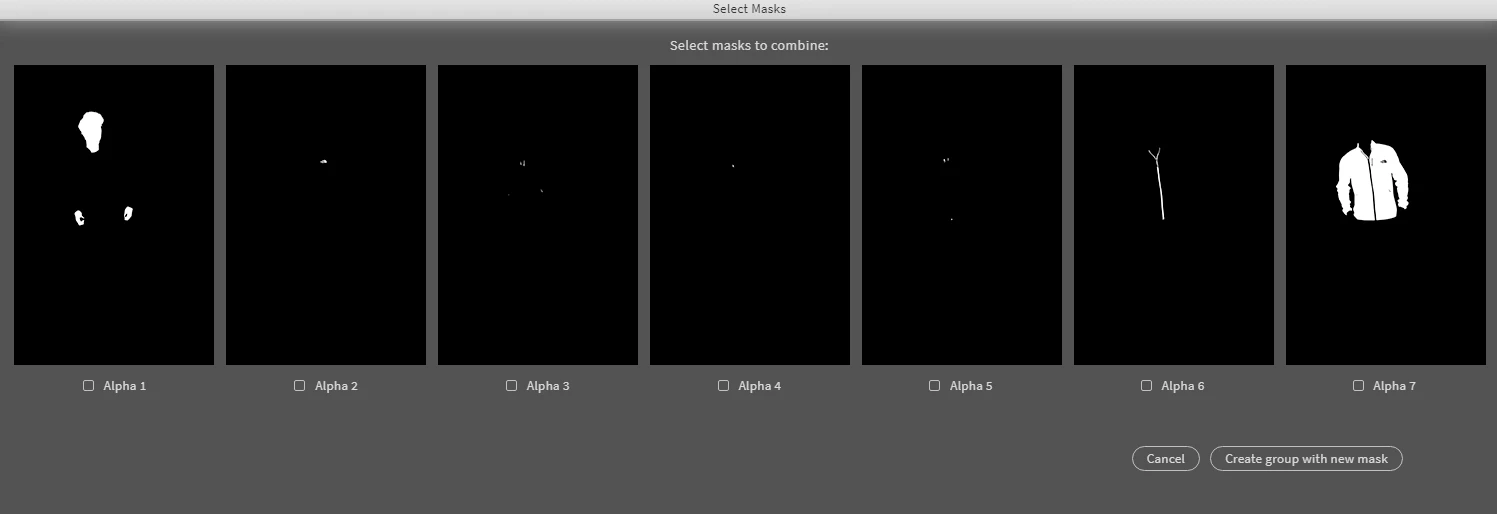

So if, for example, we want to combine the Alpha 1 and Alpha 7 masks, we mark their checkboxes and press the button to create. Then, in this case, the Alpha 8 group would be created, with the mask of 1 and 7 combined:
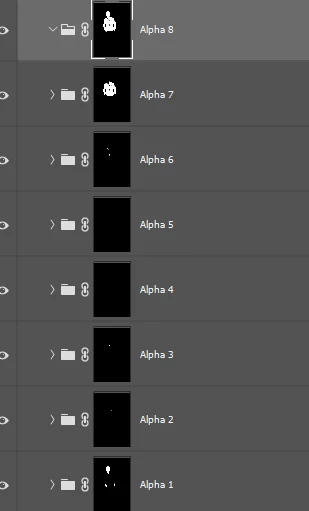
The number of groups varies between images, so both the visualization in this window and the creation of the new group can change.

We also have other groups and adjustments with masks, so I don't know if it would be possible to read only the "Alpha" groups and not have all the masks in the image.


I don't know if I could explain it well, my native language is not English. I am available for any clarification.
I know it's something very complex, so I ask for your help, my knowledge of scripts is very limited.
Is it possible for us to do something like that?

Thank you all!

This topic has been closed for replies.

3 replies

Stephen Marsh
Community Expert
Community Expert
April 22, 2023

With the known limitations of an interface, a slightly different approach would be required.


One option could be to script the creation of a new file, which contains all of the masks as either separate layers or separate channels. The script would then cycle through the visibility of each layer or channel and pause for say 2 seconds or so to help with the initial evaluation. After the automated preview was finished, you would then manually review as necessary and run another script based on your review of the layers or channels to combine the masks back to the original document as a new group.

rrprecAuthor
Known Participant
April 24, 2023

Thanks @Stephen Marsh.
I was thinking about that too, since we couldn't render the images in the interface. If we only have the mask options, after a preview we select the ones we need to combine and create the group with the mask in the original image. Would it be possible?

c.pfaffenbichler
Community Expert
Community Expert
April 20, 2023

Just to make sure: When »merging« the Channels/Masks remember to use »Linear Dodge (Add)« instead of »Lighten« or »Screen« to avoid »lines« where anti-aliased or soft masks meet. 

Legend
April 19, 2023

It's easier for you to look at the mask by turning on its channel (press "\" or "Ctrl + \", depending on Photoshop) or switch to the mask itself (alt + Click on the mask).

Such a script, if it can be done, will be very complex and slow to work.

There is no easy way to render the contents of a layer or channel in the interface accessible through a script.

rrprecAuthor
Known Participant
April 19, 2023

Thanks for the answer @r-bin !
We are doing it this way, looking mask by mask, but the process is slow. We wanted a faster way to visualize, select and create what we need.

Legend
April 19, 2023

By what criteria do you decide to use a mask or not?

Perhaps the script can do this for you if you formulate the rules.