Participating Frequently
February 21, 2024
Answered

Connecting Smart Objects

  • February 21, 2024
  • 5 replies
  • 2055 views

This is very specific, but I bought a canvas mockup (side view) and I'm trying to figure out how to do it myself by reverse engeneering, because I need a different size. For context, I upload a picture in the smart object and then it automatically updates the canvas with the image and mirrored boarders (sides of the canvas as a reflection - horizontal flip) so it looks 3D.   


I'm trying to figure out how to connect both smart objects (the front & the sides) together so that when I upload on one smart object, it will add it the the next. It seems almost like a premade function. 


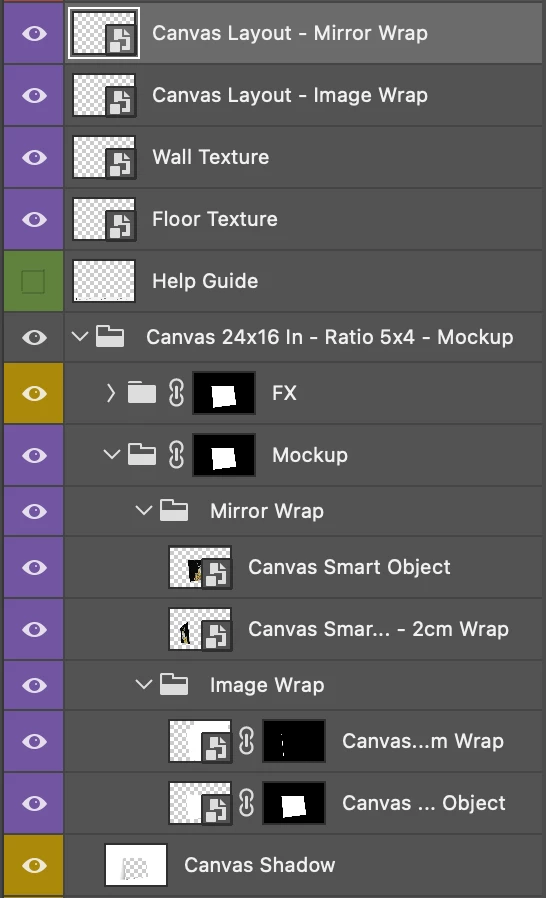
I tried to do this for 3 days straight and I'm losing my mind. With the masks it's so confusing to me. Any information would be helpful. Here is a photo to help.  I add my photo to the Canvas lyout - mirror wrap and you can see it updated under mirror wrap folder at the bottom. and the second "2cm wrap" looks inverted. 


Anyway thank you for your help!!!! 
    This topic has been closed for replies.
    Correct answer Conrad_C

    Does the demo below cover what you want to set up?

    (Sorry about the low quality, the forum software seems to degrade animated GIF.)


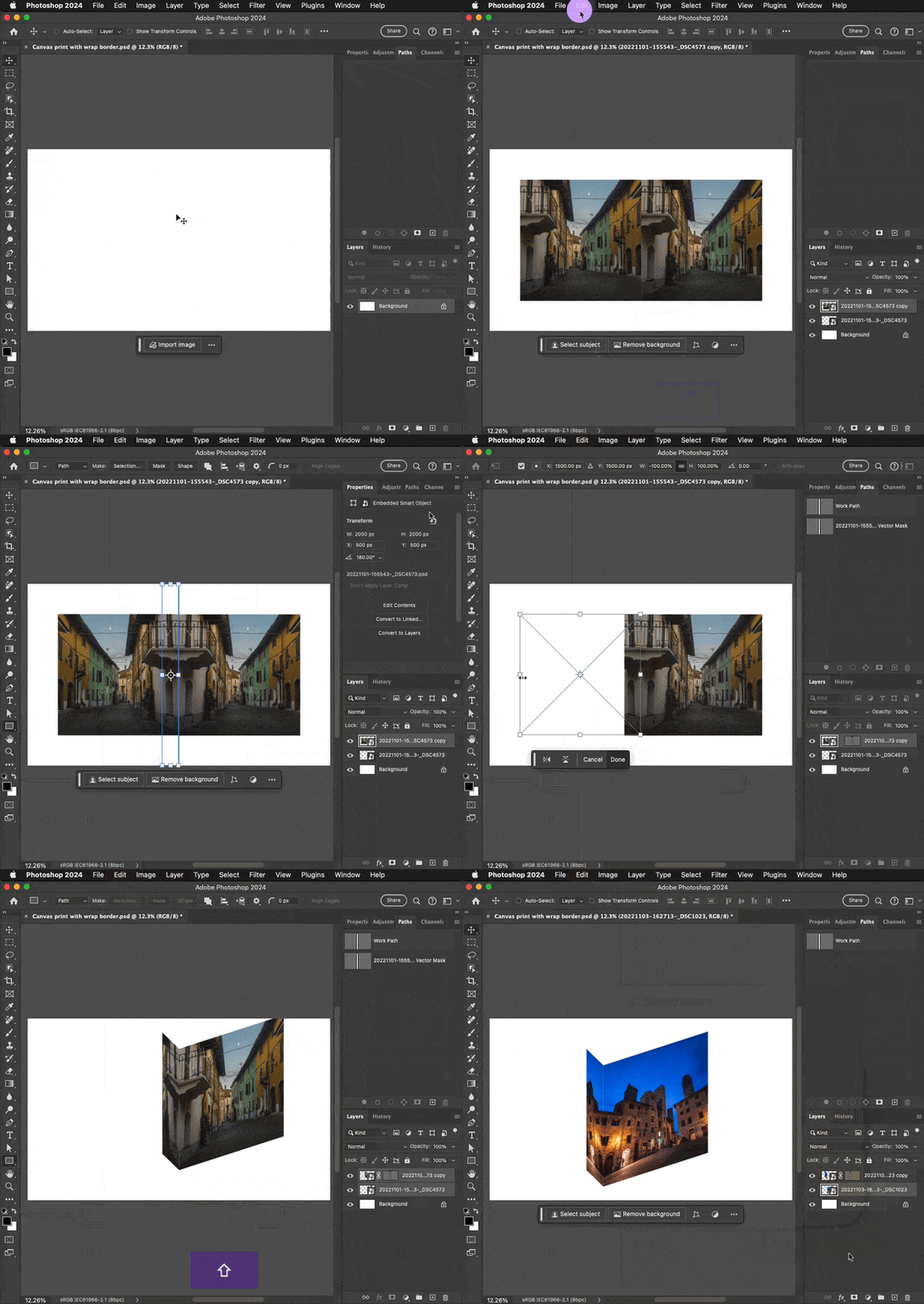
    The steps shown are:


    1. Place the file as an embedded Smart Object. I did it using drag and drop, because that creates an embedded Smart Object. (Adding the Option key, or Alt key in Windows, places a linked Smart Object.) But you can also choose File > Place Embedded.


    2. Duplicate the layer. I did it by dragging with the Option/Alt key held down.


    3. Flip the duplicate. I chose Edit > Transform > Flip Horizontal.


    4. The duplicate is supposed to be the mirror wrap border, so limit the width. I did it using a vector mask, for easy editing later in step 6.


    5. Skew both layers to set them at an angle, to show the wrap around the corner. I did it by choosing Edit > Free Transform, and holding down the Command key (Control in Windows) while dragging a side handle on the transform bounding box.


    6. For the edge layer, adjust its mask for the width I actually want the edge to be after skewing. This requires first unlinking the mask, because in this step we don’t want to edit the Smart Object, just its mask.


    7. Reposition both layers. This requires first relinking the mask, and selecting both layers.


    8. Swap out another image. I did this by selecting one of the Smart Objects and choosing Layer > Smart Objects > Replace Contents. This one-step swap is what makes it a proper template.


    5 replies

    Conrad_C
    Community Expert
    Conrad_CCommunity ExpertCorrect answer
    Community Expert
    February 27, 2024

    Does the demo below cover what you want to set up?

    (Sorry about the low quality, the forum software seems to degrade animated GIF.)


    The steps shown are:


    1. Place the file as an embedded Smart Object. I did it using drag and drop, because that creates an embedded Smart Object. (Adding the Option key, or Alt key in Windows, places a linked Smart Object.) But you can also choose File > Place Embedded.


    2. Duplicate the layer. I did it by dragging with the Option/Alt key held down.


    3. Flip the duplicate. I chose Edit > Transform > Flip Horizontal.


    4. The duplicate is supposed to be the mirror wrap border, so limit the width. I did it using a vector mask, for easy editing later in step 6.


    5. Skew both layers to set them at an angle, to show the wrap around the corner. I did it by choosing Edit > Free Transform, and holding down the Command key (Control in Windows) while dragging a side handle on the transform bounding box.


    6. For the edge layer, adjust its mask for the width I actually want the edge to be after skewing. This requires first unlinking the mask, because in this step we don’t want to edit the Smart Object, just its mask.


    7. Reposition both layers. This requires first relinking the mask, and selecting both layers.


    8. Swap out another image. I did this by selecting one of the Smart Objects and choosing Layer > Smart Objects > Replace Contents. This one-step swap is what makes it a proper template.


    Participating Frequently
    February 28, 2024

    Thank you so much!!!!

    Legend
    February 23, 2024

    SInce you already paid for this, why not go back to the author and request a different size?

    Participating Frequently
    February 26, 2024

    I have many as many different sizes as canvas sizes, so it would be better if I was able to create customized mockups on my own. I also want to learn more about smart objects and other techniques to improve my skills.

    c.pfaffenbichler
    Community Expert
    Community Expert
    February 22, 2024
    Participating Frequently
    February 22, 2024

    This is very specific, but I bought a canvas mockup (side view) and I'm trying to figure out how to do it myself by reverse engeneering, because I need a different size. For context, I upload a picture in the smart object and then it automatically updates the canvas with the image and mirrored boarders (sides of the canvas as a reflection - horizontal flip) so it looks 3D.   


    I'm trying to figure out how to connect both smart objects (the front & the sides) together so that when I upload on one smart object, it will add it the the next. It seems almost like a premade function. 


    I tried to do this for 3 days straight and I'm losing my mind. With the masks it's so confusing to me.  Here is a photo to help.  I add my photo to the Canvas lyout - mirror wrap and you can see it updated under mirror wrap folder at the bottom. and the second "2cm wrap" looks inverted. 

    Any information would be helpful.

    Thank you for your help!!!! 


    c.pfaffenbichler
    Community Expert
    Community Expert
    February 22, 2024

    Could you please provide the file or at least post meaningful screenshots with the pertinent Panels (Toolbar, Layers, Options Bar, …) and the Canvas visible? 

    As it is it is unclear to me which ones are instances of the same Smart Objects and which ones aren’t. 

    Peru Bob
    Community Expert
    Community Expert
    February 21, 2024

    This is the Using the Community forum (which is the forum for issues using the forums).
    Please tell us what Adobe application you are using so that this can be moved to the proper forum for help.


    Scroll down here to see a list of the forums:
    https://community.adobe.com/.

    kglad
    Community Expert
    Community Expert
    February 21, 2024

    what app?

    Participating Frequently
    February 22, 2024

    photoshop

    kglad
    Community Expert
    Community Expert
    February 22, 2024

    in the future, to find the best place to post your message, use the list here, https://community.adobe.com/

    p.s. i don't think the adobe website, and forums in particular, are easy to navigate, so don't spend a lot of time searching that forum list. do your best and we'll move the post (like this one has already been moved) if it helps you get responses.


    <"moved from using the community">