



Catalin Muntean
Inspiring
December 1, 2023
Answered

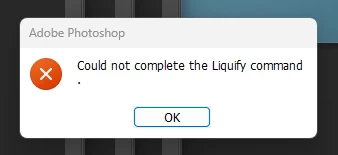
Could not complete the liquify command version 25.2

  • December 1, 2023
  • 36 replies
  • 17203 views

Hello guys,

Since the last update, I'm encountering the error "Could not complete the liquify command". This happened multiple times today while I was working so every time I had to restart Photoshop. What should I do? Thanks.
 

Correct answer V.Ts

Preferences > Image Processing > Remove Tool Processing setting > More stable

and we will make you happy)
helped me

36 replies

New Participant
April 26, 2024

I am experiencing this problem too.  It just started a couple weeks after I downloaded the latest Photoshop & Photoshop Beta updates.  I am currently using PS Beta 25.9.  I think the problem has to do with a bug with the new versions of PS playing nice with graphics cards.  After doing some research and following some other suggestions that I read online... I unchecked "Use Graphics Processor" in the Performance menu/tab under Preferences.  When I do this, Liquify immediately starts working (Although the window looks different and I get a message that says "Enable Graphics Processor To Get Better Results and Performance".)  The minute I close the Liquify Tool and then go back into Prefrences and Re-Enable the GPU... Liquify stops working againg and I get the same original error message.  If I disable the GPU it works, but if I enable it... It doesn't.  This is so frustrating and it seems like this has been an ongoing problem from as far back as 2022.  So I am perplexed as to why ADOBE has not fixed this issue.  I can't find hardly anything about the problem online or in the Adobe Support pages.  WTF!!!!!  


SK321
Inspiring
April 25, 2024

I haven't experienced this issue since installing version 25.7.0. This version fixed it for me, at least. I did also recently install an nVidia driver update as well. Don't know if that also had an effect.


Update: I spoke too soon. I just got a new error I've never seen before:

None of those things apply to my image. It's not locked, I have full access to the file (like every other image I edit), and no other program was using the image. Completely closing Photoshop and re-opening it again fixed the issue, until the next time.

Catalin Muntean
Inspiring
April 28, 2024

same error after newest update...

New Participant
April 24, 2024

Can also confirm there is an issue with Liquify on Photoshop version 25.7.0 and  never had it before the lastest update.

I have this issue on my PC but from various posts it looks just as common on Macs.

No issues with disk acess or permissions but somehow Liqufy still thinks so and even refuses to start...

Kind of sucks when you need to deliver the pictures to a client with a deadline but PS acts up.

So it´s certainly a bug and not any faulty drivers or permissions that is behind the issues. with Liquify.

Known Participant
April 24, 2024

@Surfacebookguy your problem could be different. We got a different error. We got a generic "Could not complete the liquify command" and nothing else.

Inspiring
April 24, 2024

he has the same thing as many others, I had 3 types of errors with different text

Inspiring
April 24, 2024

Hurray!!! problem solved, support helped
just delete these files that are on the screenshot, but before that copy the Actions Palette and Brushes

Inspiring
April 24, 2024

did not help!!!!!

New Participant
April 23, 2024

Same issue

New Participant
April 22, 2024

Same issue; this a bug, not a computer problem. What is the Adobe fix?

New Participant
April 23, 2024

I have changed back to version 25.1. It works there. Wait for Adobe to fix bug in next update

Inspiring
April 23, 2024

how to return to 25.1?

New Participant
April 19, 2024

I have the same problem. I have the latest 25.6 Photoshop version and I also did all the updates for everything including drivers. I have Intel(R) Iris(R)XE Graphics (driver version 31.0.101.5382 and driver date 27/03/2024).

I don't know what to do. Please help! How to get rid off this error "Could not complete liquify command."

New Participant
April 18, 2024

I have 2 laptops here. Both were updated today and either one can open the liquify !! 

I am a professional photographer and this is affecting my work !! I have spent the last 3 or 4 hours trying to figure this out instead of working on my session... Adobe needs to fix this immediately!! 

Known Participant
April 17, 2024

My drivers are, of course up-to-date to nVidia Studio drivers latest release. I noticed that the last releases made the problem a little less frequent, but it's still here and it's a HUGE problem for my work.

New Participant
April 17, 2024

Posted in this thread earlier today, and actually just got it figured out (after weeks of frustration)!


No idea if this will work for anyone else, but it's worth a look. Essentially it turns out that PS likes your GPU drivers to be current/within the last six months. Go to Help > GPU Compatability, and see if you're up to date or you have any other issues there.


Not sure why my drivers weren't updating automatically, but grabbing the lastest from NVIDIA and relaunching PS did the trick.