
July 25, 2016
Answered

could not complete your request because the smart object is not directly editable

  • July 25, 2016
  • 3 replies
  • 61692 views

Well, I am trying to simple remove a background but photoshop doesnt let me do it. it comes up with the error:

could not complete your request because the smart object is not directly editable

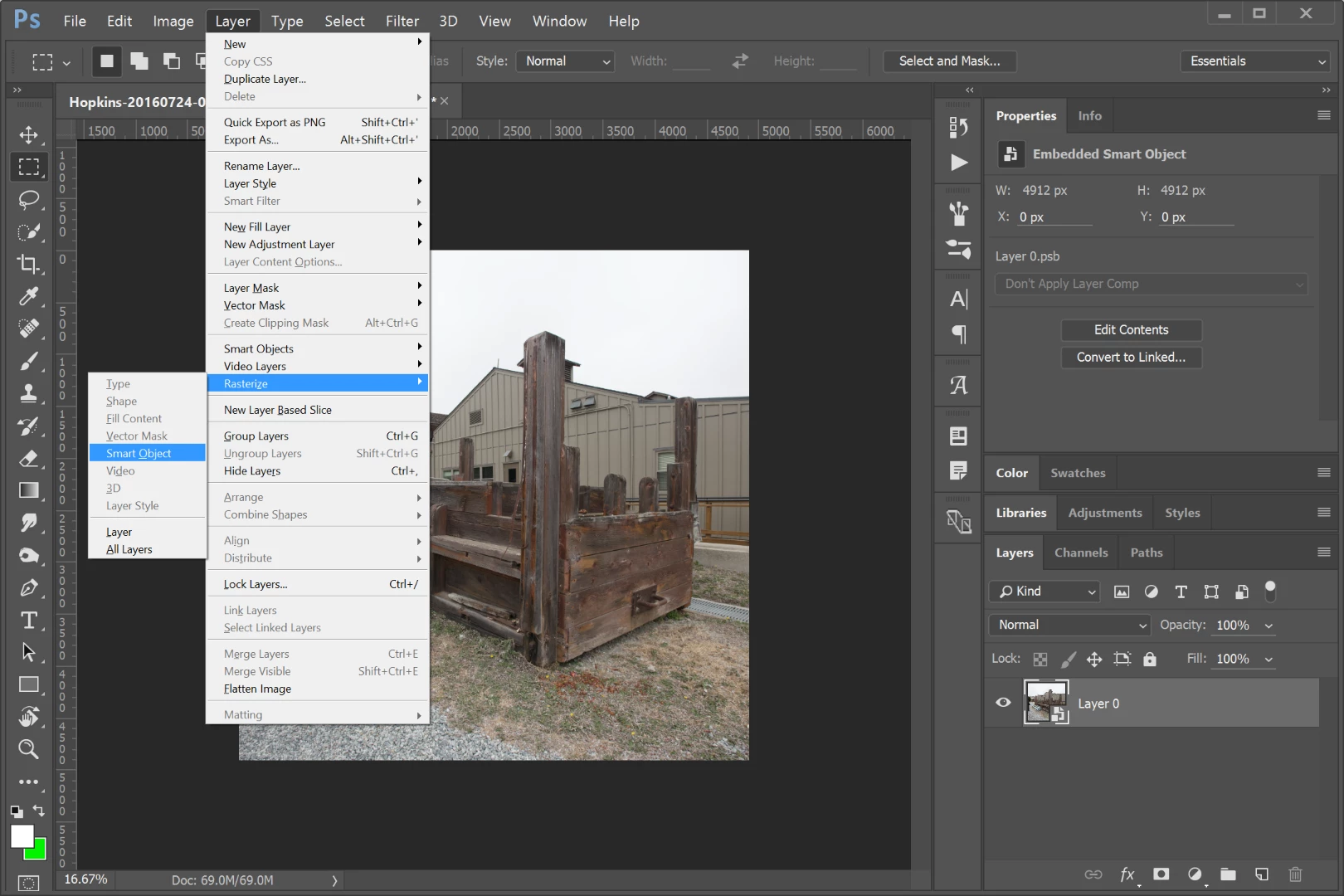
I read on the internet saying that I should "rastize" my layer. I googled rastize, but I could not find a good answer what rastize is. Also, I tried translating rastize into my own language, but it says rastize also. However my photoshop is in dutch. I could not find the option "rastize". What should i do? below is a screenshot:
https://postimg.org/image/enzf7mah3/

    This topic has been closed for replies.
    Correct answer Chuck Uebele

    Rasterize is to flatten just that particular layer. Since the layer you're working on is a smart object, you could double click on it in the layer panel and edited it directly, or you could rasterize it. It's always best to do non-destructive editing, so you really should use a layer mask to remove the background rather than deleting it. However, here's the position of rasterizing a layer in the menu:

    3 replies

    Barb Binder
    Community Expert
    Community Expert
    July 26, 2016

    If you have a smart object, that means (normally) that you want a smart object to be able to keep some editing or filter options available. Rasterizing flattens that layer out and takes away these options.

    One more idea to add to the mix: you can double click the Smart Object thumbnail in the Layers panel to open it, and edit it normally. Save and close the it and you will be returned to the original document. This way you keep the editing advantages as per Feierwoon.^^

    ~Barb at Rocky Mountain Training
    Abambo
    Community Expert
    Community Expert
    July 26, 2016
    1. In the "Layer" menu you'll find the rasterize command.
    2. If you have a smart object, that means (normally) that you want a smart object to be able to keep some editing or filter options available. Rasterizing flattens that layer out and takes away these options.
    3. If it is only to remove some background, you can click the "Add layer mask button". That creates a mask picture. This mask picture is a black and white graphic where black means transparency, white opaque and a tone in between a transparency mix. When you have made a selection before adding the mask, Photoshop uses that selection as a starting point. By selecting the mask, you can draw on it with the tools as you would on the picture. So you may use the brush, apply filters etc. Best with this is: It's non destructive. You can revert your picture to any state just by modifying the mask.
    ABAMBO | Hard- and Software Engineer | Photographer
    Chuck Uebele
    Community Expert
    Chuck UebeleCommunity ExpertCorrect answer
    Community Expert
    July 26, 2016

    Rasterize is to flatten just that particular layer. Since the layer you're working on is a smart object, you could double click on it in the layer panel and edited it directly, or you could rasterize it. It's always best to do non-destructive editing, so you really should use a layer mask to remove the background rather than deleting it. However, here's the position of rasterizing a layer in the menu: