

carmelb14021984
Participant
July 9, 2018
Answered

Create Font from an image of text

  • July 9, 2018
  • 1 reply
  • 1315 views

Hello,

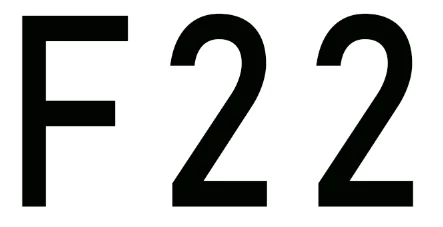
I would like to create the number 22 using the same font as the image below.

Thank you

    This topic has been closed for replies.
    Correct answer davescm

    Thats amazing!

    I have no idea how you did that but i will give it a go! i have no experience with photoshop. Do you think it would be easier to do with a different font?


    Hi

    No just try that font - you can change it later if required.

    The steps are

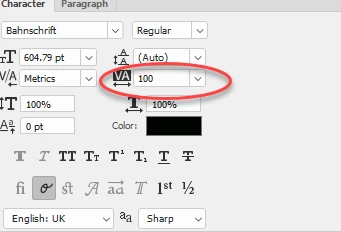
    1. Use the text tool to type the charcaters (in the character panel - adjust the tracking value to space the letters)
    2. Right click the text layer and choose blending options.

    From the menu choose stroke and adjust the settings to suit
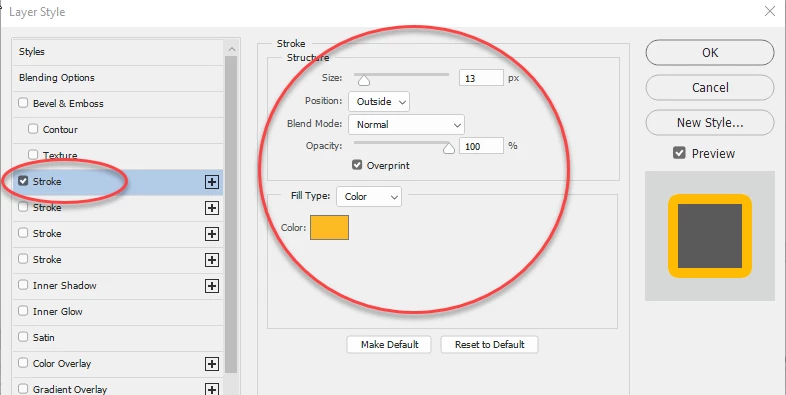
    3. Repeat for the second third and fourth strokes (by clicking on the + sign you can add extra strokes)
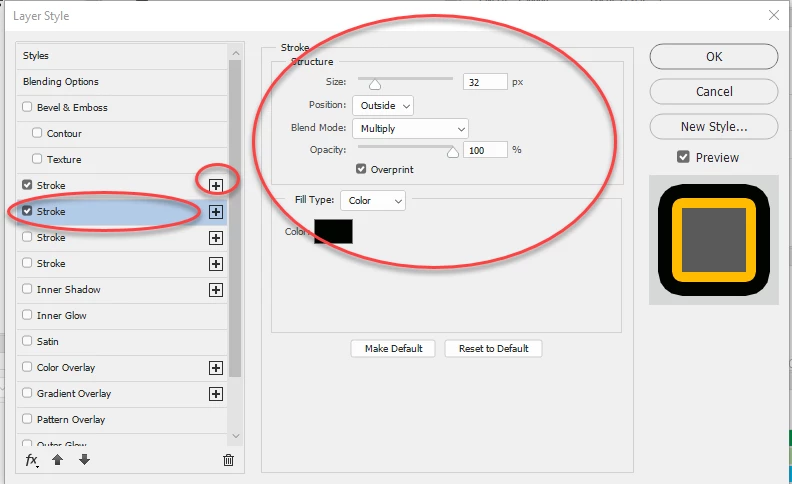
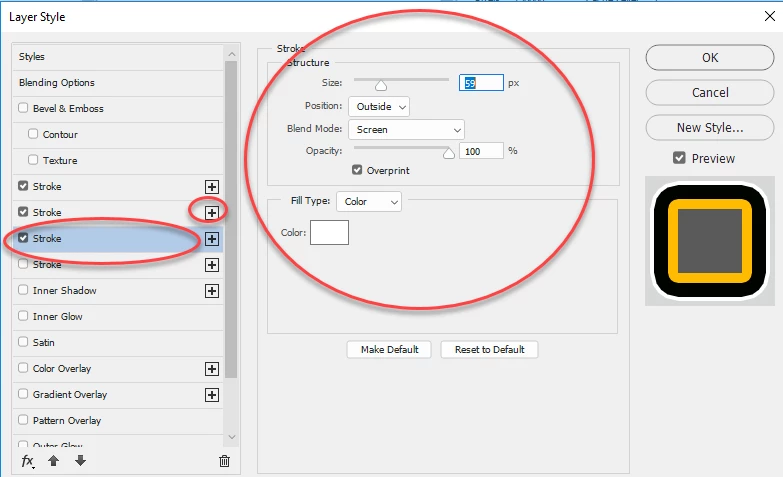
    Job done - you can go back and adjust the strokes if needed

    Dave

    1 reply

    c.pfaffenbichler
    Community Expert
    Community Expert
    July 9, 2018

    Do you actually mean the font or the effect (the multiple lines)?

    Edit: I suspect one capital letter may not be sufficient to identify a font unequivocally.

    carmelb14021984
    Participant
    July 9, 2018

    Thank you for replying.

    Does this image help?

    I want the 22 number to be the exact same as this with the outlines and same font. Infact the font doesnt really matter it looks to be standard enough. i just want it to be have the same outline and colour sequence

    davescm
    Community Expert
    davescmCommunity ExpertCorrect answer
    Community Expert
    July 9, 2018

    Thats amazing!

    I have no idea how you did that but i will give it a go! i have no experience with photoshop. Do you think it would be easier to do with a different font?


    Hi

    No just try that font - you can change it later if required.

    The steps are

    1. Use the text tool to type the charcaters (in the character panel - adjust the tracking value to space the letters)

    2. Right click the text layer and choose blending options.

    From the menu choose stroke and adjust the settings to suit

    3. Repeat for the second third and fourth strokes (by clicking on the + sign you can add extra strokes)
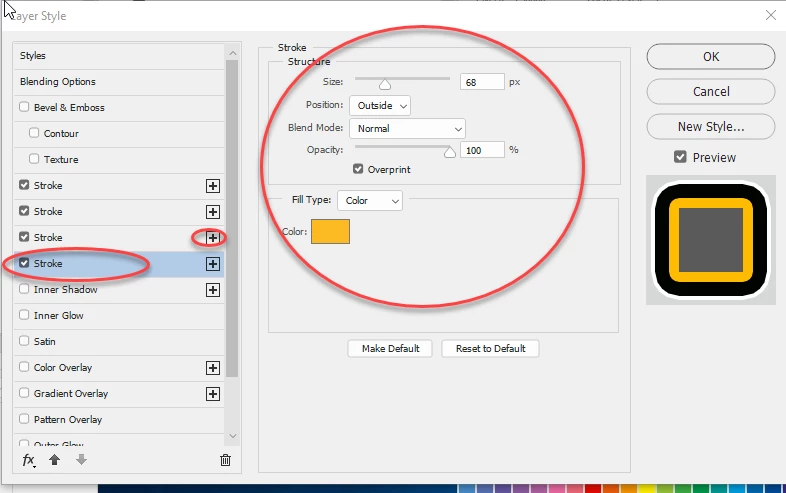
    Job done - you can go back and adjust the strokes if needed
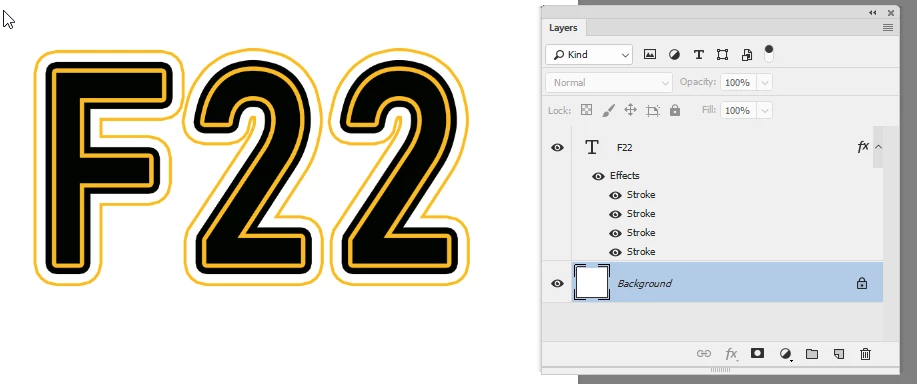
    Dave
