

The Invid
Participating Frequently
October 2, 2018
Question

Creating a bleed in Photoshop or Illustrator of the same color of object

  • October 2, 2018
  • 5 replies
  • 2567 views

I am trying to create a bleed for objects with the same colors of the edges.  Similar to the pictures below.  How can I do this?  What would be the easiest way?  I usually make a duplicate copy of the layer and create a blur effect, but it no where close to coming out as a bleed.  I am creating die cut stickers. 

Someone else did this and I want to know how. 
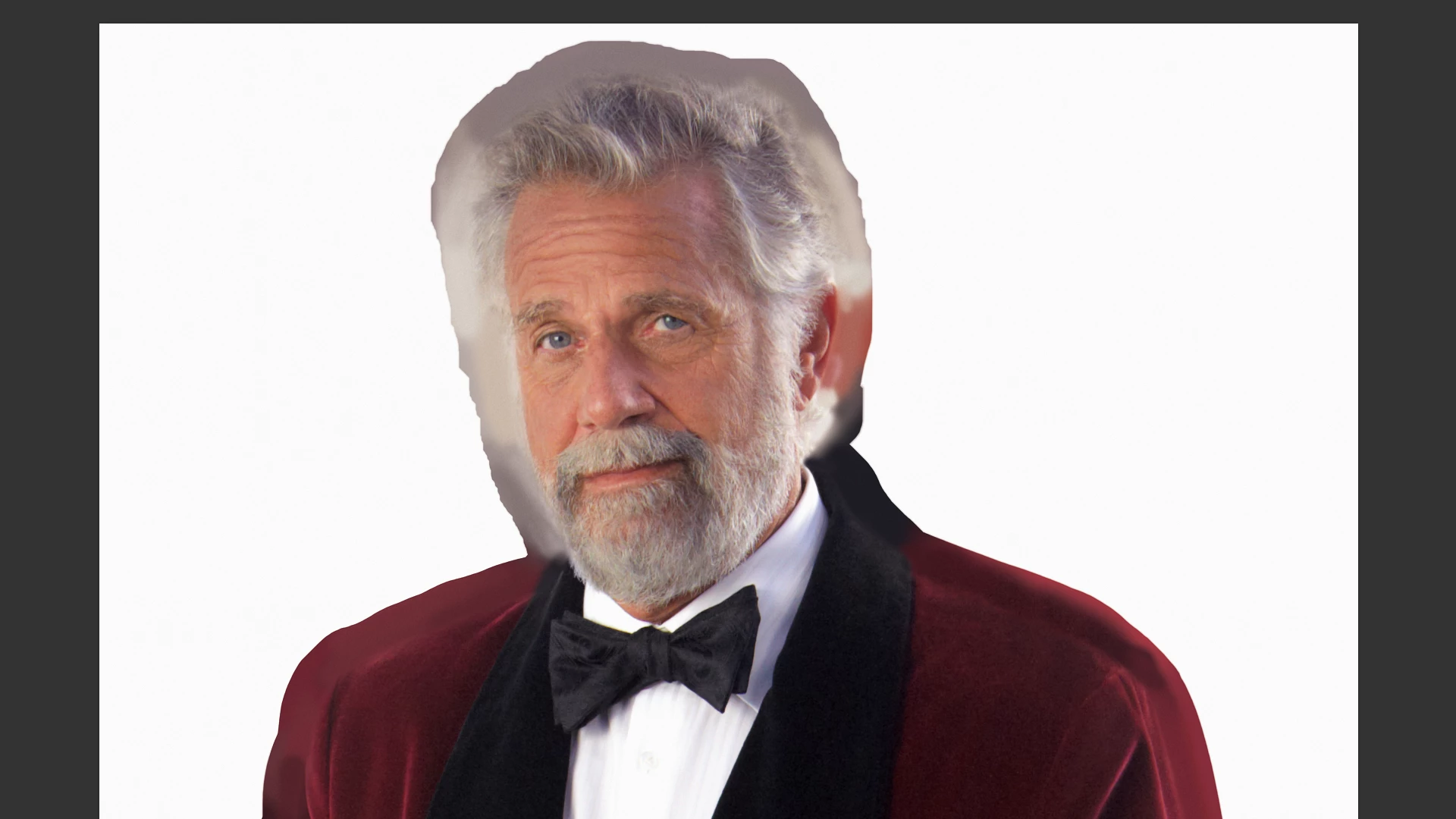
This topic has been closed for replies.

5 replies

Stephen Marsh
Community Expert
Community Expert
August 13, 2024

As this old topic was bumped... In Photoshop, Filter > Other: Maximum or Minimum can be used to expand or contract pixels.


https://community.adobe.com/t5/photoshop-ecosystem-discussions/adding-bleeds-to-an-outlined-photo/m-p/10886580


https://community.adobe.com/t5/photoshop-ecosystem-discussions/adding-bleed-to-complex-stickers/m-p/11150470


https://community.adobe.com/t5/photoshop-ecosystem-discussions/how-to-bleed-photos-with-diecut-shape-in-photoshop/m-p/10625624


This is the sort of complex but "boring production stuff" that AI training would be fantastic for, specialised content aware fill and or generative fill for die-cut work, contour-cut stickers, decals etc.

c.pfaffenbichler
Community Expert
Community Expert
August 13, 2024
quote

This is the sort of complex but "boring production stuff" that AI training would be fantastic for, specialised content aware fill and or generative fill for die-cut work, contour-cut stickers, decals etc.

True; alas at 2048px x 2048px it may just not be enough for largish products. 

janla
Participant
August 13, 2024

Hi,

had the same issue and solved it like this:
1. make sure the image is transparent around the silhouette

2. apply a gaussian blur with the radius matching the bleed border approximately

3. convert the transparency to a mask through the layer menu -> layermask

macpawel
Participating Frequently
October 3, 2018

As Bojan said - the easiest way to do this is selection.

Try tu use Quick Selection Tool (W) or even Lasso Tool (L) to select body and face.

Then go to Select And Mask Command (CTRL+Alt+R) or Refine Edges in previous version of Photoshop and choose right wiev

Use Radius, Feather, Somooth or even Shift Eadges to adjust your selection te way you like it

You can use Layer mask (Output section) to hide unwanted areas of your image and as Bojan said add a new background as you wish

Muqqarib Hassan
Inspiring
October 3, 2018

Hi, I am not understanding your question. Do you want fade edges of a picture into a color Background with photoshop ?

Thanks.

Bojan Živković11378569
Community Expert
Community Expert
October 2, 2018

It is probably blur as you are trying to achieve effect. What are your steps?

Try with this approach:

  • Duplicate layer with an isolated object twice.
  • Scale up two bottom layers.
  • Blur middle layer (which is scaled up) and mask it using transparency selection from bottom most layer (also enlarged).
  • Leave bottom most layer as it is without blurring it.