

caleb5
Known Participant
October 13, 2017
Answered

Creating a Shape From A Selection

  • October 13, 2017
  • 4 replies
  • 166474 views

I have made a selection using the Magic Wand tool in Photoshop CS3.

Does anyone know how I can create a shape from that selection?

Thanks in advance.

Correct answer davescm

Hi

With your selection made go to the paths panel and click on the symbol at the bottom to make path from selection
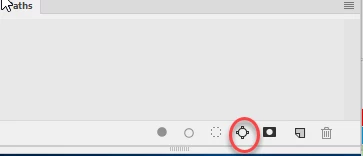
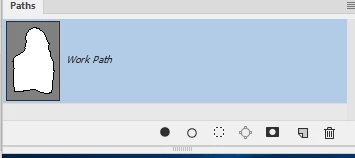
Then go to menu Edit > Define Custom Shape . In the dialogue , name your shape
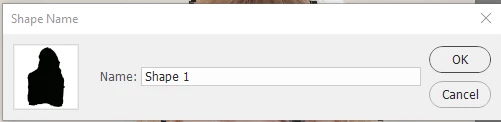
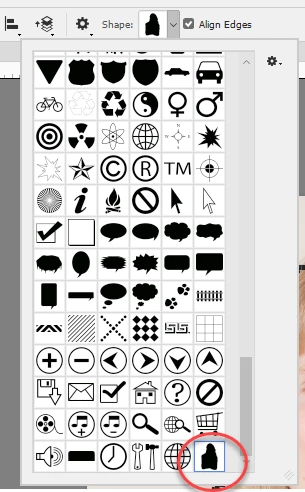
It is now available to use as a custom shape
Alternatively - if you only need it once - instead of defining the custom shape after making the path select the pen tool then click Make shape in the options bar

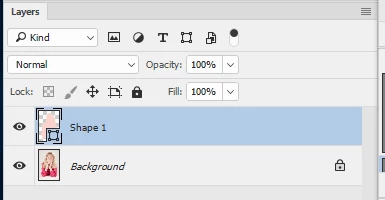
This will add a shape layer in your layer stack
Dave

4 replies

New Participant
February 12, 2025

Any new updates?

AlexValdes
Participating Frequently
October 23, 2022

As of Cotober 2022 with Photoshop CC 2023 Whjen I try to do this the quick way since I only need the shape once. The option to make shape the way you explained is greyed out. Any idea of another way. Really don't need a new custom shape.


New Participant
February 16, 2023

Its because you have to create the mentioned Work Path from the selection, have the path selected and then click on pen tool and it will be possible to make a Shape.

caleb5
caleb5Author
Known Participant
October 13, 2017

Thank you all for your answers.  My questions are now answered.

Thanks

davescm
davescmCorrect answer
Community Expert
October 13, 2017

Hi

With your selection made go to the paths panel and click on the symbol at the bottom to make path from selection

Then go to menu Edit > Define Custom Shape . In the dialogue , name your shape

It is now available to use as a custom shape

Alternatively - if you only need it once - instead of defining the custom shape after making the path select the pen tool then click Make shape in the options bar

This will add a shape layer in your layer stack

Dave

Terri Stevens
Brainiac
October 13, 2017

Well done Dave as usual faster than a speeding bullet lol,

Here's an actual example, but remember there is a limit to how complex a path can be

1) Make selection

2) Right click the canvas and make a 'work path'

4) Keep the tolerance low for accuracy, but this will also result in more anchor points

5)With path active 'define a custom shape'

6) Give the shape a name.

7) Choose the custom shape tool and your shape will be last on the list.

8) With the shift key depressed you can then use your vector shape.

davescm
Community Expert
October 13, 2017

https://forums.adobe.com/people/Terri+Stevens  wrote

..................faster than a speeding bullet lol,

It's the coffee

Dave