


Inspiring
March 15, 2010
Answered

CS4 Photoshop How do I reverse a clipping path.

  • March 15, 2010
  • 4 replies
  • 38664 views

I made a clipping path and accidently clipped the outside of the bottle instead of the bottle. How do I reverse the clipping path? I know there is some icon that is supposed to show up on the top control bar but I am not finding anything.

Thank you.
    This topic has been closed for replies.
    Correct answer Printer_Rick

    If you can send me a way to attach an image... I can show you.


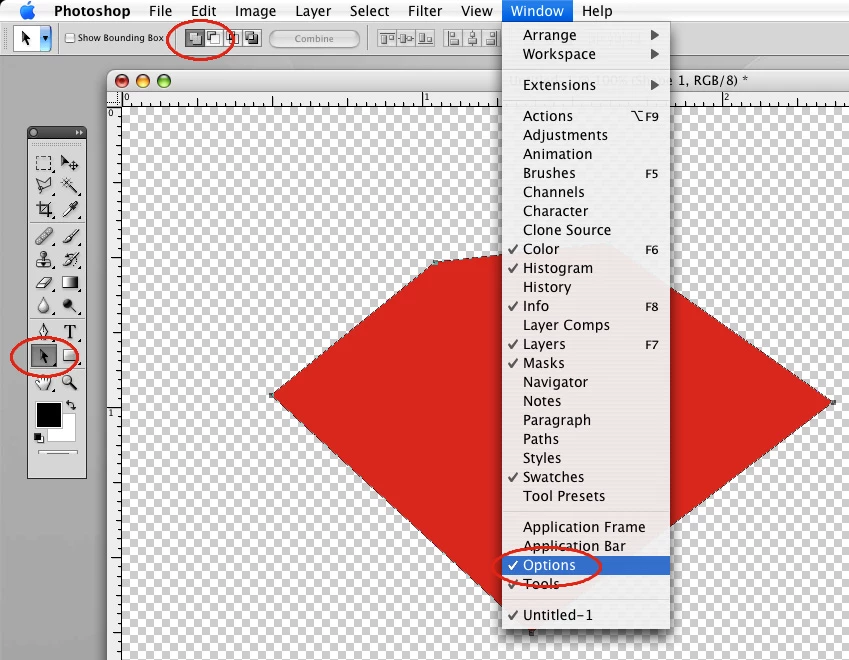
    Refer to screenshot:

    If you want to attach a screen shot use the little camera icon when posting.

    As far as the shape layers, the path options work the same way for those. The advantage is you can see the clipped result right away in Photoshop, like in my screen shot. I was just offering another option to produce a clipped image and output, but you don't have to use shape layers if you don't want to.

    4 replies

    New Participant
    August 18, 2010

    I've found that if you copy the inverted path (including all the subpaths if it is a compound) and paste it into a new path layer, it will also reverse the path and mask the background, instead of the object. In my experience, it pastes the path into the correct position with the same registration. You may need to re-establish the compound.

    However, if the outline of the canvas is included in the path, do not include it in the copy/paste action. Delete it.

    Philip Byrne
    Known Participant
    May 20, 2010

    Hi RTC Ann

    I don't know if you ever solved this problem but I just came across it myself and found a (clumsy?) solution:

    1.     Make sure the 'Add to shape area (+)' button is selected in the options bar.

    2.     Draw a small, closed path, i.e. a triangle, inside your original path.

    3.     Select both paths.

    4.     Click the 'Combine' button in the options bar.

    5.     The path will now switch to masking the background instead of the contents.

    Inspiring
    March 15, 2010

    Select the path with the path selection tool (solid arrow). Then click on the Add icon (1st of 4) in the options bar at the top. Let me know if that doesn't work.

    NTC AnnAuthor
    Inspiring
    March 15, 2010

    I'll try it when I get back tomorrow...thanks.

    Inspiring
    March 16, 2010

    Hi. Thank you. This auto add and these intersect buttons are missing off my control bar. This is what I can't find. I can add an image if that will help. Thanks again.


    Window: Options.

    Then select the Path Selection tool (solid black arrow)

    You should see 4 path options near the left.

    If you have sub paths, sometimes combinations of the options produces the correct result.

    Something else to consider: you can choose to use shape layers instead of paths. But to get vector output using shape layers, you have to save the image as a PDF. The advantage with shape layers is that you can see the clipped result in Photoshop, and everything outside the path is transparent.

    March 15, 2010

    Select>Inverse -or- Shift+Command+i

    I think you will have to convert the path to a selection first though.

    NTC AnnAuthor
    Inspiring
    March 15, 2010

    How do you convert a path to a selection? Thank you.

    March 15, 2010

    Control+Click inside the selection and choose Make Selection.

    Once you have made the change then you can use the same command to change the selection back into a Path.