



Trevor.Dennis
Community Expert
Community Expert
May 4, 2022
Answered

Dashed & Dotted Lines Drive Me Crazy

  • May 4, 2022
  • 1 reply
  • 27687 views

Does anyone reading this have complete mastery of dashed and dotted lines using the Line shape tool? Is there a secret relationship between the values for stroke, width and weight that will always produce perfect results with none of those annoying offsets?  Should the stroke always be set to Inside or will Centre do in some circumstances?  Do the Dash and Gap values have to relate to stroke, width and weight values?


It's something I still find frustrating, and if anyone says use Illustrator I am coming of your screen to get you.  OK, we can stroke a path with a spaced out brush, but the vector tools exist in Photoshop and I'd like to be comfortable with them.  I'd even be happy with a really good video, but The PTC does not have anything on the subject I can find.  Colin Smith has a video that is half way there, but I am too distracted by his fly-away-hair to concentrate.


So who has the secrets?  
Correct answer c.pfaffenbichler

Sorry, I misunderstood. 

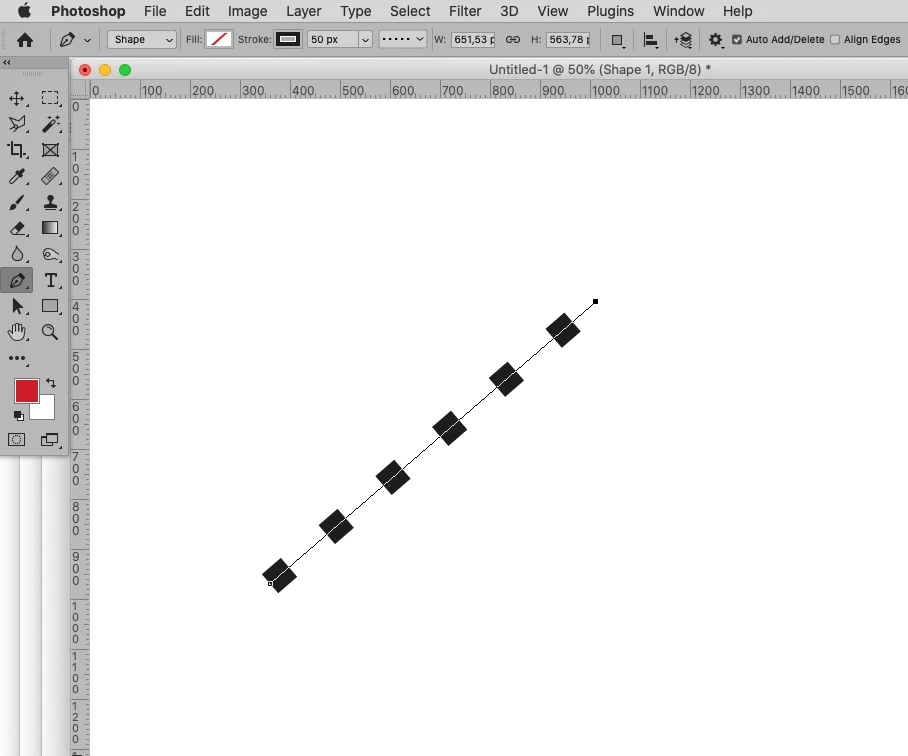
I would recommend abandoning the Line Tool (as it just provides a different method of creating rectangular paths anyway) and using the Pen Tool to create strokes lines. 

1 reply

c.pfaffenbichler
Community Expert
Community Expert
May 4, 2022

As far as I can tell, »center« works fine. 


The screenshot was taken at View > 200% and my interpretation would be: Dash and Gap refer directly to the Stroke width. So a 10px Stroke means a Dash with »1« is 10px by 10px.  


Trevor.Dennis
Community Expert
Community Expert
May 4, 2022

Thanks Christoph.  I'm OK with rectangles and shapes that have volume.  It's specifically the line tool that I can't reliably get to do what I want.  When I created this line the initial stroke value was seven-point-something and I got a solid line. Ctrl draging the stroke value using trial and error did at least give me a dashed line, but it was very sensitive.

Changing the weight to 3pt and dash/gap values as shown also worked, but here again, it was tricky homing in on the 15.52 stroke value that made the dashed line suddenly appear.  Still not getting the annoying offset that was driving me crazy earlier, but I don't have the first idea on why?  It seems to me that there should be a predictable relationship between line weight and stroke value that will work, and not have the need to use trial and error.

OK, setting Align to Centre stuffs it up, which is logical.  This is the offset I was getting earlier, but I thought I had Align set to Inside.  It looks like I was wrong. Hmmmm???

Here you go. It's broken again.  Align is set to Inside. The only other thing I changed was Caps to Round.

I now can't get it any better than this.  The oblique effect is because the upper and lower strokes are not lining up.

This is what I mean


c.pfaffenbichler
Community Expert
Community Expert
May 4, 2022

I'd actually homed in on this since my last post by experimenting.  It always seems to just work, plus you can adjust everything after laying down the work path, which does not work using the Line tool.  This will be my go to method going forward.  It's just a pity it has taken me 26 years to work it out.


26 years ago Photoshop didn’t have Shape Layers or Shape Layer Strokes.