


New Participant
May 24, 2025
Answered

Diagonal lines using brush tool???

  • May 24, 2025
  • 2 replies
  • 664 views

Hello everyone! 

Im a photoshop noob and am super frustrated. Iwould really appreciate some help regarding line work!

I've looked at other posts and nothing seems to work! :((

Im trying to create diagonal lines using the brush tool without using the shift and click method. I would really love to just be able to draw them useing the same method i can create vertical and hortizontal lines! I've seen other artists do this so i know its somehow possible! 

I would really really REALLY appreciate any advice or help anyone could offer! Thank you so much in advance! :))

Correct answer Trevor.Dennis

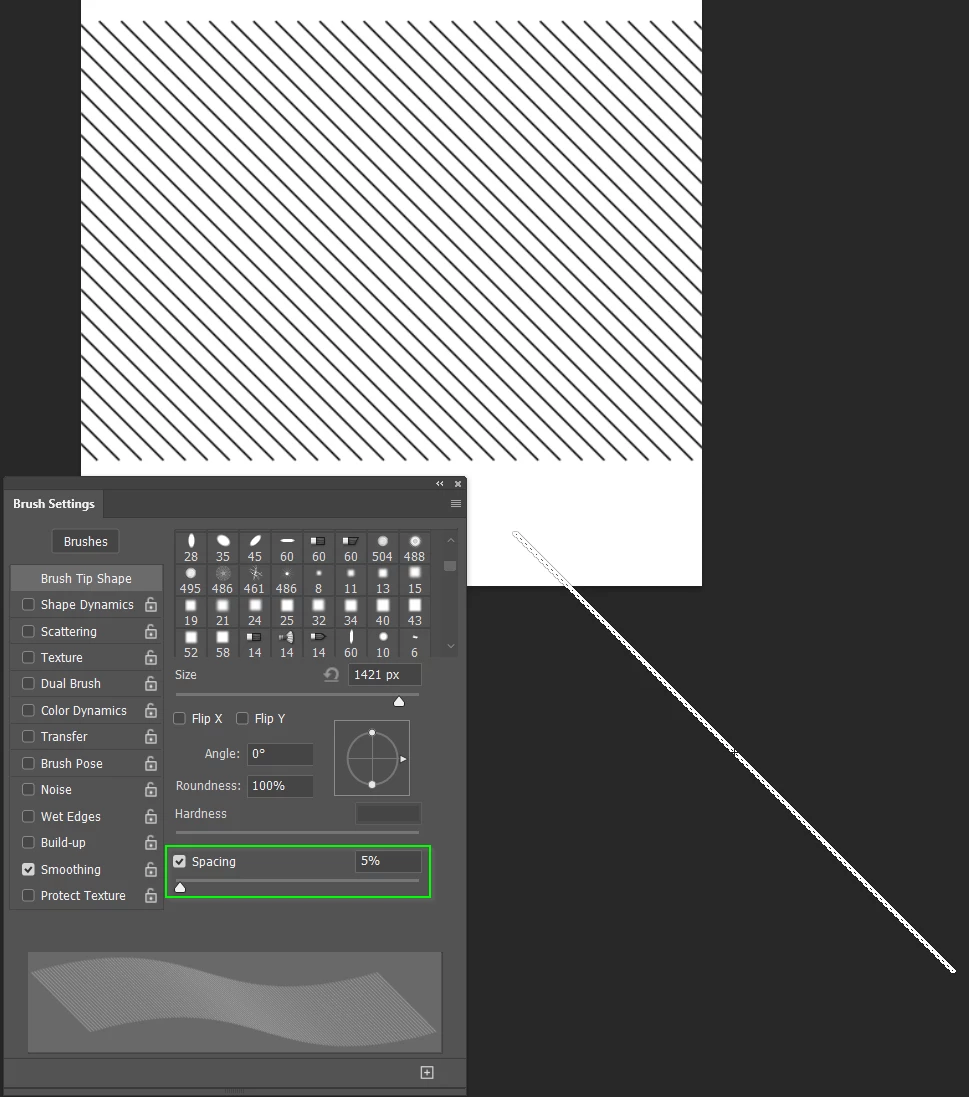
If you draw a straight line by holding down the Shift key, and used Free Transform to rotate it 45° (or your angle of choice) you could then define it as a Brush Preset (Edit > Define Brush preset).  You could then daw a cross hatch pattern by adjusting the brush spacing.


This is with spacing set to 5%

If you crop the cross hatch above with a perfect square (holding down shift again) you can define it as a pattern.  


It's important that one of the diagonal lines is exactly at the corners when cropping.

It's difficult to do this with crop tool directly, but if you drag out a rectangular selection, it is much easier to be more accurate.  With that selection in place, go Image > Crop and it will crop to the selection


Go Edit > Define Pattern and you can use this going forward.

BTW you can test your pattern before defining it by using View > Pattern Preview.


2 replies

Trevor.Dennis
Trevor.DennisCorrect answer
Community Expert
May 25, 2025

If you draw a straight line by holding down the Shift key, and used Free Transform to rotate it 45° (or your angle of choice) you could then define it as a Brush Preset (Edit > Define Brush preset).  You could then daw a cross hatch pattern by adjusting the brush spacing.


This is with spacing set to 5%

If you crop the cross hatch above with a perfect square (holding down shift again) you can define it as a pattern.  


It's important that one of the diagonal lines is exactly at the corners when cropping.

It's difficult to do this with crop tool directly, but if you drag out a rectangular selection, it is much easier to be more accurate.  With that selection in place, go Image > Crop and it will crop to the selection


Go Edit > Define Pattern and you can use this going forward.

BTW you can test your pattern before defining it by using View > Pattern Preview.


Trevor.Dennis
Community Expert
May 25, 2025

A way to be more accurate when defining the pattern is to turn on the Grid and zoom well in.

You can then nudge the diagonal lines layer with the cursor keys to exactly intersect the grid.

If Snap is turned on, it is easy to make a perfect selection to crop to.


New Participant
August 5, 2025

WOWZA! Thank you for taking so much time and effort to reply Trevor! I really appreciate this! This helps tons!

Glenn 8675309
Brainiac
May 24, 2025

I used the line drawing tool and made the stroke bigger.   Everyone presses and holds a shift to make straight lines, when using a brush.

Using the click and shift method draw a line at any angle, but it might not be 45 degrees.


I might make a set a brushes based upon the diagonal lines you see below.

New Participant
August 5, 2025

Hi Glen thank you for your response!! Super informational  🙂