dzgnr89
Inspiring
June 19, 2017
Answered

DIAGONAL TRANSFORMATION BOUNDINGBOX

  • June 19, 2017
  • 1 reply
  • 1637 views

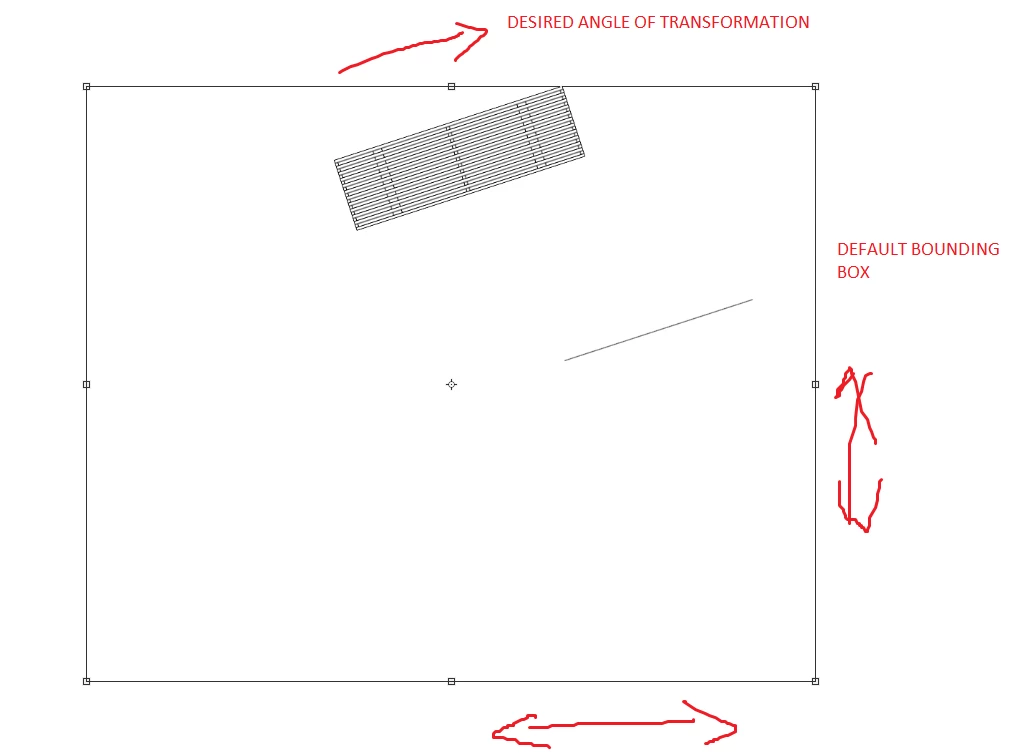
I am rendering a site plan that has a bench view from the top. The bench is diagonally placed, inclined. I want to stretch it along its length but fail to do so as the bounding box is placed at 90 degrees. What should I do to rotate the bounding box itself so that I can stretch the bench along its length?

    This topic has been closed for replies.
    Correct answer Trevor.Dennis

    arjun2  wrote

    davescm

    I did it this way only before posting it here. . I was hoping that there was any other efficient method that saved time. Rotating object to be straightly aligned and then back loses the original precision. I had to measure the original angle in the CAD software to do the precise rotation.

    How did you export this from the CAD program?  And what CAD software are you using?  I'm thinking that if you can keep it as a vector object, then there wouldn't be any degradation.

    Another point is that if you make the layer(s) a Smart Object when they are perpendicular to the screen
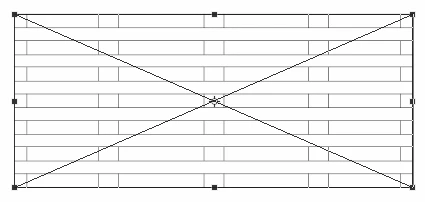
    Then the transform bounding box will remain square to the object after rotating it.  Apart from making further transforms much easier, it will also allow you to stretch the object's aspect ratio while rotated, like this

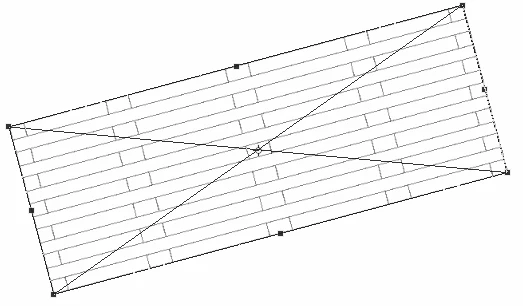
    And if it was a vector object, which it will be in the CAD program, it will be infinitely scalable with no loss of image quality.  It might need to go via Illustrator, or even remain in Illustrator, but that depends on the CAD program and what edits you were looking to do with Photoshop.

    1 reply

    davescm
    Community Expert
    June 19, 2017

    Hi

    At the start of a transformation, the bounding box will always be square to the canvas.

    So you will need to rotate to align the object - then accept the transformation.

    Then stretch ( this will have a new bounding box), accept again.

    Then rotate back.
    Note - you can move the centre of rotation to the centre of the object rather than the current bounds - just drag the circle

    Dave

    dzgnr89
    dzgnr89Author
    Inspiring
    June 19, 2017

    davescm  wrote

    Hi

    At the start of a transformation, the bounding box will always be square to the canvas.

    So you will need to rotate to align the object - then accept the transformation.

    Then stretch ( this will have a new bounding box), accept again.

    Then rotate back.
    Note - you can move the centre of rotation to the centre of the object rather than the current bounds - just drag the circle

    Dave

    I did it this way only before posting it here. . I was hoping that there was any other efficient method that saved time. Rotating object to be straightly aligned and then back loses the original precision. I had to measure the original angle in the CAD software to do the precise rotation.

    Trevor.Dennis
    Trevor.DennisCorrect answer
    Community Expert
    June 19, 2017

    arjun2  wrote

    davescm

    I did it this way only before posting it here. . I was hoping that there was any other efficient method that saved time. Rotating object to be straightly aligned and then back loses the original precision. I had to measure the original angle in the CAD software to do the precise rotation.

    How did you export this from the CAD program?  And what CAD software are you using?  I'm thinking that if you can keep it as a vector object, then there wouldn't be any degradation.

    Another point is that if you make the layer(s) a Smart Object when they are perpendicular to the screen

    Then the transform bounding box will remain square to the object after rotating it.  Apart from making further transforms much easier, it will also allow you to stretch the object's aspect ratio while rotated, like this

    And if it was a vector object, which it will be in the CAD program, it will be infinitely scalable with no loss of image quality.  It might need to go via Illustrator, or even remain in Illustrator, but that depends on the CAD program and what edits you were looking to do with Photoshop.