


Drop Down Menu — Mac Workaround
I just want to move through AND preview drop-down menus on a Mac inside Photoshop like you can on PC.
First, I'm not talking ONLY about changing Blend Modes, which you can cycle through AND preview with Shift(+)/(-).
An example of what I'm talking about is selecting a layer, then going to Image > Adjustment > Photo Filter...
In the resulting dialog box, there is a button to select "Filter" and it's associated Drop-down, containing "Warming Filter, Sepia, Deep Red", etc.
On a PC, you just click in the name area of the drop down and use the Up/Down Arrow Keys to cycle through the options, which also actually selects/accepts the new choice and previews.
On a Mac, you MUST use the Mouse to click in the name field, which opens the full drop-down menu. You can mouse-click on the drop-down first, THEN use the Arrow Keys to move through the options, but you also have to press "Return" for it to accept the change and THEN will update the preview.
I believe this is an OS level issue, which I find absurd that Apple would believe using the mouse to make EVERY change in a huge menu with tons of options is the best way to perform the task. That said, is there a way to do this?
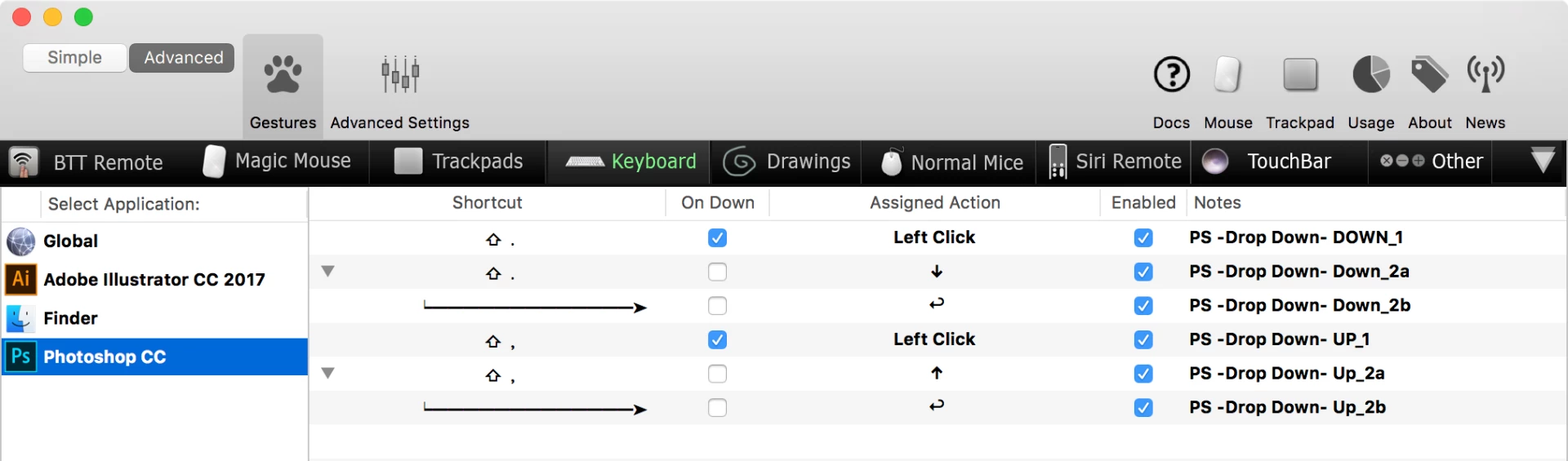
If nothing else, I have Better Touch Tool, which in theory I should be able to set up some sequence of steps to do this, but I can't figure out how to do it.
Yes, I have System Preferences > Keyboard > All Controls selected, but TAB does not move to the drop downs, only number input fields.
PLEASE tell me someone has figured this out by now...
I've searched the Photoshop (and all Adobe) forums as well as the Apple forums and plain old Google searches, and no answer was found, but hoping since it's been a while since the question was asked, someone finally figured it out.
macOS Sierra v 10.12.6 (16G1212)
Photoshop CS6-CC2018

 AdChoices