

alexd2017
Participant
August 7, 2017
Answered

Droste Effect

  • August 7, 2017
  • 4 replies
  • 7530 views

I'm hoping to create an infinite clock, found some useful tutorials on how to create that with the pixel bender and droste effect but the plug in is not available on Photoshop cc. Is there another option to create this?

    This topic has been closed for replies.
    Correct answer davescm

    Trevor.Dennis  wrote

    .....Dave must have gone out for the day.

    Back in now though

    I was interested to see if I could do this on a photograph without any plugins. The answer is yes.

    I masked an image using an oval selection and divided into four each quarter on a separate layer and masked separately
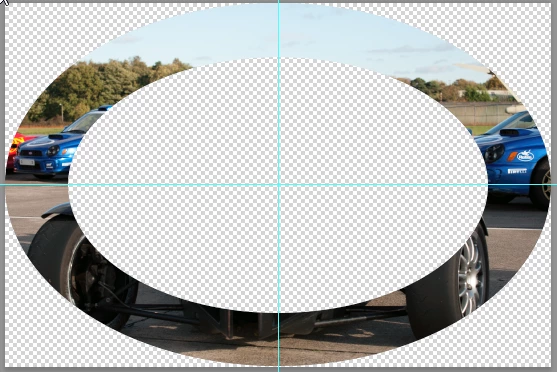
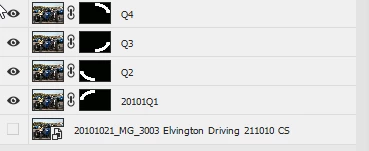
    I then used Transform Scale on each layer transforming the horizontal and vertical differently . Each I aligned to the previous so that after four transforms my quarters made the first loop of a spiral
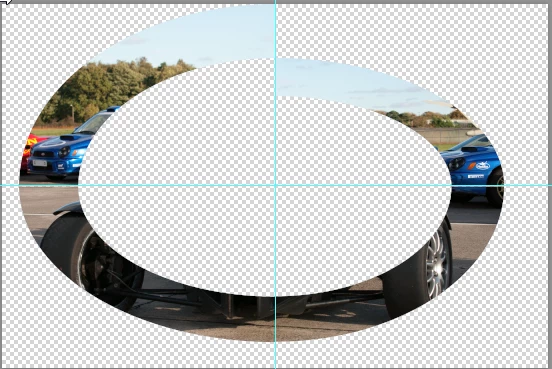
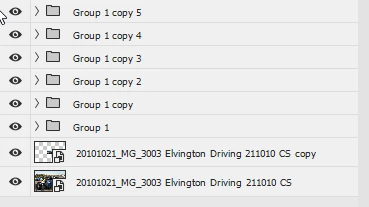
    I put those four layers in a group, duplicated the group and transformed it, so that it aligned with the first layer

    This I repeated several times

    Finally I put a scaled version of the original layer in the centre and turned back on the original as the background

    I hope that helps

    Dave

    4 replies

    Semaphoric
    Community Expert
    Community Expert
    August 8, 2017

    For this, I took a clock face image, and ran Filter > Distort > Polar Coordinates [Polar to Rectangular]. I then Transformed it to 25% in height, and skewed the right edge so that the upper right corner was at the same Y location as the lower left corner. I then dragged two copies, each just below the previous, so I had three parallelograms. Finally, I did a Stamp Visible, and ran Polar Coordinates [Rectangular to Polar]:


    alexd2017
    alexd2017Author
    Participant
    August 9, 2017

    Thank you so much. I will give that a try

    Jeff Arola
    Community Expert
    Community Expert
    August 8, 2017

    There is an Droste action on the adobe exchange that might interest you as well.

    https://exchange.adobe.com/addons/products/7992#.WYo9SIqQyRs

    Trevor.Dennis
    Community Expert
    Community Expert
    August 8, 2017

    I'm amazed this has gone so long without an answer.  Our Dave must have gone out for the day.

    I don't know of any plugin, but you could maybe use Free Transform Step & Repeat.  This is rough and ready to make the point, and there is a bit of a problem. 

    I don't know if you know how step & repeat works, but you make the first layer like so.  I should have made my segment cover a little more than 30­° to overlap the repeating layers.  There's a wee trick we use to make it accurate.  Place the centre guides and drag out the grid to the intersection. That lets place the rotation point in exactly the right place.

    So we copy the first layer, and Free Transfor it thus:

    We Alt click to place the centre handle at the guide intersection, and then make the X: and Y: fields zero.  That gives the perfect centre point.

    You'll need to use trial and error for the size reduction, and -30° is the angle between clock numerals.

    OK the transform.

    Now use Shift Ctrl Alt T as many times as you need to repeat the pattern, which produces something like my first screen shot.  But like I said at the beginning, there's a problem.

    To make this work without too much trouble, you need to make the background segment and type layer into a Smart Object.  I am sure this used to work with Step & Repeat in older versions, but I find it unreliable now.  Sometimes restarting Photoshop and going straigt into the process makles it work.  Then you just need to open each SO in a new window by double clicking, and change the number.  I rasterized the type and background segments to do the above.

    There is another way that does work, and that's to lay down the type layers separately.  There's no problem with layer order, so fairly easy.

    Then you'd need to clean up the spiral with the pen tool and make it a coninuous band on one layer.  It would be an interesting project, but a few hours work to do nicely.

    davescm
    Community Expert
    davescmCommunity ExpertCorrect answer
    Community Expert
    August 8, 2017

    Trevor.Dennis  wrote

    .....Dave must have gone out for the day.

    Back in now though

    I was interested to see if I could do this on a photograph without any plugins. The answer is yes.

    I masked an image using an oval selection and divided into four each quarter on a separate layer and masked separately

    I then used Transform Scale on each layer transforming the horizontal and vertical differently . Each I aligned to the previous so that after four transforms my quarters made the first loop of a spiral

    I put those four layers in a group, duplicated the group and transformed it, so that it aligned with the first layer

    This I repeated several times

    Finally I put a scaled version of the original layer in the centre and turned back on the original as the background

    I hope that helps

    Dave

    alexd2017
    alexd2017Author
    Participant
    August 9, 2017

    Thank you for your help.

    August 8, 2017

    Pixel Bender was an experimental plugin for CS4 and CS5 only.

    If you've got a Windows PC you could use the GIMP with the MathMap plugin.

    A tutorial: Droste - Effekt mit GIMP und MathMap - YouTube

    If you are interested:

    MathMap installation creates a folder in Windows > User - you shouldn't change the path.

    Just make a new plugin folder entry in Edit > Preferences > Folders > Plugins.

    Tested with Windows 10 / 1703, 64 Bit.

    Fenja

    Jeff Arola
    Community Expert
    Community Expert
    August 9, 2017

    If your a fan of Gimp, then the GMIC plugin is a must have and includes a Droste filter.

    G'MIC - GREYC's Magic for Image Computing: A Full-Featured Open-Source Framework for Image Processing

    The Filter Forge plugin for photoshop has a Droste filter,

    Filter Forge - Photoshop Plugin to Create Your Own Filters

    Droste Spiral (Effect)