


Inspiring
November 19, 2021
Answered

Error when exporting Actionset to text file

  • November 19, 2021
  • 1 reply
  • 1054 views

Long time ago, I encountered an error when trying to export an actionset to a text file.

Since this day, if I want to export again an actionset, Ps prompt an error message saying :


"Could not complete the command because of  a program error."


Stangely, a text file is yet created, but the content always corresponds to the actionset of the first time I encountered the error message.


The PSErrorLog reports :

..\..\sources\ZStrings.cpp : 5334 : REQUIRE failed


Looking for a possible solution different than reseting the Ps preferences. If I remember well I had already tried that the first time I had met the error, but to no avail.
This topic has been closed for replies.
Correct answer JJMack

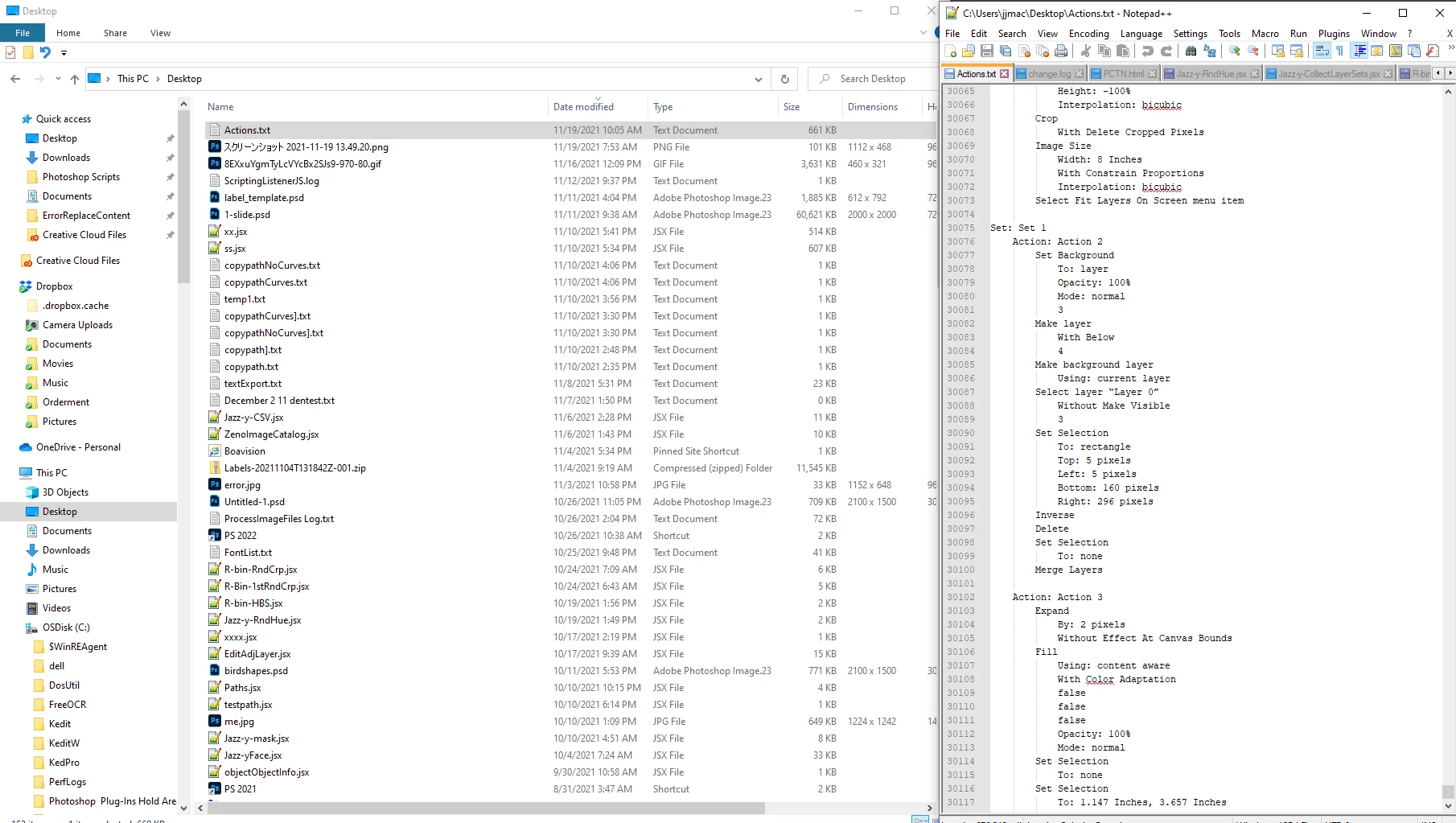
When you hold down the CTRL+ALT keys and use the Action Palette fly-out menu item Save Action. All loaded Action sets and the actions should save into a text file on your system into the folder and files you set in the save action dialog.  I just did that and saved to my desktop Actions.txt its a 661KB text file contain 30,000+ text line about the Actions.

1 reply

JJMack
JJMackCorrect answer
Community Expert
November 19, 2021

When you hold down the CTRL+ALT keys and use the Action Palette fly-out menu item Save Action. All loaded Action sets and the actions should save into a text file on your system into the folder and files you set in the save action dialog.  I just did that and saved to my desktop Actions.txt its a 661KB text file contain 30,000+ text line about the Actions.

JJMack
Inspiring
November 19, 2021

That's what I do ( = CTRL+ALT keys and use the Action Palette fly-out menu item Save Action ), but with the error I reported.

Just tried to find a possible solution to this problem like changing Ps language to my original native language, but it also failed...

Now I'm wondering  if "Ps Saving Actionset to text file" relies on some resources files ?

JJMack
Community Expert
November 19, 2021

Try Photoshop like you are new users starting Photoshop for the first time.   Close Photoshop.  Use Windows File explorer make sure it will show hidden folder and files. Navigate to Folder:

"C:\Users\(your User ID)\AppData\Roaming\Adobe\Adobe Photoshop 2022"

Rename the folder to:

"C:\Users\(your User ID)\AppData\Roaming\Adobe\Adobe Photoshop 2022 Mine"


The start Photoshop do not migrate your preferences just let Adobe Photoshop setup Photoshop it default way. Them try saving  Adobe default actions as a text file onto your desktop.  If it does not close Photoshop delete the folder:

"C:\Users\(your User ID)\AppData\Roaming\Adobe\Adobe Photoshop 2022"

then rename

"C:\Users\(your User ID)\AppData\Roaming\Adobe\Adobe Photoshop 2022 Mine" back.


If the TXT file is created without an error there is some corrupt or missing in your user id Application data for Photoshop.

JJMack