


- Home
- Photoshop ecosystem
- Discussions
- Re: eyedropper tool and paint bucket locked.
- Re: eyedropper tool and paint bucket locked.

Copy link to clipboard
Copied
Hey all.
Just downloaded and started to use photoshop and the eyedropper tool is locked and also the paint bucket.
Tried to look at other solutions but have yet to find a fix. Any ideas on unlocking these would be highly appreciated.


 1 Correct answer

Because this will happen again to you fairly often, I DOUBT you will want to reinstall every time.
Window > Workspace > Essentials (Default)
When you see those two icons (Eye Dropper and Paint Bucket) with the checkered (barely visible though) little tag to the top left, you're in 3D mode (like Schoeps said). But you don't have to start a new document. Just have to change the workspace to Essentials.
Here is what it looks like in 3D mode... Can't do ANYTHING with the bucket. Was just trying to
...

Explore related tutorials & articles
 18
Replies
18
18
Replies
18


Copy link to clipboard
Copied
Tools don't get "locked". Can you tell us more about what you mean, or exactly what error you are seeing?
Copy link to clipboard
Copied
Ok. When usin the eyedropper on a new image or any image for that matter when hovering over the file it has an icon which does not permit me doing so. Well using it .. that is... Same thing with paintbucket. Wondering if it's a bug.
Copy link to clipboard
Copied
Which means that those operations can't be used on that document or selection.
Which specific version of Photoshop are you using?
What color mode is your document in?
And are you using the eyedropper, or have you mistakenly selected one of the other tools in that slot?
Copy link to clipboard
Copied
Photshop cc 2015
rgb 8 bit channel
yes, eyedropper tool and paint bucket tool


Copy link to clipboard
Copied
Check the active layer in the Layers panel. Is it locked?
Copy link to clipboard
Copied
no

Copy link to clipboard
Copied
Have you checked your permissions for Photoshop itself? Do you have full permissions for the version you're using? If not that might be why you can't use certain tools. You might want to check and see if you do have full permissions for your version. If you are sure that you should then maybe try a full uninstall with a Photoshop 2015 file delete and reinstall. The source files may not have installed correctly when they were extracting and getting put onto your computer. If you did save any of your work in your Photoshop source folder, move it out to somewhere else safe before you do this though. So that way you don't take out any .psd files. When you do the reinstall it shouldn't touch the .psd files. You will however when doing this, if you decide to, want to remove your preferences because they might be causing issues.
Copy link to clipboard
Copied
Thanks a lot to ALL suggestions.
Last one was the fix. Great help! Thanks again. ) all the best

Copy link to clipboard
Copied
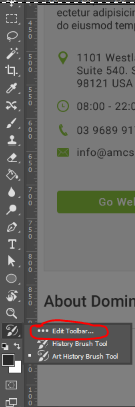
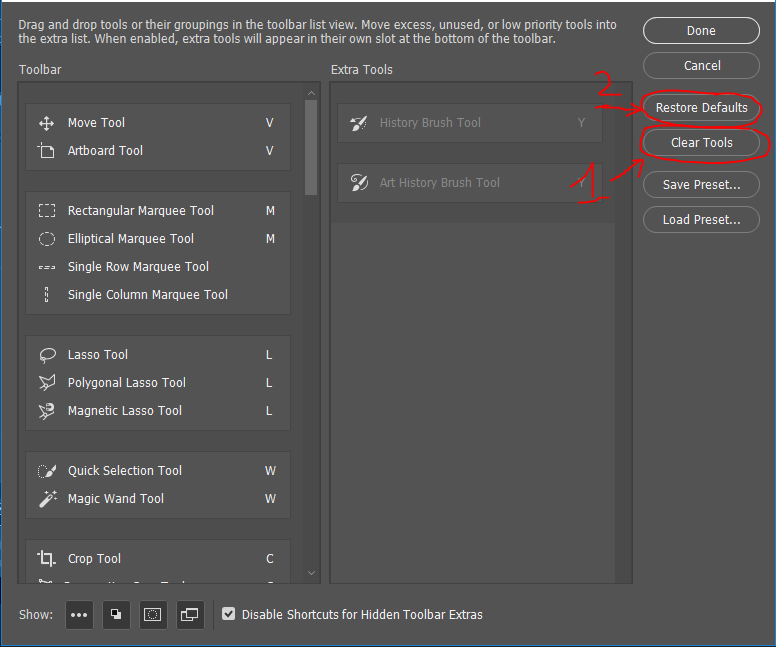
Please follow step by step
Have nice day!


Copy link to clipboard
Copied
This is the correct answer, reinstalling Photoshop should be a last resort. But considering how hopeless Adobe is, you are often forced into a Last Resort.

Copy link to clipboard
Copied
cheers

Copy link to clipboard
Copied
Just had the same thing happen. Your tools are stuck in 3D mode. Open a new fresh document and switch them to the non 3d version.
Copy link to clipboard
Copied
Because this will happen again to you fairly often, I DOUBT you will want to reinstall every time.
Window > Workspace > Essentials (Default)
When you see those two icons (Eye Dropper and Paint Bucket) with the checkered (barely visible though) little tag to the top left, you're in 3D mode (like Schoeps said). But you don't have to start a new document. Just have to change the workspace to Essentials.
Here is what it looks like in 3D mode... Can't do ANYTHING with the bucket. Was just trying to add a white BG to my logo... couldn't do it.
If you mouse over the Eyedropper Tool and you see "Material Eyedropper Tool" then that means you're in 3D mode. This happens to a lot of people after or shortly after they first install the new Photoshop because they're like OOOOOOoooooooo 3D?!?!?! Let's try it!!!
You can also see here that the Workspace is set to 3D from the menu. This limits the tools you're able to use because only certain tools work in 3D mode.

Changing it to Essentials does NOT automatically change the Eyedropper and Paint Bucket back though. You will have to right click on them and select the respective tools you want to use.
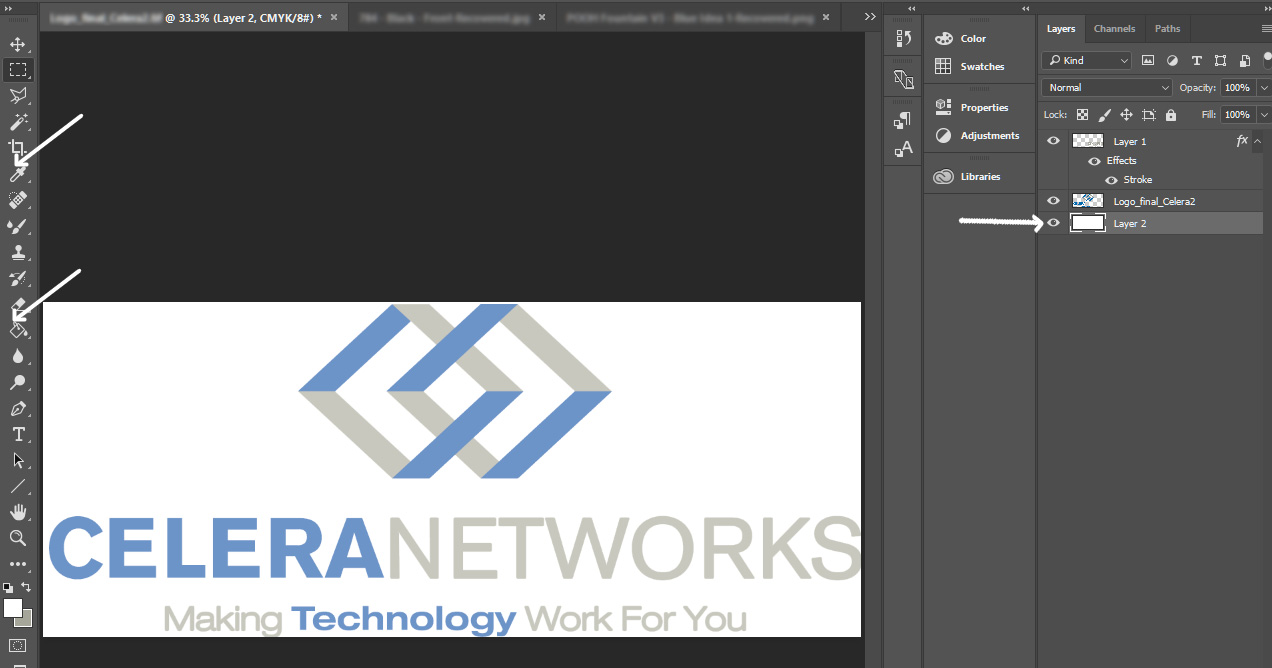
And now you can see that I was able to add the white background to our logo.
Hopefully someone can change THIS to the correct answer so people don't go uninstalling and reinstalling..................... omg.
Copy link to clipboard
Copied
Hopefully someone can change THIS to the correct answer so people don't go uninstalling and reinstalling..................... omg.
I agree. Tying the tool display to the workspace was new when this question was asked last year, and somewhere around the same time, Adobe removed the workspace list from the application bar, so it was hard to figure out what happened. Re-reading this thread, it sounds like the 3D workspace was selected, without an understanding of how it impacts the tool display.
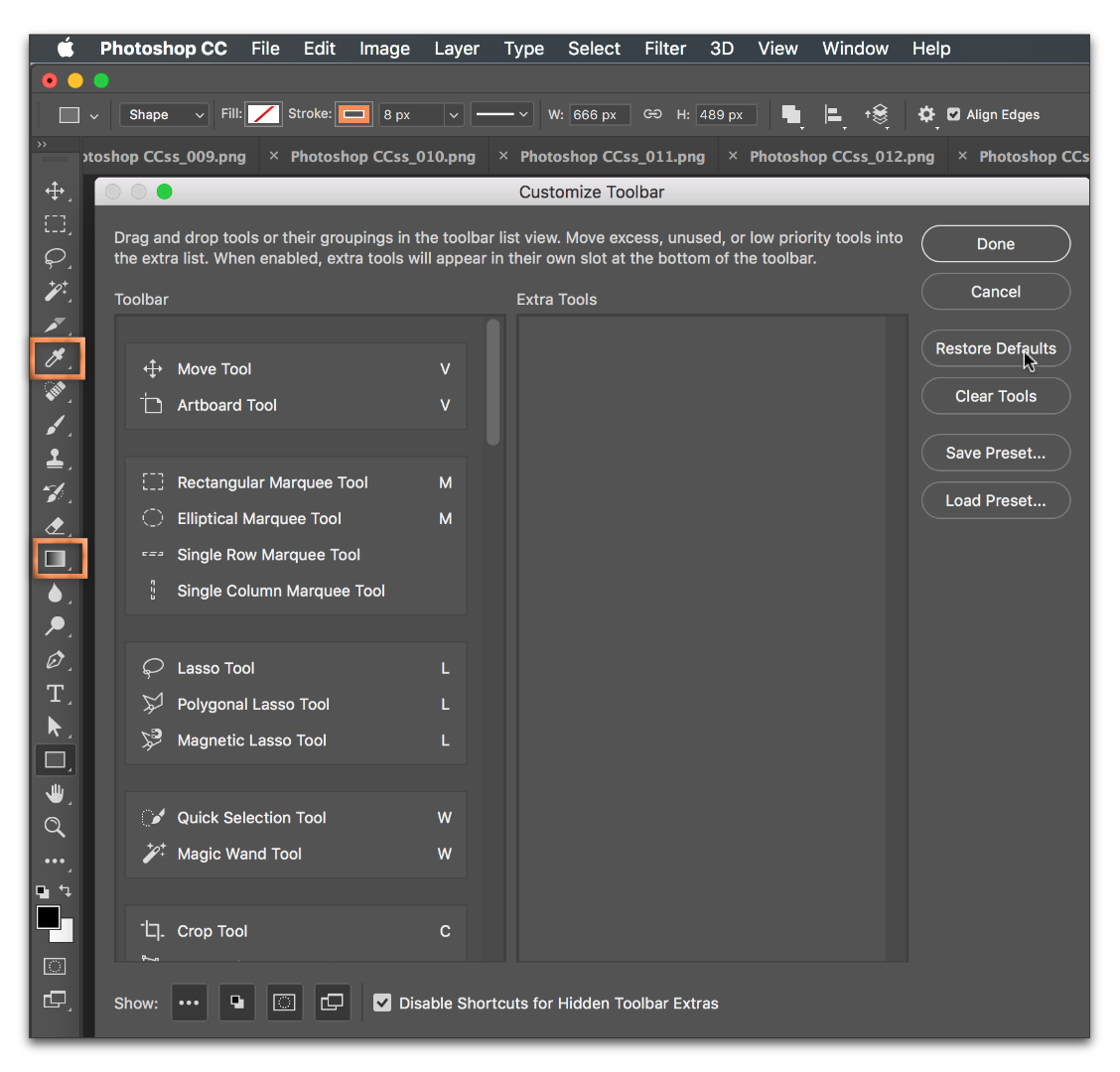
You can go back to Essentials (and reset it) to show all the tools, or if you like the panels, just use Edit > Toolbars and Restore Defaults.


Copy link to clipboard
Copied
Thanks that was my problem as well. It would be nice if Adobe didn't hide these little tidbits...like hiding time honored tools and such. Just a suggestion.

Copy link to clipboard
Copied
BLESS YOU.

Copy link to clipboard
Copied
Thank you very much.
Worked like a charm

Copy link to clipboard
Copied
Just rightclick the eyedropper tool, if 3D is selected that;s your problem. Simply select the first option which is "EyeDropperTool". This will fix both eyedropper and paintbucket locked issues.


Find more inspiration, events, and resources on the new Adobe Community
Explore Now
 AdChoices