


Aaron Torr3s
Participant
September 30, 2018
Question

Fingerprint typography vector

  • September 30, 2018
  • 4 replies
  • 9721 views

Hi everyone! i am 16 i am very interested in learning how to make one of these fingerprint typographic graphics, I am self taught with 1 yr experience with photoshop but i dont really have too much knowledge with adobe illustrator! I tried to do this by using a free fingerprints brushes downloadable pack but the finger prints were not very high quality and it made it hard for me to convert it into a path. i need help i need to know how to do one of these in steps. please help meeeeeeeeeeeee. Where all the photoshop gods at?
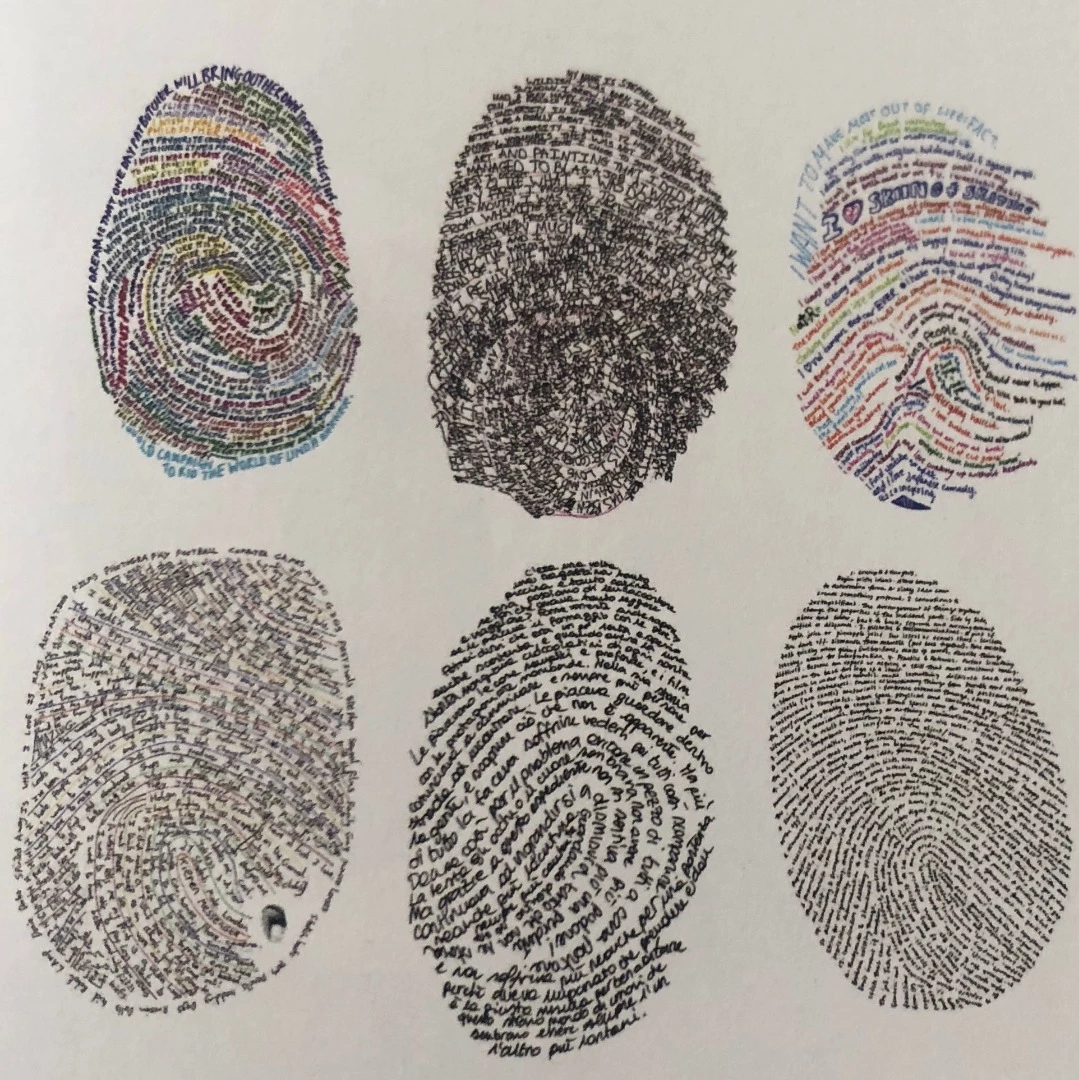
This topic has been closed for replies.

4 replies

Trevor.Dennis
Community Expert
Community Expert
October 1, 2018

Happie, we often find that the OP does not come back after starting a thread.  The best way to encourage them is to quote their username.  Either reply to one of their posts and click on the quote icon, or print their name, and use the hyperlink icon to embed the URL  for their profile page.

Thus:

Aaron Torr

Aaron will now get an email notification of being mentioned in this thread, with a direct link to the  thread.  Apologies if  that was more detail than you needed.

happie_97
Community Expert
Community Expert
October 1, 2018

Trevor.Dennis  wrote

Happie, we often find that the OP does not come back after starting a thread.  The best way to encourage them is to quote their username.  Either reply to one of their posts and click on the quote icon, or print their name, and use the hyperlink icon to embed the URL  for their profile page.

Thus:

https://forums.adobe.com/people/Aaron+Torr3s

Aaron will now get an email notification of being mentioned in this thread, with a direct link to the  thread.  Apologies if  that was more detail than you needed.

Sweet! Great advice! Thanks Trevor!

Trevor.Dennis
Community Expert
Community Expert
October 1, 2018

Here you go

And so you can play too.

happie_97  wrote

Sweet! Great advice! Thanks Trevor!

But no sign of the OP.

[EDIT]  The other bit of killer advice if you intend being a regular poster here, is to install GreenShot if you don't already use it. 

The only time you need to use the forum image widget is when posting animated GIFs. Other times just paste from the clipboard.

Greenshot supercharges that process.

This menu appears after dragging a window after hitting Print SCRN

And this is what you get if you chose Open in Image Editor.  It saves a ton of time and makes adding images a cinch.

happie_97
Community Expert
Community Expert
October 1, 2018

Did any of these tips help create your fingerprint path? If so, please update the forum.

Muqqarib Hassan
Inspiring
September 30, 2018

Hi, Check this Video and apply this method on fingerprint as he apply it on a picture.

Photoshop Tutorial: How to Make a PORTRAIT made only of TEXT! - YouTube

Trevor.Dennis
Community Expert
Community Expert
September 30, 2018

https://forums.adobe.com/people/Muqqarib+Hassan  wrote

Hi, Check this Video and apply this method on fingerprint as he apply it on a picture.

Photoshop Tutorial: How to Make a PORTRAIT made only of TEXT! - YouTube

That is not really relevant as the text does not follow the curves of the fingerprint.  In fact seeing as a fingerprint has a similar tonal value throughout, it would just produce a big blob.

I can't think of any real shortcuts.  It is as Mylenium says... Lots of work.

Find a nice clean graphic to use as a guide or template. 

http://www.createmepink.com/2018/09/white-thumbprint-vector/photovector-black-fingerprint-on-white-background/

Reduce the layer opacity so you  can see what you are doing.

Use the Pen tool to trace each line going from right to left. Hit the Escape key at the end of the line.

You need to keep just the one line on the work path or the text will try to fill it as a shape.

So after making a path, select the Type tool, and hover over the start of the path till you see the icon I have highlighted in green.

Click and start typing your text.

Note: I have offset the text height in the Characters panel (red highlight) to make the text centred on the path.

The text will initially flow in the same direction the path was made, so when a line curves back on itself, it is easier to do it in two goes starting in the middle (green highlight).  The second line has to be on a new path, so I have dragged out a guide so I know where to start the second line.

Then add the text as before.  You could finish a fingerprint like below in a couple of hours.

Note: where the type layers are close together, it might cause problems starting the next type layer.   If that happens, temporarily turn off the surrounding Type layers and it will work again.

You can obviously select parts of a line, or an entire type layer and change its parameters (font, size, colour, etc.)

This is great practice for using Photoshop, and especially great for using the Pen Tool

You'll find a series of five videos on how to use the Pen tool here.  The other four will be linked in the side bar.

Please come back and show us the finished graphic.

Participant
October 9, 2020

THANK you all for putting this together.  I'm working on a project for my wife using this basic thought pattern.  Terrific information!

Mylenium
Legend
September 30, 2018

Nothing magical here, just lotso, lotso manual labor arranging the paths and texts.

Mylenium