


Known Participant
July 5, 2022
Question

Frame Animation Broken in Photoshop 23.4.1 on Windows

  • July 5, 2022
  • 2 replies
  • 254 views

The GLORIOUS Quality Control Team has done it again 🙂

Went to make a simple animated GIF and - for the first time in almost 30 years...
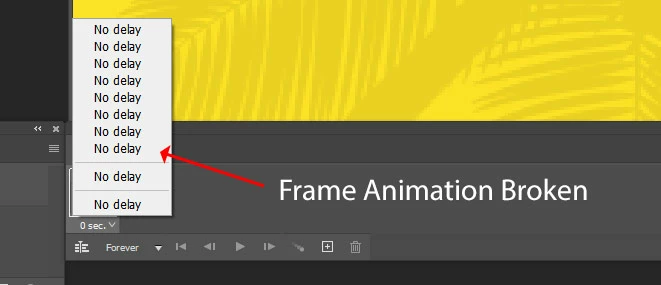


Just before the 'victim blaming' starts, let me say...
YES: I have all of the latest OS/drivers etc
YES: I have plenty of memory (32GB only 10GB used)
YES: I have over 80GB spare on my main drive
YES: I have been using Photoshop since the mid-90s


{Thread title updated by moderator}

This topic has been closed for replies.

2 replies

c.pfaffenbichler
Community Expert
Community Expert
July 5, 2022

Well, 30 years ago Photoshop did not even feature Layers … 

przoneAuthor
Known Participant
July 5, 2022

...maybe you missed the 'almost'?

c.pfaffenbichler
Community Expert
Community Expert
July 6, 2022

No, I didn’t. 

Photoshop didn’t feature Layers until 1994 – is that »almost 30 years« ago to you? 

And animation features were, if I remember correctly, introduced with the »companion« program Image Ready, which was released in 1998. 


What have you done for trouble-shooting so far? 

Sameer K
Community Manager
Community Manager
July 5, 2022

Hi there,


Thanks for reaching out. We are sorry for the trouble with Photoshop. We are here to help.

We have tested this on two separate machines running Windows 10 & 11, and this behavior is not reproducible.

Could you please share the system info of Photoshop from Help > System info > Copy & paste into a text document > upload to Creative Cloud files (https://assets.adobe.com/files) and share with us?


Does this issue persist after restarting Photoshop & using a different document?


Go to the location of the preference folder mentioned below and rename it to backup. 

https://helpx.adobe.com/photoshop/using/preferences.html

  • Windows 10/11: Users/[user name]/AppData/Roaming/Adobe/Adobe Photoshop [version]/Adobe Photoshop [version] Settings
  • You can press Press the Windows key > Enter 'Run' > Enter '%APPDATA%\Adobe
  • Rename the Adobe Photoshop folder by adding a .old at the end. (Adobe Photoshop 2022 > Rename > Adobe Photoshop 2022. old)


These changes will give a fresh start to Photoshop as a fresh install.


Let us know if it works.

Thanks!

Sameer K