


Participant
February 23, 2015
Answered

Getting error 150:30 opening Photoshop cs4 on Macbook Pro

  • February 23, 2015
  • 21 replies
  • 76893 views

I've bought a new Macbook Pro with Yosemite 10.10.2. Installed old favorite programs from my old compute with time capsule. Sadly though I can´t start Indesign and photoshop, both bought in the CS4 versions. Bridge works though.

When Indesign or Photoshop starts, I get a note saying: The licenses for the product doesn't works, try to restart your computer. If the message appear again, contact Adobes technical support and quote the error code 150:30.

Ive tried to delete the FlexNet Publisher according to information given on the adobe site  [hard drive]/Library/Application Support/FlexNet Publisher/

But  the problem is I don't have a folder named FlexNet Publisher.

Help please?
This topic has been closed for replies.
Correct answer gener7

Update: I'm glad this procedure has helped many Mac owners of CS4 over the years.

Apple has announced that Mojave (10.14) will be the last MacOS to support 32 bit apps such as Photoshop CS4.

Do not upgrade to 10.15 if you intend to stay with CS4.

Now on to the License Repair procedure:

This can be avoided with the Terminal python script fix that will eliminate the 150:30 error, fix your install with out harming anything.

I can step you through with screenshots if you want to try it.

You account must allow you to administer your computer so your password will work and the Terminal prompt must have the $ sign.

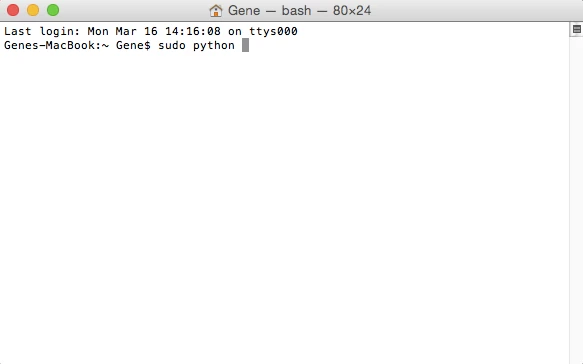
So go into Spotlight, type in Terminal and click to bring it up.  Type in sudo python and leave a space:

Get back to me when you have the below results.

21 replies

Participant
April 30, 2017

Gene,

You are a genius!  Thank you so much for the instruction on how to use Terminal to activate the adobe suite again. I installed a new hard drive on my mac 2009 with El Capitan OS. And after I migrated my whole files via Time Machine everything worked but Adobe Creative Suite 4 Design. I was going to uninstall and reinstall the whole suite but this shortcut instruction of yours saved me so much headache!!!

After couple years this instruction is still applicable. Thank you so much again,

Helen

gener7
Community Expert
Community Expert
April 30, 2017

Thanks. The idea was to provide a simple "How-to" guide for those not familiar with running a script from Terminal. If it works, that saves time reinstalling and updating the base install.

Migrating older Adobe products can be a problem because it breaks the activation, and the point of activation was to prevent casual copying of their software to unauthorized users.

Creative Cloud should be easier because activation is all about signing in to your account, not tying the software to the original Mac you installed it on.

Gene

leeh4884366
Participant
October 7, 2017

Any words of wisdom for a Windows user getting the same error message?

January 30, 2017

Thanks for the clear guide including the screen captures. I read and tried to follow the Adobe info page on running the LicenseRecovery script and I knew my day wasn't going to be good when they detail two different files: drag the LicenseRecovery.app file but then check to see if the LicenseRecovery.py file is detailed in Terminal.

Anyway, I just upgraded to a new iMac (my older one died a quick but untimely death) and restored everything from the most recent TimeMachine backup. Now my Adobe PS4 won't run because of the above documented licensing glitch. I've been trying the method you detail for Terminal but I'm getting a SyntaxError.

I haven't seen this mentioned anywhere in the above thread. Any suggestions.

I'd remove the program from my Mac and reinstall if there was a simple/straightforward way to remove it. I downloaded the full version from Adobe and tried to run the resulting SetUp app but I get the following error:

I know Adobe wants me to pay them every month for CS but I'd give up photography first.


Thanks for the help.

John T Smith
Community Expert
Community Expert
January 30, 2017

As you have discovered... Tell everyone you know who owns a Mac, including Apple employees... Mac Migration and Time Machine DO NOT WORK properly with Adobe program activations due to hidden registration files that are not included when Migration or Time Machine make their copies

You are also going to have SERIOUS problems trying to install CS4 on Mac El Capitan/Sierra

CS6 and earlier programs have not been tested and will not be updated for Mac El Capitan/Sierra

-which means that you try to use CS6 and earlier at YOUR risk of having problems

-https://helpx.adobe.com/creative-cloud/kb/install-creative-suite-mac-os-sierra.html

There IS an option that does not require a subscription Adobe Elements bundle | Adobe Photoshop Elements 15 & Adobe Premiere Elements 15

January 30, 2017

That did it. The details on Installing CS on Mac OS Sierra allowed me to reinstall using the downloaded DMG. Odd that it didn't ask me for my PS 4 serial number at the end of the process but it seems to be working now.

cindym8091490
Participant
January 1, 2017

I am stuck -- this is what I come up with after downloading Java and everything else prompted:  "This software cannot be installed because the file system of the setup volume is not supported"  soooo frustrated. 

Participant
April 26, 2016

Just completed all your steps and my CS4 suite is up and running on my new Mac. Thank you!

Participant
February 2, 2016

It worked. So it was my stupidity ready the instructions.  Thing is I'm not sure how to tell if it's in trial mode or registered mode.  ?  Does the start up screen say trial?

Participant
February 2, 2016

Wow, how'd I miss this?  I've had to do this before and it did work.  I'm waiting on it now but my mistake was clicking on enter(return) then dragging in the LicenseRecovery.py file.  As the instructions say... after sudo python just put one space. NOT RETURN So the py file gets dragged onto the same line as Sudo Python. 

so for those who miss it like me

1. open terminal

2. type in "sudo python"

3. your computer password

4. space NOT RETURN (same line at sudo python)

5. drag the LicenseRecover.py from the file you downloaded from adobe.

yet as i type this it is still stuck on this may take a few moments with a ? mark. it's been about 5 minutes so far.  Does the ? mean it's ready to go?

I pushed return an have a lengthy message that ends with * Tool exited with status = 32512

gener7
Community Expert
Community Expert
February 24, 2016

I carefully put this guide together. I'm asking any future users to read it through first so that you understand the instructions.

So let's look at a few pitfalls.

I instruct to leave a space after "sudo python in #11 and nowhere do I tell anyone to press enter or return before dragging the script.

Drag the LicenseRecovery.py file, not the License Recovery folder or the License Recovery.app

Also not that when you enter a password in this script, the cursor will not move and you won't see "dots" or stars for each character.

More info: Understanding Why Terminal Doesn’t Let You Type a Password

Another point is that this script requires the Bash shell, the one that gives you the $ prompt. If you don't see it, go into the Advanced

settings of your Use Account and change it.

Finally while it does work for most here, there can be unknowns. System problems or file corruption can make this repair not work. In that case go for a fresh install of CS3 or CS4. Installers are at this link if you don't have a disc. Always register your Adobe products so the serial numbers are there.

http://helpx.adobe.com/creative-suite/kb/cs3-product-downloads.html

http://helpx.adobe.com/creative-suite/kb/cs4-product-downloads.html

Gene

Brikd wrote:

Wow, how'd I miss this?  I've had to do this before and it did work.  I'm waiting on it now but my mistake was clicking on enter(return) then dragging in the LicenseRecovery.py file.  As the instructions say... after sudo python just put one space. NOT RETURN So the py file gets dragged onto the same line as Sudo Python.

so for those who miss it like me

1. open terminal

2. type in "sudo python"

3. your computer password

4. space NOT RETURN (same line at sudo python)

5. drag the LicenseRecover.py from the file you downloaded from adobe.

yet as i type this it is still stuck on this may take a few moments with a ? mark. it's been about 5 minutes so far.  Does the ? mean it's ready to go?

I pushed return an have a lengthy message that ends with * Tool exited with status = 32512

Participant
February 2, 2016

HELP Terminal is not working for me in El Capitan 10.11.3  I get a "SyntaxError: invalid syntax " every time.   This is after a time machine migration pain.  I want to warn people of letting someone use a different Apple ID to upgrade from Mavericks to El Capitan.  It will need the new Apple ID to upgrade forever.  Apple didn't answer why my son could upgrade a computer which used my Apple ID and yet not let me update back into my Apple ID.  In any case, CS4 was working in El Capitan before  reinstalling from a back up.  Guess I will have to try from my disks. Which worries me because it's just getting to old.  Which is why I was staying in Mavericks and will not upgrade the OS again until i am forced one day to upgrade from a perfectly good CS4 I spent $1600 on. 

Any help would be appreciated.  There are no flexnet files on my computer. 

Thanks in advance. Brian

debbies1618
Known Participant
October 19, 2015

Worked like a charm. Thank you so much. I just had a new hard drive installed on my macbook pro and was not looking forward to reinstalling this software. It fixed my ID problem, too (Mac OS10.7.5, Adobe Creative Suite CS4)

Thank you!

Debbie

gener7
Community Expert
Community Expert
October 19, 2015

I've had this happen to me more than a few times when I had CS4. It's usually caused by transferring from Backup or migrating CS4, both which breaks the license.

Using the Terminal fix is not what I want to ask Mac users who have no experience with it to do, but I did put together this visual guide for those who want to give it a try.

Gene

debbies1618
Known Participant
October 19, 2015

Gene, I would like to mark your answer as correct but, for the life of me, I cannot see where to do it!

Participant
May 2, 2015

I have OS X 10.10.3 and had upgraded from 10.9 and migrated to a new SSD hard drive since using CS4. On opening PS I got error: 150:30. Just downloading & reinstalling CS4 worked for me. PS (what I use most) works fine. I didn't even have to uninstall the old, migrated CS4 program files.

Thanks for the help!

gener7
Community Expert
Community Expert
February 23, 2015

Ben's advice is the first thing to try. I have read your post and I see why it happened. Adobe products are licensed to the hardware it was installed on as part of their anti-piracy measures. Move the install from backup or another mac breaks licensing and it won't launch.

That's why a fresh install is needed.  Another thing to take into account is you now have a base install and will have to go to Product Updates Since The usual Help > Updates function is outdated.

I'm out for the moment, so I'll ask Ben if he wouldn't mind linking you to the Product Updates page.

Participating Frequently
March 16, 2015

Since a reinstall has to be performed....how do you recover all your actions and settings that you may have made?

gener7
Community Expert
gener7Community ExpertCorrect answer
Community Expert
March 16, 2015

Update: I'm glad this procedure has helped many Mac owners of CS4 over the years.

Apple has announced that Mojave (10.14) will be the last MacOS to support 32 bit apps such as Photoshop CS4.

Do not upgrade to 10.15 if you intend to stay with CS4.

Now on to the License Repair procedure:

This can be avoided with the Terminal python script fix that will eliminate the 150:30 error, fix your install with out harming anything.

I can step you through with screenshots if you want to try it.

You account must allow you to administer your computer so your password will work and the Terminal prompt must have the $ sign.

So go into Spotlight, type in Terminal and click to bring it up.  Type in sudo python and leave a space:

Get back to me when you have the below results.