

tanzhisengb63388035
Participant
June 28, 2020
Answered

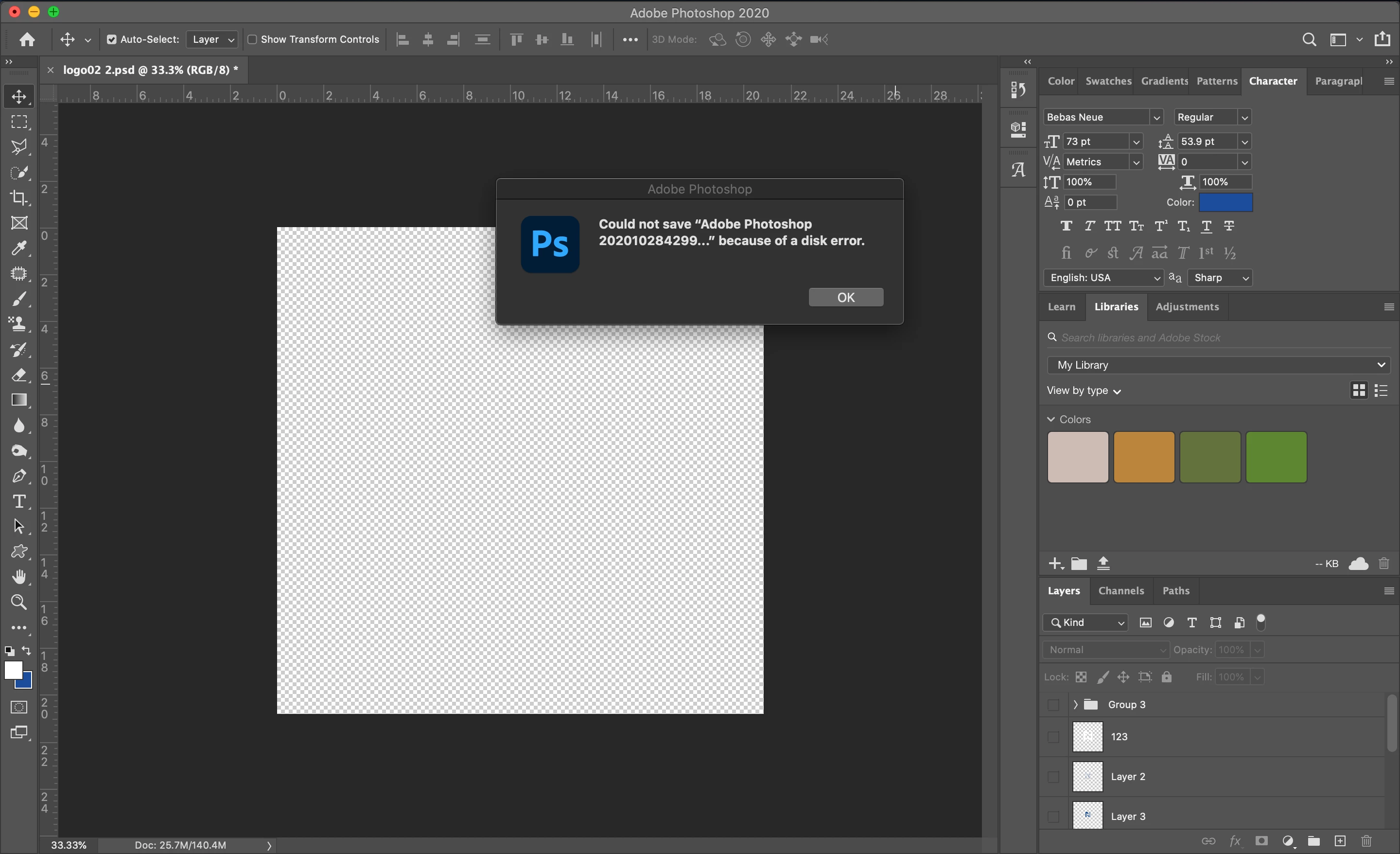
Error - Could not save the file because of a disk error in Photoshop
  • June 28, 2020
  • 16 replies
  • 112302 views

Correct answer Anastasia5ECB

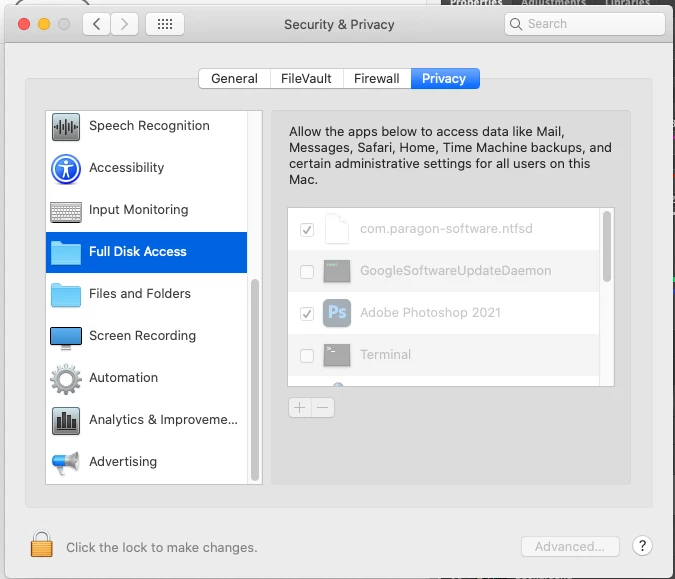
I found the solution! You need to grant full write access to Photoshop. Go to System Preferences > Security and Privacy, then Privacy tab. Scroll to folded on left called "Full Disk Access" then login to edit preferences and make sure to check off Photoshop to give it access!
 

16 replies

Participant
March 5, 2024

For me it was solved by making sure I didn't have the same file already saved in the folder from previous attempts

andrewh82728678
Participating Frequently
July 19, 2023

I have been having the same issue on and off sporadically for the last 2 years or so. When I go to save my work I get the error message: 'Cannot save file because of a disk error'. It takes a restart of the laptop to get things going again. None of the solutions mentioned in this thread have had an impact. ADOBE/anybody - help?!! 

darrenj92080900
Participating Frequently
November 13, 2023

I am having the same issues. I have checked Full Disk Access and still the problem. At my work we save all our files to a NAS file server. After doing some digging, I found that Adobe does not recommend using a NAS server and to write to a local drive. I find that ridiculous. I have been using Adobe products for the last 30 years and have worked right on a fileserver and not had this issue before.

I have noticed this problem happening if the Mac OS is Catlina or newer. I have a co-worker that is on Monterrey and not having the issue and she works directly on the same fileserver. Our IT company recommended created a new user account on the computer, done that and still have the issue. I've even gone back to Monterrey and the problem stopped. Can't tell me that Adobe products can't work with the latest version of Mac OS?

This issue is very frustrating. I can open an image, manipulate it, save the PSD. Close the file. Reopen to make a minor adjustment, save over the same PSD and then get the error message. It makes a temporary file. I have to save it with a new filename. It then finally saves. I close the file, reopen and tweak it, do a save and again same thing. My work around is I have to eject the server, then reconnect. Once I do that it works at random times. It's not consistent.

This problem also happens in Illustrator as well. I have updated my Adobe products to the latest versions. I have a Mac Studio Max with 32 Gigs of RAM running the lates OS version.


Have any other recommendations Adobe?


Thanks,

Darren

Participant
November 21, 2023

Same here, new Mac Studio Max 64Gb running Sonoma 14.1.1 and having this same sporadic issues for about 12 months. Saving JPEGs was today's issue, did not want to do it. Different file? Nope. PSD? Fine, no issue. 
My flile server was upgraded about 2.5 years ago to add about 500Tb in discreet modules so space and format is not an issue AFAIK.
Come on Adobe, why so lazy now? You already have us paying you to be your beta testers, can we get some long term bugs ironed out already?

CutthechaseM
Participant
November 2, 2022

What did work for me was saving on a native format drive, so Mac OS journaled in my case, I tried saving on EXFAT but that gave me errors every time, it probably has to do with large data chunks not getting written or having access.

Participating Frequently
July 31, 2022

Perfect!! Your solution worked!! Thank you. 🙂 

Participating Frequently
July 31, 2022

While I was at the same setting I added Lightroom to have full disc access.

Participant
June 10, 2022

I was able to get past this issue by going to Preferences > File Handling > and checking Enable legacy "Save As". Also, for some reason, the default file location (drop-down just to the left) was set to "Creative Cloud" when I've never changed that feature. Must have been from the recent update.

richh27044178
Participant
May 23, 2022

Well it is a maddening BRAND NEW ISSUE.. been photoshop user since early 90's- never ever. had this issue with this or any other Application.

Everyone who can;t save the file and it is crucial to do so... change the name of the file, then save.  The issue got to do with overwriting the file you have open and/or are currently working on. 

PITA because linked images in InDesign and eslewhere, have to be updated.... but you won't lose your file, you will now have two PSD files on your hard drive,, the one you opened/created and the o version with whatever changes you are saving. So you don;t lose your file, n but you do lose disk space... Have to rememebr togo back and clean it up is all. I make incremental changes and or use options when placing in InDesign to control layers in the psd file, each time i save, i have to update the linked file in InDesign to the new name....  so its a(*&^#(*&^@(*  time stealer.


colinc44317008
Participant
May 3, 2022

This has been driving me nuts in May of 2022.  I tried the "correct answer" and that worked for a few files.  Now I'm right back to not being able to save.  FWIW, the only workaround I have been able to find has been to "Save a Copy".  Pretty tough to keep track of your files that way(naming them "copy1", "copy2", etc...) and takes up a lot of space, but you CAN save files.  C'mon Adobe! Get on this!

cwpa
Participant
May 17, 2022

I spoke in chat with Adobe and they were going to call me 2 days ago about this issue... Well they haven't 


Participant
April 10, 2022

Thank you, it worked!

Participant
January 21, 2022

I've had this problem on and off for about a year. Working mainly off a server, google drive, or similar.
I have found a solution that has fixed my issue.

Simply put, if you have the photoshop file selected in your finder (naturally this happens when you click to open a file) it will have issues saving (or saving over) as the server is trying to rewrite the selected file.


If you open a file and then make sure the file isn't selected in your finder it should fix your issue.


Unfortunately, if you forget to deselect in finder and hit save, then get the error, it's too late to then deselect and try again. You will have to 'save as' to create a new file and delete the old one. 

Let me know if it works for anyone else.


Participant
February 1, 2023

This worked for us!!!!


Participant
January 6, 2022

The "Full Disk Access" solution worked for me, but I also had to give the same access to Google Drive in order for it to work. We use google drive desktop and the issue seems to be tied to that as well.
