


New Participant
February 25, 2020
Answered

Gradient Tool Action error - Photoshop

  • February 25, 2020
  • 3 replies
  • 34669 views

I'm trying to run an action that I purchased and keep getting this error. "Can not use the gradient tool because the content of the layer is not directly editable."Other people have used this same action successfully, so I assume it is something off with my software?
I'm running it directly on a duplicated background layer. I've restarted my computer and re-installed the action...same error.
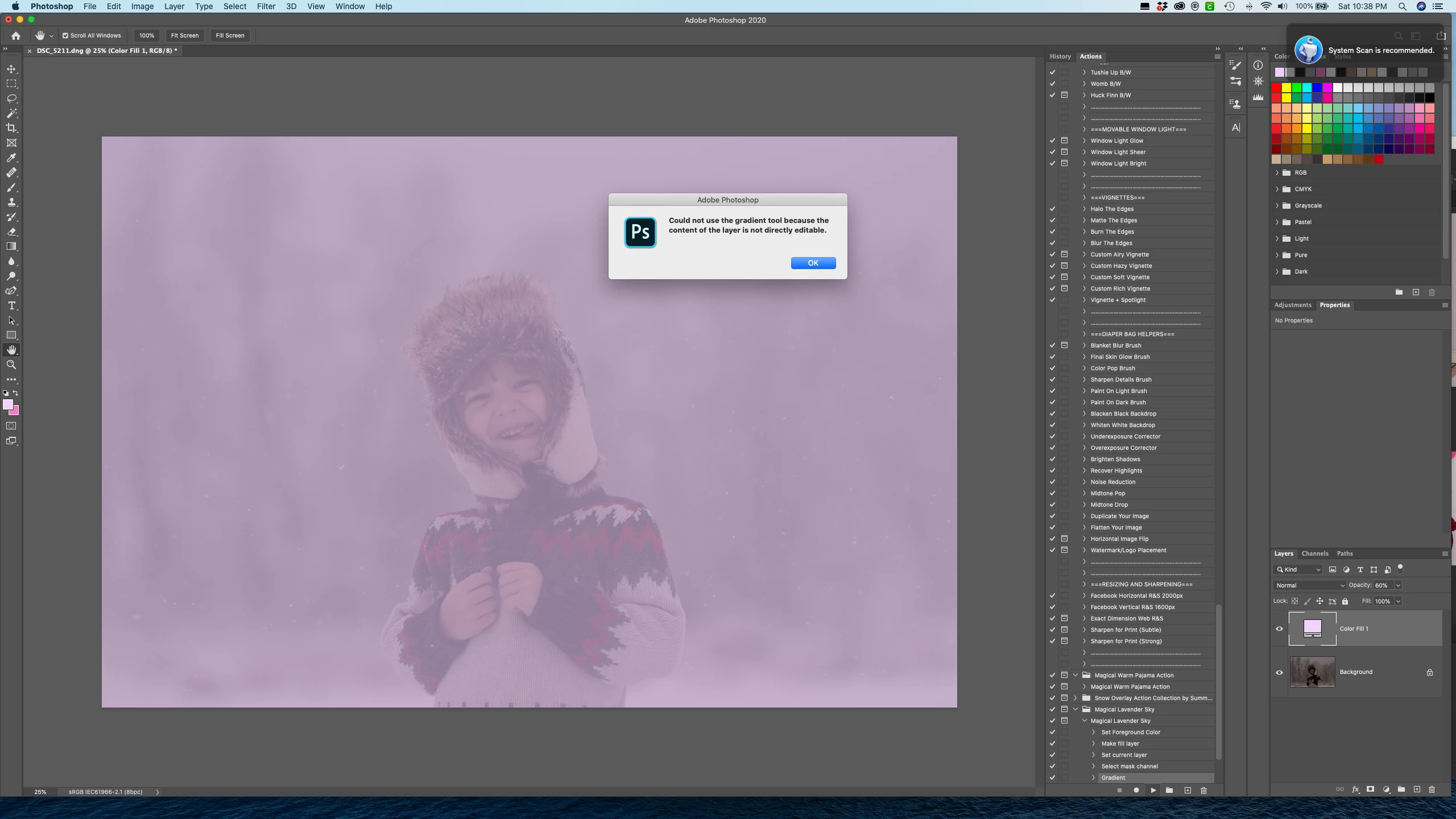
 

{Thread renamed by moderator}

Correct answer r-bin

Menu->Window->Adjustments->Panel menu (top-right)->Add Mask by Default - turn on.


3 replies

October 18, 2021

Update for 2021:

If anyone is having trouble with this, follow these steps:

1: Select your layer that you want to use the Gradient Tool on
2: Add Vector Mask to Layer

Check attached Screenshot to see how to add a Vector Mask.

Hope this helps someone 🙂

Participating Frequently
November 5, 2021

I have followed all the recommendations above and this doesn't work for me.

I create a new document and draw a rectangle:


I want to fill this rectangle with a gradient, but cannot do so:


If I add a layer mask as was suggested by MonkeyNoob, I can put the gradient in the layer mask:


But this is not what I want. I am still unable to fill the rectangle with a gradient:


Here is the fastest solution. Draw my rectangle in Illustrator:


Fill with the required gradient:


Import that AI file into Photoshop:


As one who has been using Photshop over 20 years, it seems that to do such a simple task directly in Photoshop should not be so difficult. But creating the file in Illustrator and importing it took much less time than messing around in Photoshop, wondering what I could be doing wrong and trying different things, and then researching on line. (I would say that it was no more than 30 seconds to get the result with AI.)


Illustrator has over the years become so much easier to use whilst Photoshop seems to have gone in the opposite direction. However, if someone can explain what I am doing wrong on what seems a very simple task in Photoshop I would be pleased to learn.

alexandrar58625814
New Participant
April 12, 2022

yep! i had the same problem, so here it goes:

select your layer to be edited

> then go on top in Layer

> then down to rasterize > fill content

done!

r-binCorrect answer
Brainiac
February 25, 2020

Menu->Window->Adjustments->Panel menu (top-right)->Add Mask by Default - turn on.


New Participant
April 18, 2020

Hello r-bin, I was hoping you might be able to help again. I upgrade to an imac and am now having the same error pop up when running that action. The "Add Mask by Default" is already checked. Do you know why I would still be receiving this error??

Thanks!

Kristen

Brainiac
April 19, 2020
Did you solve the problem?
Is a mask present on the layer?
Is it active?
 
Show a screenshots.
 
Sahil.Chawla
Community Manager
Community Manager
February 25, 2020

Hi there,

As I can see from the screenshot you are working on an adjustment layer and the Gradient Tool will not work on it. Try selecting the layer below the adjustment layer and see if it works.

Regards,
Sahil

New Participant
February 26, 2020

Hi Sahil!

Thanks for responding...that's where the error pops up in the middle of running the action. When I play the action, it's on the background layer.