It's probably easier to do now than in was in 2012. I just ran across this post and had to give your image a try.
Steps taken:
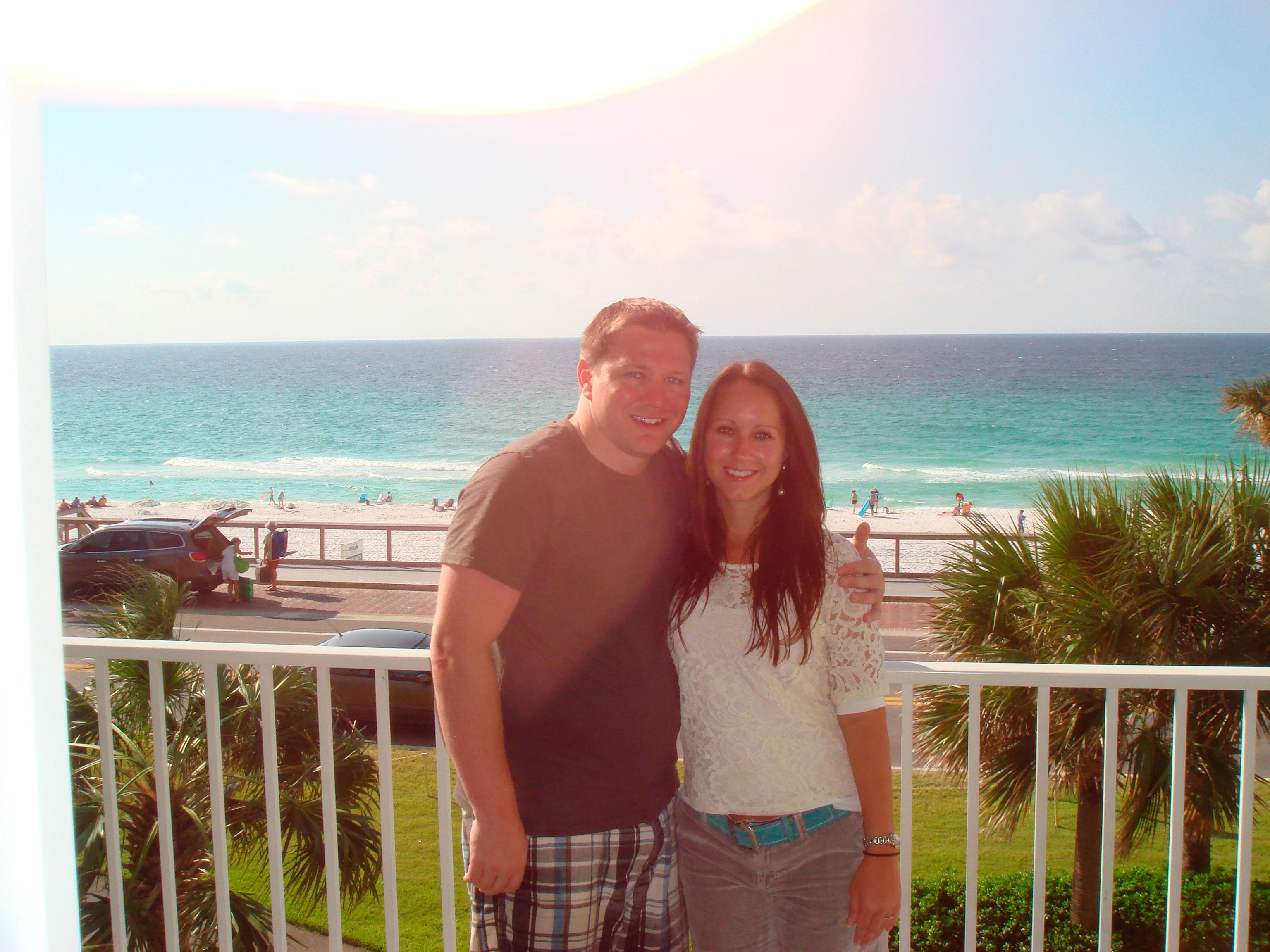
First, I used the ruler tool to level the photo - using the horizon line (where the sky and water meet) as a level. Then, I cropped it so that the horizon line meets the vertically "one-third" from the top and the couple is centered horizontally.
Next, I created a new layer and hand-painted the brown shirt over the "faded" section due to the lens flare. I selected a brown color from the bottom section of the shirt. (This can be done with an even cleaner transition, I was trying to do this quickly.) I set this layer to "overlay". Use a layer mask to keep this effect where you want it.
I added an adjustment layer and played with the levels until I was happy with the results. (Layer > New Adjustment Layer > Levels...) My result looks a bit posterized, so you'd have to play with it some more if you don't like that effect.
Finally, I used the clone stamp tool to paint the "faded" water, using [Alt] and clicking where I wanted to paint from (the darker blue water.)
There are a large variety of ways to make corrections such as these, but here's my stab at it:
Was a fun picture to tackle! I'm surprised you didn't get more interested in trying to manipulate it.
If we are revisiting this image, then there are some other new features we can try, like the new Make Better filter in Camera RAW. I had it set to improve Foreground subjects in this example.
Here's my try. The glare spot in the sky is burnt with 0 color values, I guess due to the 8bit compression and can't be pulled out without creating new values. I tried Content Aware fill and it worked well on a rough selection of the spot. I only had to paint touch the wall at the left.
The shirt, I painted over. Depending on the image and detail, I often spend less by painting over than using global adjustments. I just selected the shadowed (front) part of the tshirt use levels to darken a bit on a new layer and smoothed the transition with a soft brush, Then I painted some wrinkles with the brush referring to the original in a window beside. Then I added some sharpness and lighting on additional layers masked them out then reveal partially the mask by painting with the soft brash to lighten and sharpen some areas like the faces. I also pulled some details from the sky by using the shadows/highlights. Played about 15 min with this.
But the shirt is not shadowed by the girl. The sun is from the left. That is a design on the shirt. Theres nothing wrong with this pic that can't be fixed by Image> Adjustments> Whatever. You're all overthinking this. It could have been fixed in PS 2.5. Trivial. I cropped the wall because it screws up the composition.
Come on, it could be their honeymoon. Probably too much Dos Equis
That's a design on the shirt? Ha ha. I know it is not a cast shadow from the girl and the light is from the left but I thought it is part of the defect - what ever it is glare, dirty lenses, splattered bugs, etc. LOL
Anyway if its only the sky the content aware fill does it nicely in one go. And for those like me who can't stand the so called "design" on the shirt can paint it over.
Again, please refer to my reply to Lundberg02. Also, in your fix there is still significant glare present. I am looking for a little bit better solution. Thanks though.
You don't even need to buy one of the at least fifty books on restoring photographs with Photoshop. Just google it. In Photoshop, Image>Adjust>whatever you want to do.
I posted this question looking for an answer/tutorial/protocol etc. I would like to fix it properly (fully correct solution), so that I can fix other photos similarly. I did search in the photoshop manual briefly without much success. I do not have the time now to read everything there is to know about photoshop.
I think the sky could be painted in (the frame on the left I ignored, but Clone Stamping it should not be difficult) and the effect on the person fairly well be reduced with one masked Curves Layer; if the Mask’s edges prove troublesome Clone Stamping on an overlying pixel layer may help.



 AdChoices