Participant
November 7, 2022
Answered

How do I control visibility of mask vector?

  • November 7, 2022
  • 2 replies
  • 486 views

I find myself using vector masks more and more frequently, often in combination with a raster mask but I am constantly tripped up by a behaviour that I don't recall encountering in the past. Every time I select a layer with a vector mask applied the bright vector outline shows up which is fine if I want to edit it but  is very annoying if I want to do something else to the layer eg make an edit to the raster mask or adjust the feather on the vector mask. It doesn't make any difference what tool I have selected. How can I control the visibility of the vector outline?

Thanks, William.
This topic has been closed for replies.
Correct answer Imaginerie

Hi William,
From my experience, selecting a vector mask as opposite to selecting both the layer and the vector mask is sometimes a bit counter intuitive.
But it's about which one is highlighted
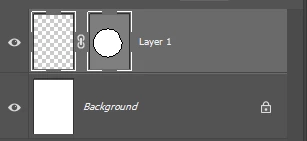
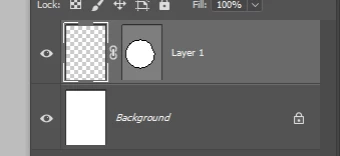
For example, in the case below, only the layer is highlighted, you get no visibility of the vector mask

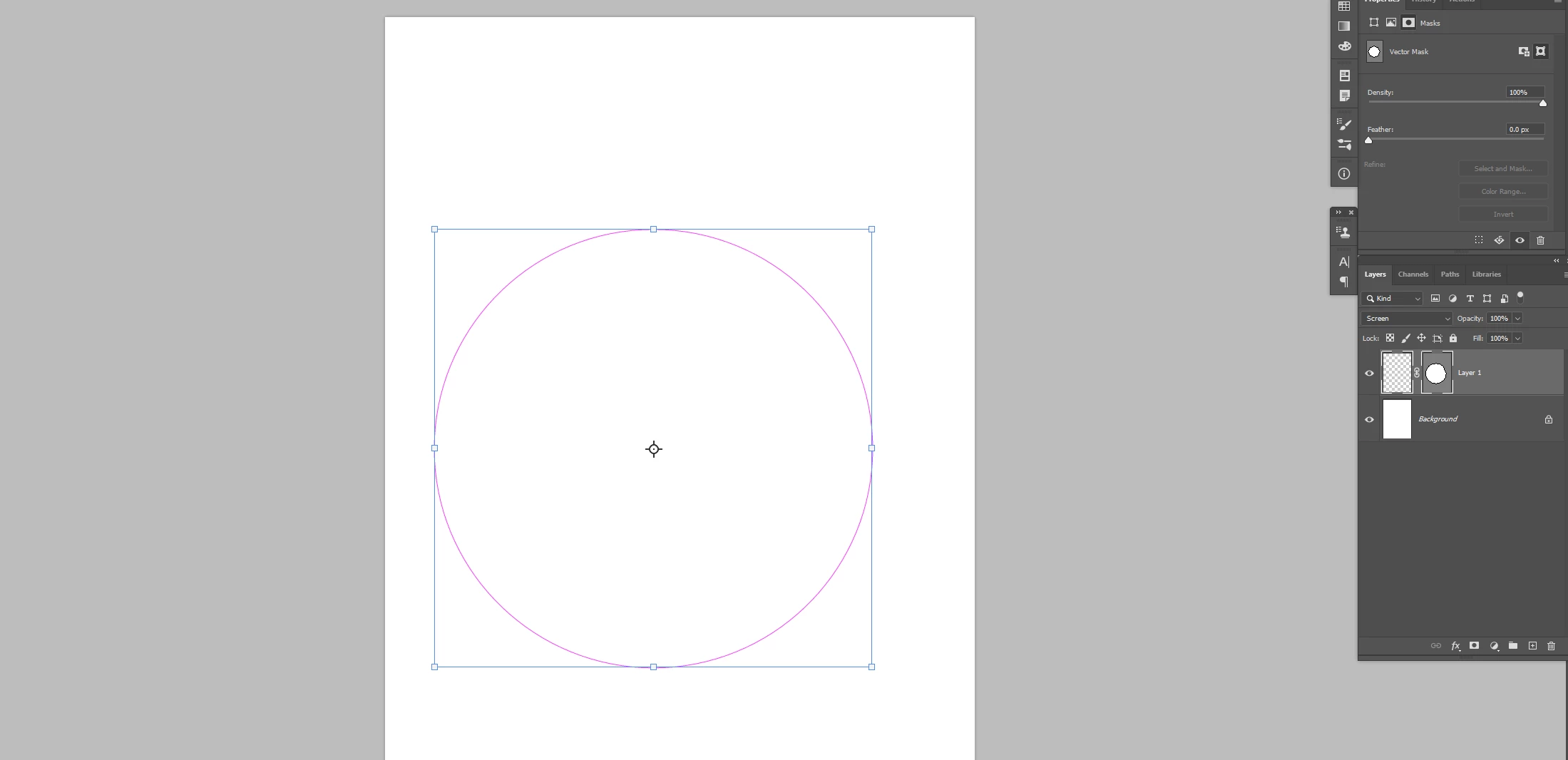
In this case, both are highlighted, and you get a visisbility of the mask


see the visibility here

The normal way to access both scenarios is to click on the vector mask, which acts as a toggle (that's the bit which is counter intuitive)

You can also click away from the path in the Path panel, in effect, deselecting the path, which will get you to the first scenario (layer highlighted only).

I hope it answers your question!

2 replies

Imaginerie
Community Expert
ImaginerieCommunity ExpertCorrect answer
Community Expert
November 7, 2022

Hi William,
From my experience, selecting a vector mask as opposite to selecting both the layer and the vector mask is sometimes a bit counter intuitive.
But it's about which one is highlighted
For example, in the case below, only the layer is highlighted, you get no visibility of the vector mask

In this case, both are highlighted, and you get a visisbility of the mask


see the visibility here

The normal way to access both scenarios is to click on the vector mask, which acts as a toggle (that's the bit which is counter intuitive)

You can also click away from the path in the Path panel, in effect, deselecting the path, which will get you to the first scenario (layer highlighted only).

I hope it answers your question!

Participant
November 7, 2022

Thanks for the reply, what you describe is what I expect to happen and lo and behold it is now working that way! Recently though the vector outline has been showing irrespective of whether the vector mask icon shows it selected or not ie in both the cases you illustrate so maybe it is a bug. If the behaviour recurs I will screen grab it. In the meantime I still have the issue of the outline making it difficult to fine tune a feather on the vector mask - for this the vector mask must be selected.

Thanks, William.

Imaginerie
Community Expert
Community Expert
November 7, 2022

In that case @c.pfaffenbichler 's answer might help temporarily (CTRL+H which de-activate the visibility of the path highlight) until you find the source of the issue.

c.pfaffenbichler
Community Expert
Community Expert
November 7, 2022

ctrl-H


How are you selecting the Layer exactly? 

Participant
November 7, 2022

Yes! ctrl-H works now, maybe I have just been suffering some brain fog this morning,

Many thanks, William.