


Known Participant
June 28, 2021
Answered

How Do I Create a Two Command Shortcut? (Hide selection followed by gaussian blur)

  • June 28, 2021
  • 2 replies
  • 1134 views

I am trying to create a keyboard shortcut where with press of one button, it hides the 'marching ants' of my selection (not deselect) and then it gaussian blurs. How do I do this? Thank you!
This topic has been closed for replies.
Correct answer JJMack

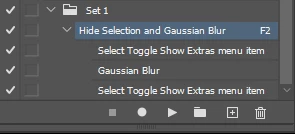
The easy way  to do this is a with F key action shortcut.


2 replies

Stephen Marsh
Community Expert
Community Expert
June 29, 2021

@Archie5E55 


I think that JJMack's reply should be marked as the correct answer.


Are you sure that you want to keep the selection hidden and or active after blurring? Do you do something else with the hidden selection that does not need to be automated?

Known Participant
June 29, 2021

I have marked his as correct however I don't fully understand the steps he went through. I can get it to record my gaussian blur but not the hiding of the mask. What I want to do is make a selection and then after I have seen my selection's 'marching ants' I would like to press a button that hides the 'marching ants' and then hits gaussian blur. I can't see as properly what my gaussian blur needs to be when my selection is roped off with dotted lines, I want to see the image as it will be shown to gauge how much gaussian blur I need to use.


Trevor.Dennis
Community Expert
Community Expert
June 29, 2021

Just a guess, but when recording the Action, use the menus and not shortcuts.

JJMack
Community Expert
JJMackCommunity ExpertCorrect answer
Community Expert
June 29, 2021

The easy way  to do this is a with F key action shortcut.


JJMack
Known Participant
June 29, 2021

I hit record on my action, pressed ctrl+H to hide my selection and then used gaussian blur but the only thing recorded was the gaussian blur. How do I add "select toggle show extras menu item" to my action as you have shown in your post? Thank you.