


SRenee
Known Participant
June 2, 2018
Answered

How do I delete my shadows of the Chairs legs?

  • June 2, 2018
  • 3 replies
  • 1071 views

I was given instructions however, I do not understand them. Find Below;

Add a layer mask to the Rondo Collection layer. Then make your foreground color black, with opacity and flow set to 100%. Then simply with a soft brush paint over the reflection/shadow while the Rondo Collection layer is selected. The reflection will disappear. If you don't want to keep the layer mask simply right click the Rondo Layer and select 'Apply Mask' This step isn't necessary in fact it's destructive but it will give you the result you want.
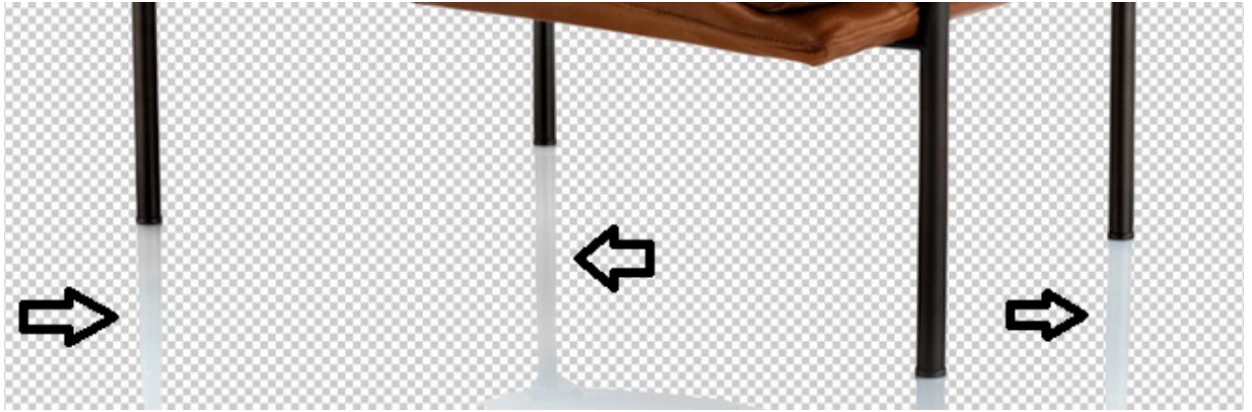
    Correct answer c.pfaffenbichler

    • Click the icon of the Layer »Rondo-…« ion the Layers Panel

    • Layer > Layer Mask > Reveal All (or click the Add Layer Mask icon in the Layers Panel)

    • the Layer Mask should be selected (as indicated by an additional contour of its icon in the Layers Panel and in the Channels Panel) and can be painted on

    • select the Brush Tool

    • hit D to reset foreground and background color

    • as the foreground color should be white now hit X to switch foreground and background color

    • paint black on the Layer Mask, thus hiding the Layer in those locations

    3 replies

    SRenee
    SReneeAuthor
    Known Participant
    June 4, 2018

    HOW DO I DELETE THE SHADOWS OF THE LEGS OF MY CHIAR??

    I was given instructions however, I do not understand them. I am only a beginner to Photoshop. Please find below;

    Add a layer mask to the Rondo Collection layer. Then make your foreground color black, with opacity and flow set to 100%. Then simply with a soft brush paint over the reflection/shadow while the Rondo Collection layer is selected. The reflection will disappear. If you don't want to keep the layer mask simply right click the Rondo Layer and select 'Apply Mask' This step isn't necessary in fact it's destructive but it will give you the result you want.

    May I get step by step instructions showing me where I need to go please?

    Kind Regards

    Renee Schweicker

    c.pfaffenbichler
    Community Expert
    c.pfaffenbichlerCommunity ExpertCorrect answer
    Community Expert
    June 4, 2018

    • Click the icon of the Layer »Rondo-…« ion the Layers Panel

    • Layer > Layer Mask > Reveal All (or click the Add Layer Mask icon in the Layers Panel)

    • the Layer Mask should be selected (as indicated by an additional contour of its icon in the Layers Panel and in the Channels Panel) and can be painted on

    • select the Brush Tool

    • hit D to reset foreground and background color

    • as the foreground color should be white now hit X to switch foreground and background color

    • paint black on the Layer Mask, thus hiding the Layer in those locations

    SRenee
    SReneeAuthor
    Known Participant
    June 4, 2018

    Wow!! Finally, thank you very much. Although I had to save my work as I was interrupted and I have come back to it and Reveal All doesn't appear for me to finish it off.

    josephlavine
    Community Expert
    Community Expert
    June 3, 2018

    Providing additional information will allow everyone to better assist.  Please share screen captures showing your layers and the full image.

    best

    c.pfaffenbichler
    Community Expert
    Community Expert
    June 3, 2018

    Good day!

    Please post a meaningful screenshot that includes the pertinent Panels like the Layers Panel and Options Bar.

    Regards,

    Pfaffenbichler