


New Participant
March 21, 2018
Answered

how do i divide my canvas into 3 without using guides?

  • March 21, 2018
  • 4 replies
  • 26289 views

Hi everybody, I want to do a piece looking like this:
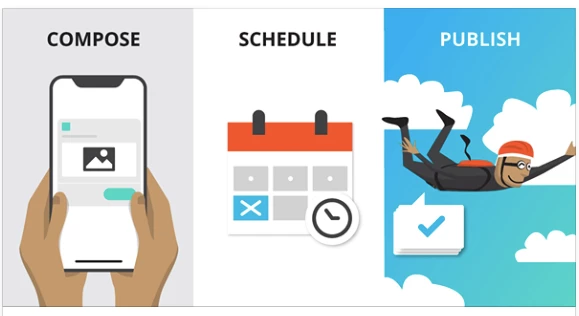
I have no idea how to divide my canvas in three "pieces" like here. I read some other threads where people suggest using some guides? But I have been looking for these, and I can't find them anywhere. I'm really new to photoshop and I really hope someone can help me!
    This topic has been closed for replies.
    Correct answer Jeff Arola

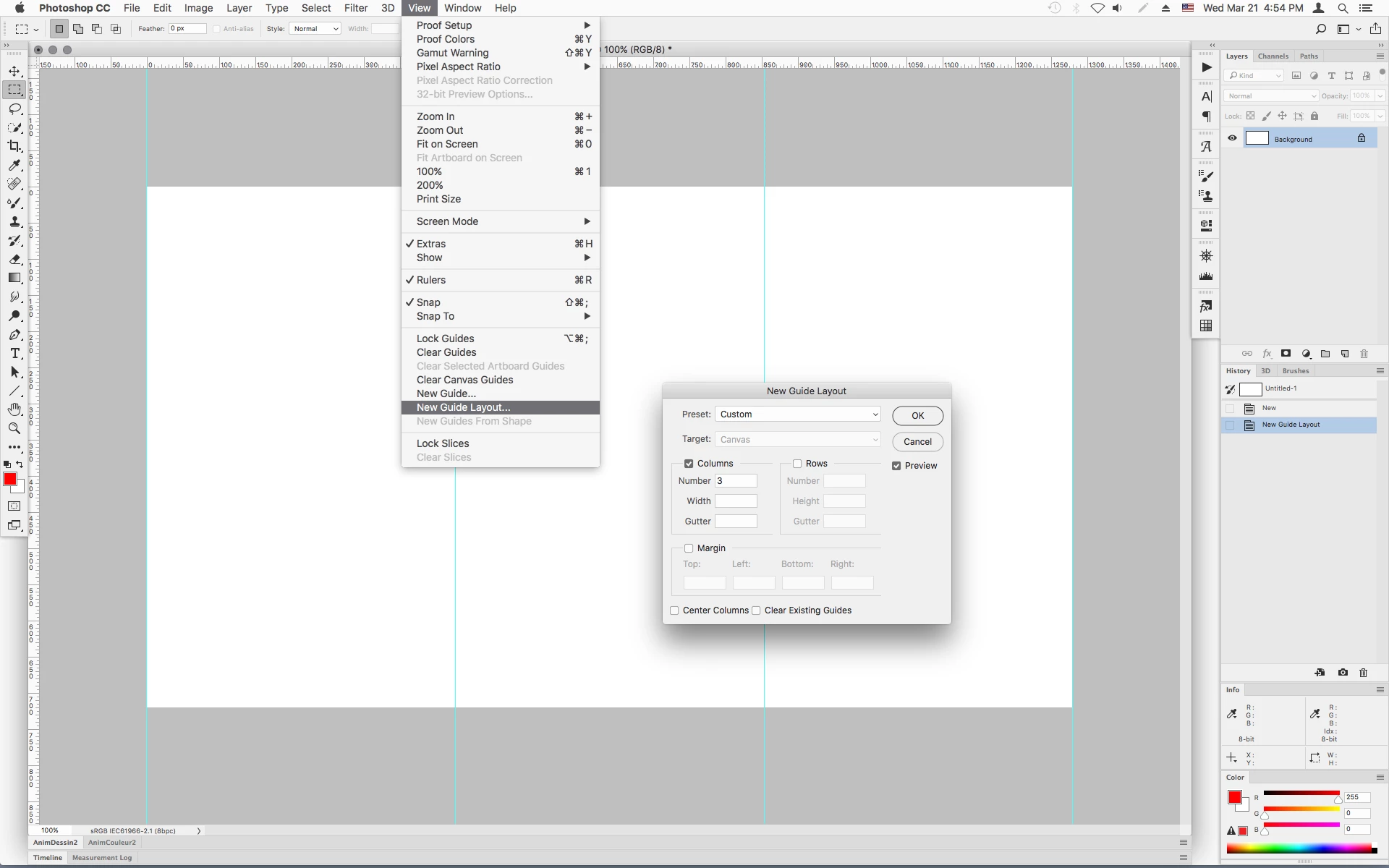
    You could use View>New Guide Layout set to 3 Columns.

    4 replies

    Jeff Arola
    Jeff ArolaCorrect answer
    Community Expert
    March 21, 2018

    You could use View>New Guide Layout set to 3 Columns.

    Chuck Uebele
    Community Expert
    March 21, 2018

    Several ways to do this. One way would be to open all three images and put them all into one document. Make sure they are cropped to the same size. Then change the canvas size by 300%

    Then you can use the move tool to position them.

    You can also use guides and change your unit measurement to percent and use 33.3333% and 66.6666%

    Norman Sanders
    Brainiac
    March 21, 2018

    Guides can be very useful and they are easily available.

    Open a file.

    Choose View and checkmark Rulers. It will put rulers alongside the left and top of the Applications Frame.

    To get a guide, click in a ruler and drag into your image.

    To move a guide choose the Move tool, straddle the line and drag it

    To hide guides, Cmd+H and to show them again, key Cmd+H again.

    To get rid of guide, use the Move tool. straddle the line and drag it back whence it came (I like the old word "whence")

    Try it.

    launannaAuthor
    New Participant
    March 21, 2018

    So I just found out that you have to install the guideguide to actually get the guides, but isn't there a way to do this without having to buy guideguide?

    March 21, 2018

    You'll find the "New Guide" entry in the View menu.

    You can enter pixel values, % values or cm/in values, as you like.

    You can hide or show them with Ctrl+H .

    Fenja