kristic123
Participant
December 30, 2017
Answered

How do i place a video over a still image?

  • December 30, 2017
  • 3 replies
  • 813 views

I'm hoping to place a video over a still image but all the tools ive played with dont actually seem to play the video. I thought it would maybe play once i exported but i dont have the option to export as a video file. help!

    This topic has been closed for replies.
    Correct answer Trevor.Dennis

    Photoshop can do that no problem.  As Bob says.  The still image has to be the lowest in the timeline, and video above it.  The video will need to be sized to reveal that part of the still image you wish to see in the rendered video, or you can mask it.  Photoshop does not do Green Screen where a cutout of a person, for instance, moves over the still image background.  You will need Premiere Pro or After Effects to do that.

    I hope you can work this all out from the screen shot, and you might need to click to expand to see in more detail

    Video Group 1 is a layer filled with black with white brushed writing and a rainbow stripe

    Video group 2 is a video.

    In order to resize the video goup, you need to make it a Smart object.  You can then Free Transform it.

    Alternatively, you can add a layer mask to the video group 2 'layer' and paint with black where you want the background to show through.  As in where the rainbow is revealed behind the black circle in the layer mask.
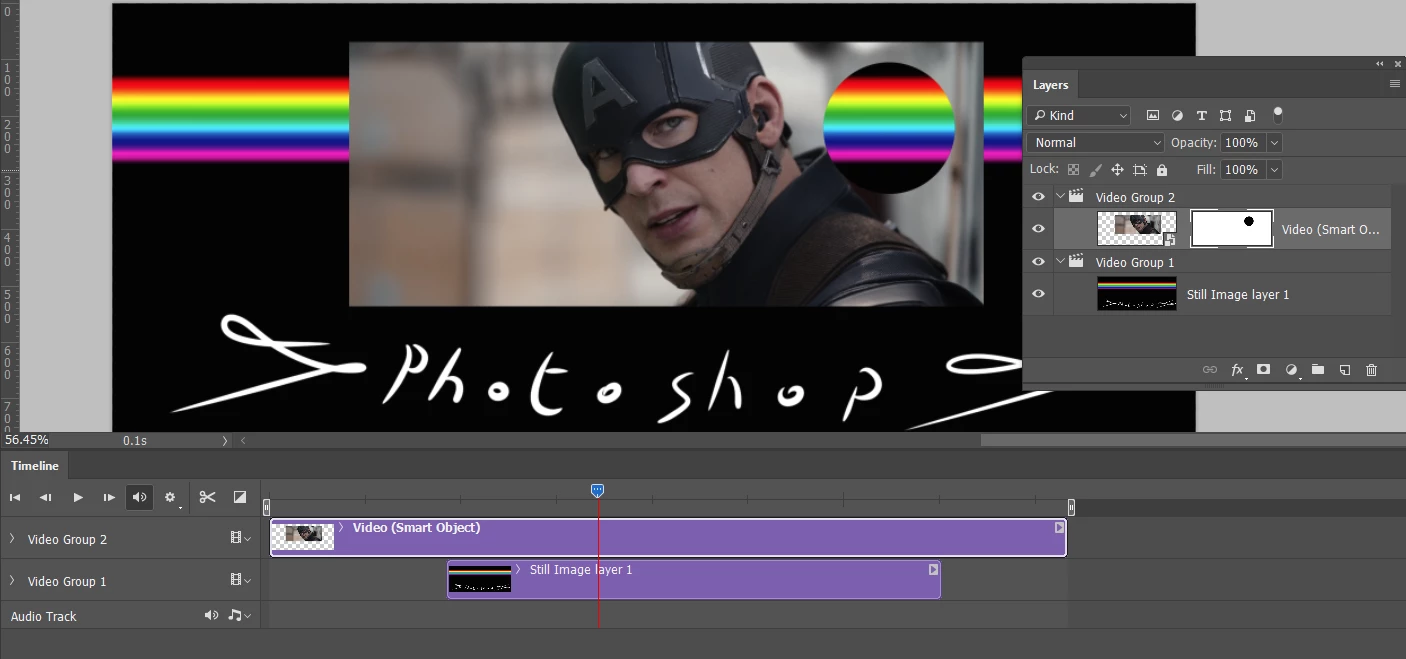
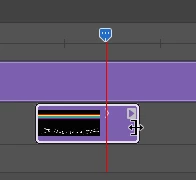
    One thing with the still image layer is that it will need to be dragged out to fill as much of the timeline as required
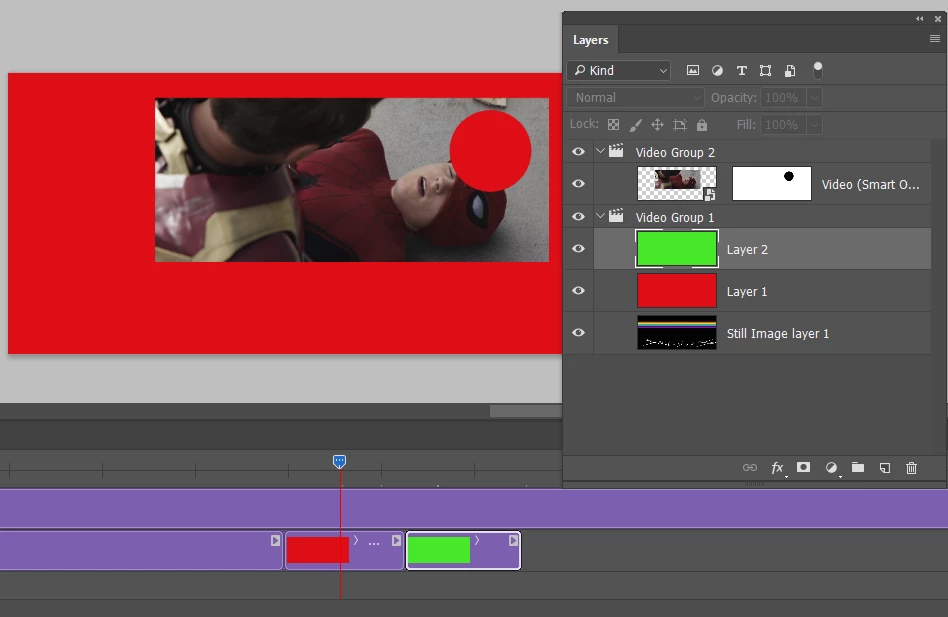
    Or you can place multiple still image layers into a video group, and drag them out to show for the required time.
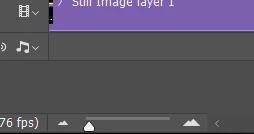
    Note that you might need to use the zoom tool to be able to drag in the right place.
    I'm sure you got it all way back up the thread, but please ask if you need more details.

    3 replies

    Trevor.Dennis
    Community Expert
    Trevor.DennisCommunity ExpertCorrect answer
    Community Expert
    December 30, 2017

    Photoshop can do that no problem.  As Bob says.  The still image has to be the lowest in the timeline, and video above it.  The video will need to be sized to reveal that part of the still image you wish to see in the rendered video, or you can mask it.  Photoshop does not do Green Screen where a cutout of a person, for instance, moves over the still image background.  You will need Premiere Pro or After Effects to do that.

    I hope you can work this all out from the screen shot, and you might need to click to expand to see in more detail

    Video Group 1 is a layer filled with black with white brushed writing and a rainbow stripe

    Video group 2 is a video.

    In order to resize the video goup, you need to make it a Smart object.  You can then Free Transform it.

    Alternatively, you can add a layer mask to the video group 2 'layer' and paint with black where you want the background to show through.  As in where the rainbow is revealed behind the black circle in the layer mask.

    One thing with the still image layer is that it will need to be dragged out to fill as much of the timeline as required

    Or you can place multiple still image layers into a video group, and drag them out to show for the required time.

    Note that you might need to use the zoom tool to be able to drag in the right place.

    I'm sure you got it all way back up the thread, but please ask if you need more details.

    kristic123
    Participant
    December 30, 2017

    ah ok thank you! i have both of those apps but am not super familiar. how do i do that?

    Peru Bob
    Community Expert
    Community Expert
    December 30, 2017

    Video on track 2.

    Photo on track 1.

    Peru Bob
    Community Expert
    Community Expert
    December 30, 2017

    You will need to use either Premiere Pro or Premiere Elements to do that.
