Participating Frequently
May 21, 2020
Answered

How do you create a halftone pattern in a shape?

  • May 21, 2020
  • 2 replies
  • 18527 views

How to create halftone pattern in a polygon shape?

This topic has been closed for replies.
Correct answer c.pfaffenbichler

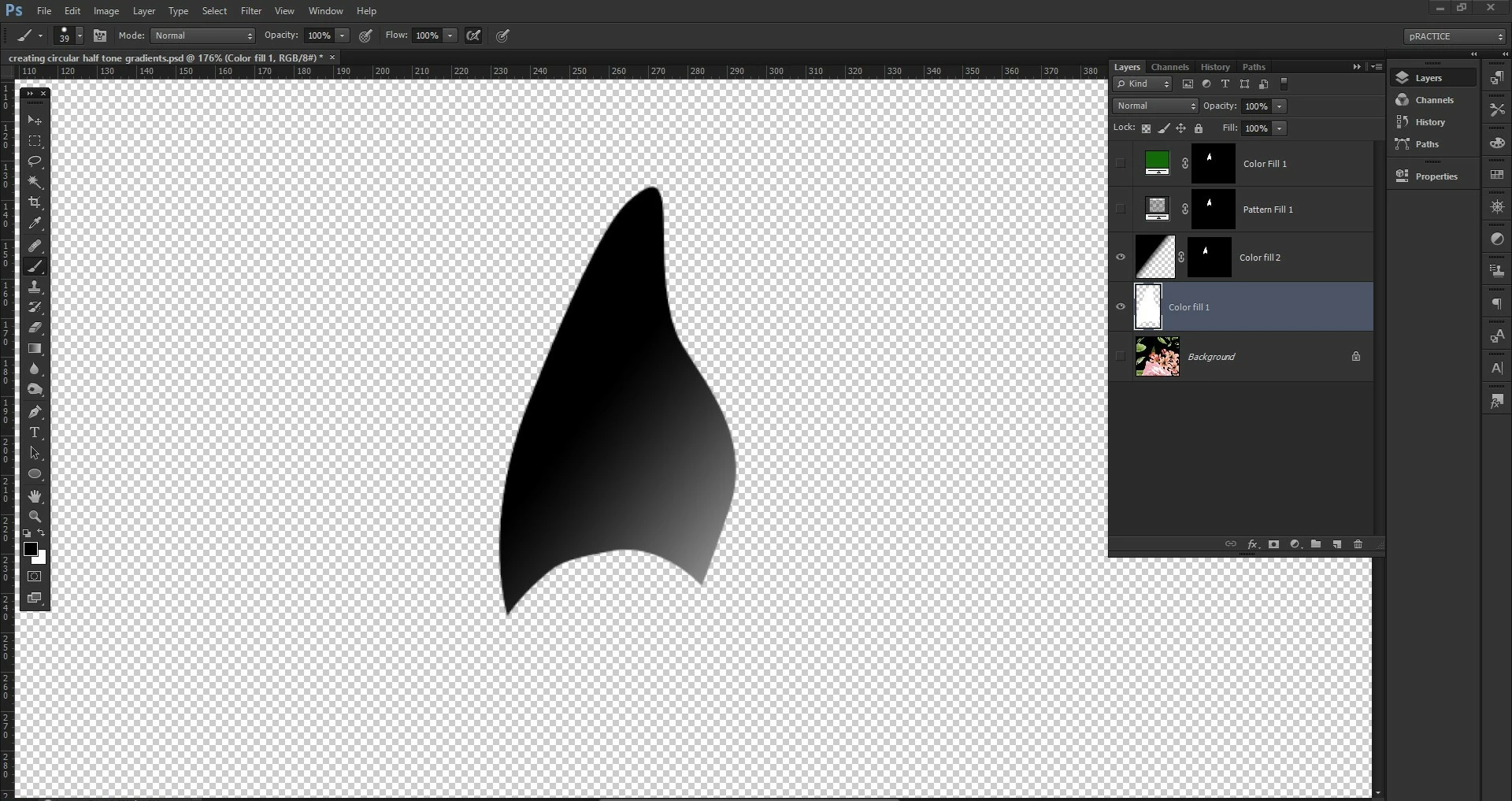
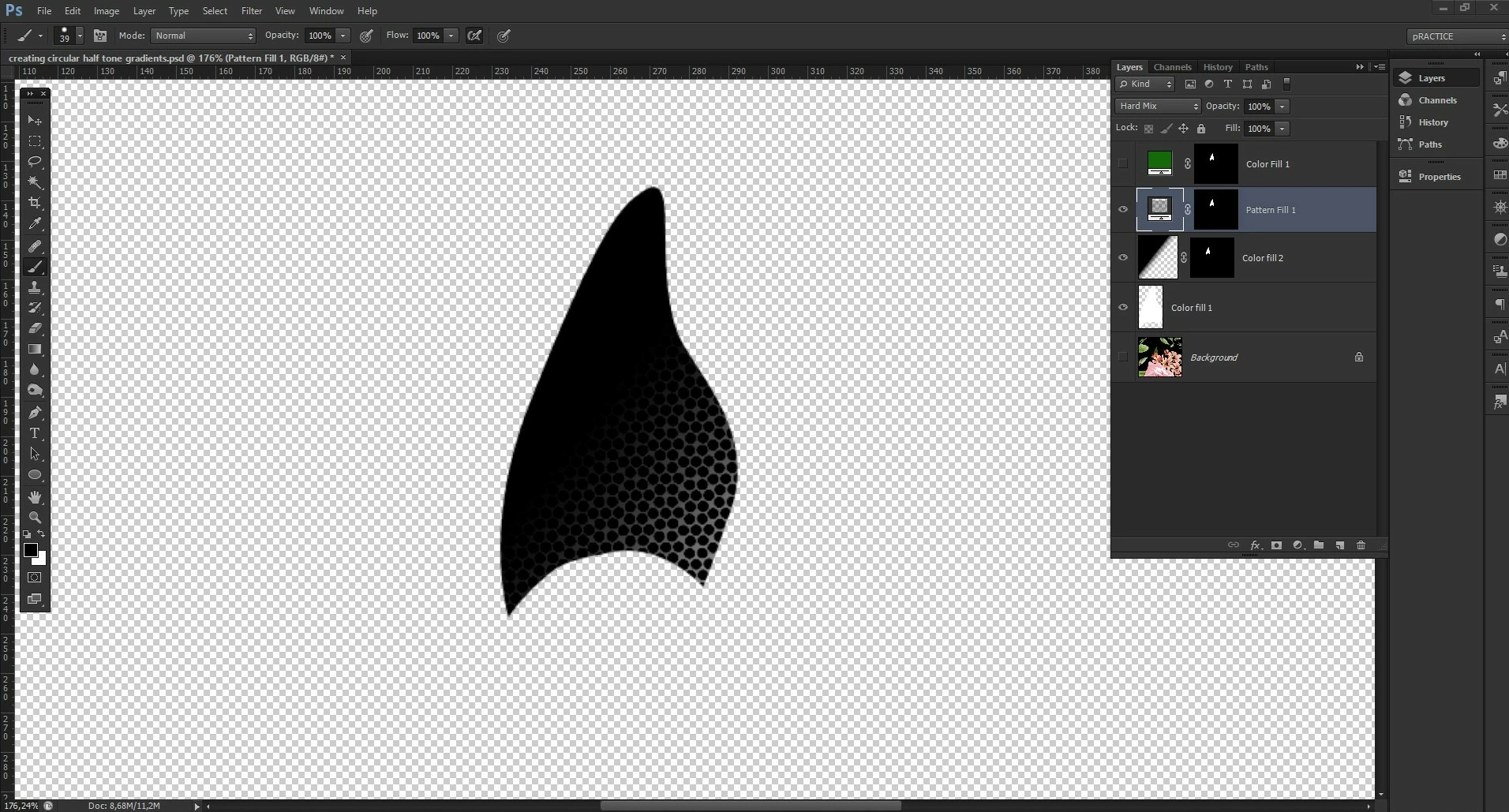
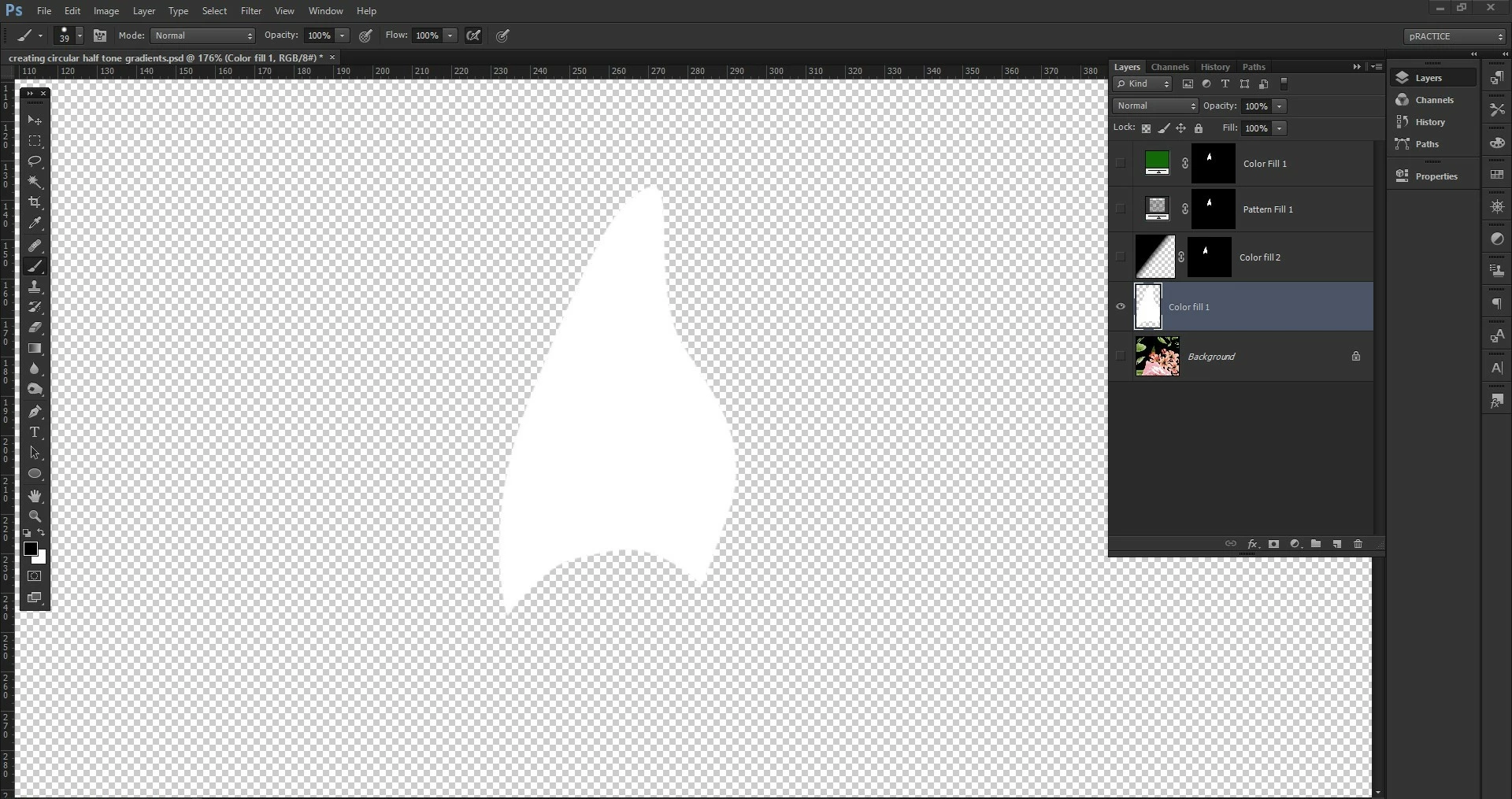
Good day sorry to bother you again but im still doing something wrong and just not getting it . I have attached what my layers looks like . if you could shed some light I would be greatfull. Thank you for you replies so far I know it must be irratating dealing with someone like this. 

It looks like the Pattern has transparency – it should not, the blurred black dots should be set againts a solid white bacground. 
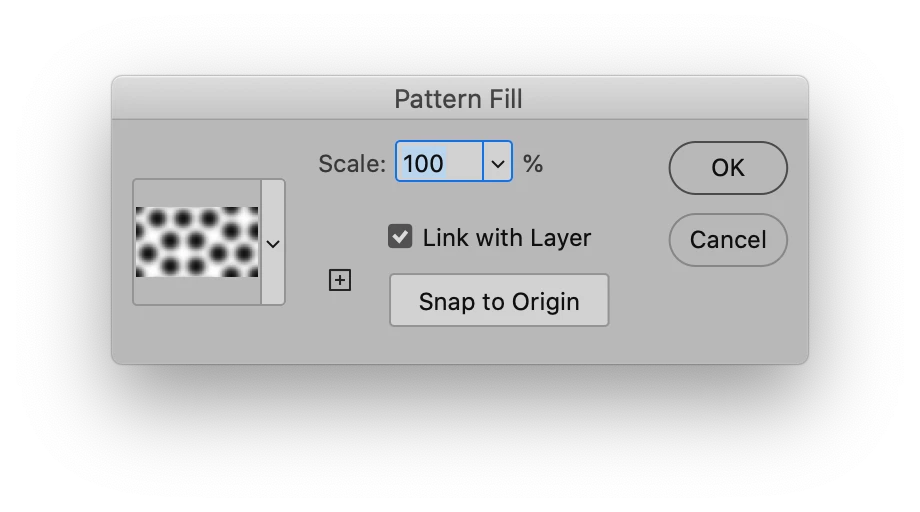
And you should Clipping Mask those Layers together (Layer > Create Cliping Mask), then you don’t need a Layer for each one of them. Or puth them in one Group and apply the Layer Mask to the Group. 

2 replies

Participant
July 21, 2023

FIRST YOU SELECT CHANAL OR LAYER  THAN GO TO THE IMAGE OPTION  MODE THAN BITMAP OPTION SELECT THAN ENTER . AFTER THAT SLECT RESOLUTION & METHAD .


c.pfaffenbichler
Community Expert
Community Expert
July 21, 2023

I prefer methods that maintain a more immediate editability. 

Bojan Živković11378569
Community Expert
Community Expert
May 21, 2020

What exactly you want to ask? How to clip halftone effect to some shape or how to limit effect to certain area or something else? You can use layer, vector, clipping mask, to paint on blank layer or you can erase content on layer then to apply effect.

RVB DESAuthor
Participating Frequently
May 21, 2020

I need to create a halftone pattern of a painted area. I know how to make halftones I need it to look like the images attached. I have tried changing the angles but still can't get it .

as you will see the halftone pattern forms little circles/ moire's 

c.pfaffenbichler
Community Expert
Community Expert
May 22, 2020

That is 100% what I need! thank you. any chance you can walk me through this ?


• First create the circles for one hexagon 

• arrange those to the pattern 

• blur the whole thing 

• create a Selection for the repeating section and define the Pattern

Actually I may have underblurred and even the radius of the basic circles could possibly be improved (you may want to use Smart Object instances so you can change them all in one go) – I just did it quickly, one could probably approach the issue much more precisely by calculating relations of white and black areas etc.