clivewa
Inspiring
February 22, 2017
Answered

How to change aspect ratio?

  • February 22, 2017
  • 5 replies
  • 91795 views

Is there any existing automation/action method of changing the aspect

ratio of images to a specified aspect ratio WITHOUT making a calculation

for each image and then using the PS Image Size function to do this.

The images are all different pixel sizes and aspect ratios, and what I

want is a method of changing them to the nearest of a range of

pre-defined aspect ratios. I do realise that this will introduce

distortion, but the distortion will in many cases be small and

tolerable. Introducing bands of background colour onto the edges of the

image is not what I'm after; I do want to change the aspect ratio only.

Any suggestions will be greatly appreciated.

Clive

    This topic has been closed for replies.
    Correct answer Eternal Warrior

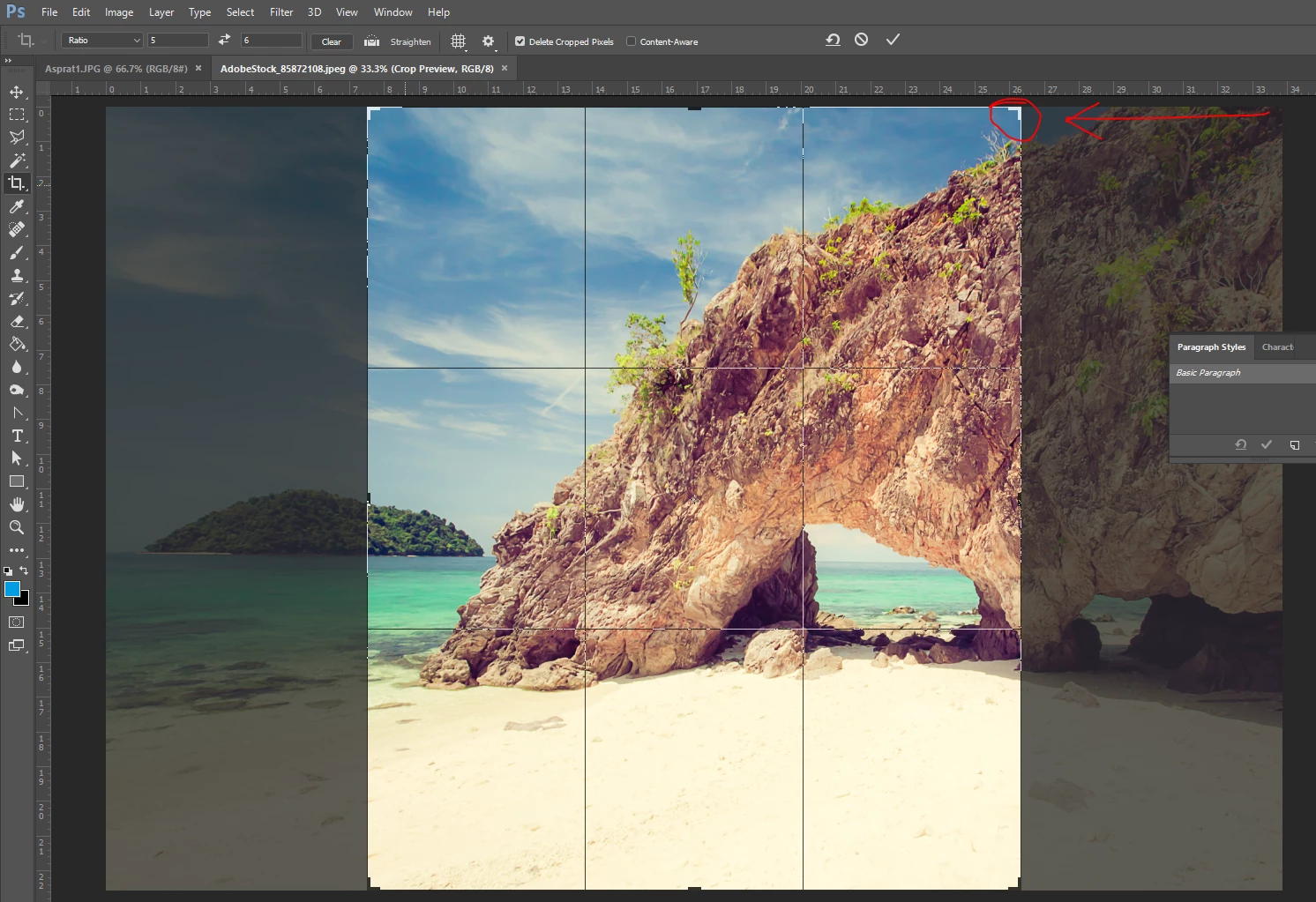
    To get this to work just use the Ratio Crop as below:


    You should end up with something more like this that you can then drag and position or use the corner widgets to shrink or grow in proportion as per below example:

    5 replies

    Participant
    October 12, 2022

    Hello, 

    Is somebody could tell me if it's possible to create a batch process file to change the ratio of pictures in a folder?.

    Exemple, I want to change the ratio of 1.78 pictures into a frame of 1.5 Ratio. Don't want to crop the image just place it into a new ratio frame..

    Thanks!


    Participant
    May 30, 2021

    Thank you Clive for your persistence in stating your case. 

    Not being a professional at photo-editing, I often don't use language that speaks to the professional.  This leads them to answer questions I didn't ask in a format I don't understand.  I believe I understood your question since I was looking for the same answer.  I found your answer to be very helpful and it led me to find a similar work around.


    1.  Load the image to be modified into photoshop.

    2.  Decide on a canvas size which is smaller than the original and which has the desired aspect ratio. (for example, if the ratio required is 6:5 then 60cm x 50cm will be ok for the images I'm dealing with.)

    3. Select - All (CTRL/Command A)

    4. Edit - Free Transform (CTRL/Command T)

    5. Drag the edges of the photo to the predetermined measurements (see above).  (Measurements are shown as you drag the edges of the photo)

    6. Crop off the excess canvas left after the transform.


    Your persistence and work-around enabled me to find my own.

    Thank you very much.

    PS - you'll note in the attached examples that I did a combination of crop and free-transform of the original image.

    jane-e
    Community Expert
    Community Expert
    May 31, 2021

    @default85n1cfm3bjz4 

    To clarify: are you simply resizing your entire image? You can to that with Image menu > Image size instead of all the steps you are doing. Am I missing something?


    ~ Jane

    Participant
    May 31, 2021

    I probably shouldn't have posted and muddied the waters.  My apologies.


    jane-e - thanks for the reply but that is not what I am trying to do.


    I want the same photo with a different aspect ratio.  I want to change the aspect ratio without losing any part of the image.


    I see now that my reply doesn't belong here and it was my mistake to post.  I invite the moderator to remove it if preferable.


    clivewa
    clivewaAuthor
    Inspiring
    February 26, 2017

    After having a think about how to do the change of aspect ratio I have settled on the following, which is not automated but which I find manageable.

    1.  Load the image to be modified into photoshop.

    2.  Decide on a canvas size which is larger than the original and which has the desired aspect ratio. (for example, if the ratio required is 6:5 then 60cm x 50cm will be ok for the images I'm dealing with.)

    3.  Expand the canvas to the larger size.

    4.  Fit the expanded canvas on the screen (CNTL 0).

    5.  Using the crop tool, select the original image.

    6.  Select Edit --> Transform (CNTL t).

    7.  Drag the transform handles to make the original image fill the canvas.

    8.  Enable the transform (hit the tick).

    9.  Reduce the image to the final required size (if similar to the original size, this will regain lost sharpness).

    I have compared image quality of original and resized images after this procedure and can see no loss of image quality if the resized image is about the same size as the original.

    It would be nice if this could be turned into an action, but I don't know if the transform operation could be automated.

    JJMack
    Community Expert
    Community Expert
    February 26, 2017

    If you know the aspect ratio that you want all you have to do is add the canvas to make the canvas have the right aspect ratio.  The image itself is not transformed at all. All the image pixels remain as they are. Additional pixels are added as borders.  Ther is no need to use transform at all.  There are three  types of aspect ratios Wide, Square, Tall.   Any image current aspect  relate to and other aspect ration by a simple math comparison.  Comparing the two aspect ration  you can tell  where to add the canvas to the width or to the height. One dimension is correct other need canvas.  It is that simple but thing about it can hurt you head because you know there are landscape, square and portrait.  You can be changing landscape to some other landscape aspect ratio to square or to some portrait  ratio.   Going to square is easy to visualize and understand you just make both sides the same length of the longest current side length.  Going from landscape to portrait take a little more for you to realize that the width is correct  you need to add to the height. By the same token you come to realize going from portrait to landscape the height is correct you just nee to add to the width. The you start to think about Landscape to Landscape and portrait to portrait  and you mods start to bog down at least mine did.   It took me some time to realize all that is needed is that simple compare of the two aspect ratios. It boils down to are you going wider or are you going higher.

    However you do not even need to think about it  you can have Photoshop do that for you.  Trevor showed you how the crop tool can add canvas.   You know one side currently correct.  So zoom out so you image is surrounded  with a wide gray area.  Select the crop tool then set the aspect ratio you want the canvas to have in the tools option bar.  No matter what aspect ratio yo set Photoshop will make a crop selection the has the boundaries in two sides of the current canvas.  They are the sides that need to have the canvas added. Hold the ALT key down a drag out the side till it other guides snap to the other two canvas edges.

    JJMack
    clivewa
    clivewaAuthor
    Inspiring
    February 27, 2017

    You should end up with something more like this that you can then drag and position or use the corner widgets to shrink or grow in proportion as per below example:


    Many thanks for that piece of information.  It is exactly what I needed to know.  No doubt it was obvious to many, but for me it had to be pointed out.  I am most grateful for your tolerance and persistence

    JJMack
    Community Expert
    Community Expert
    February 22, 2017

    I wrote a script that is a Photoshop Plug-in to make an aspect ratio selection. So can record the aspect ratio  selection you want in an action step then crop to that aspect ratio.  The plug-in is in my crafting actions package. The Plugin can make rectangle or elliptical selections or path center or  not   and  also reduce the  size set so there is a 25% border. The aspect ratio selection will have the same orientation the current image as.

    The plug-in is also orientation aware and will make the selection base on the image landscape or portrait orientation.  For cropping a Portrait to a landscape and cropping a landscape to a portrait changes the image composition so much the resulting composition will not be acceptable.  The special case 1:1  Aspect Ration has no orientation it is  square.  Can be centered or not,  The Script does not crop or mask this gives the user an opportunity to move and resize the selection to select a better composition. It is easy to make and interactive aspect ration cropping action that allow you the user to control the final composition.  Afters recording the Aspect Ratio selection step you record a Transform selection step where you rotate the selection 180 degrees. Then record Image Crop.  You then turn on the Transform Selection step dialog in the action.   When the Action is played the transform selection will be interactive.  You can nudge the selection with the arrow keys or hold the shift key or Alt+Shift to constrains the transform as you change it. Shift constrains the transform to the current selection aspect ratio and Alt makes the transform relative to the center of the selection

    Crafting Actions Package UPDATED Aug 10, 2014 Added Conditional Action steps to Action Palette Tips.
    Contains

    Example
    Download

    JJMack
    Derek Cross
    Community Expert
    Community Expert
    February 22, 2017

    You'll find crop size and ppi presets in the crop dropdown menu, and you can add your own.

    clivewa
    clivewaAuthor
    Inspiring
    February 22, 2017

    Hi Derek,

    Many thanks for your response but (if my understanding is correct) it is not what I'm looking for.  The drop-down menu seems to be a way of preseting the aspect ratio of the crop area.  What I want to do is not to crop the image, but rather to preserve the image entirely but with a different aspect ratio.  In other words, I want to reduce (or increase) its size in one dimension such that the result has a preselected aspect ratio, but no image information has been lost.

    JJMack
    Community Expert
    Community Expert
    February 22, 2017

    clivewa  wrote

    In other words, I want to reduce (or increase) its size in one dimension such that the result has a preselected aspect ratio, but no image information has been lost.

    What you want to do is not possible to do in our dimension you need to transport yourself and your image into a dimension that would be possible in.

    In ours you need to crop or distort your image to change its aspect ratio in both cases you lose something.  You can add a border in that you lose nothing but you do  gain a border. Just use Canvas size to add your border on one side or split between opposite sides. to make the image have the wider or taller aspect ration you want it to have.

    JJMack