


Inspiring
December 12, 2022
Question

How to create a grid that fits perfectly in a 1500x1500 document?

  • December 12, 2022
  • 4 replies
  • 7688 views

As you can see below, I have made a grid using the method of view > show > grid, and then made adjustments to the grid in an attempt to create it how I envision it should be. I am not sure how to make the size of each individual square equal so that the squares on the edge of the document are not smaller than the rest. I also want to place all the text boxes I created on top of the grid so they are not covered by it. 
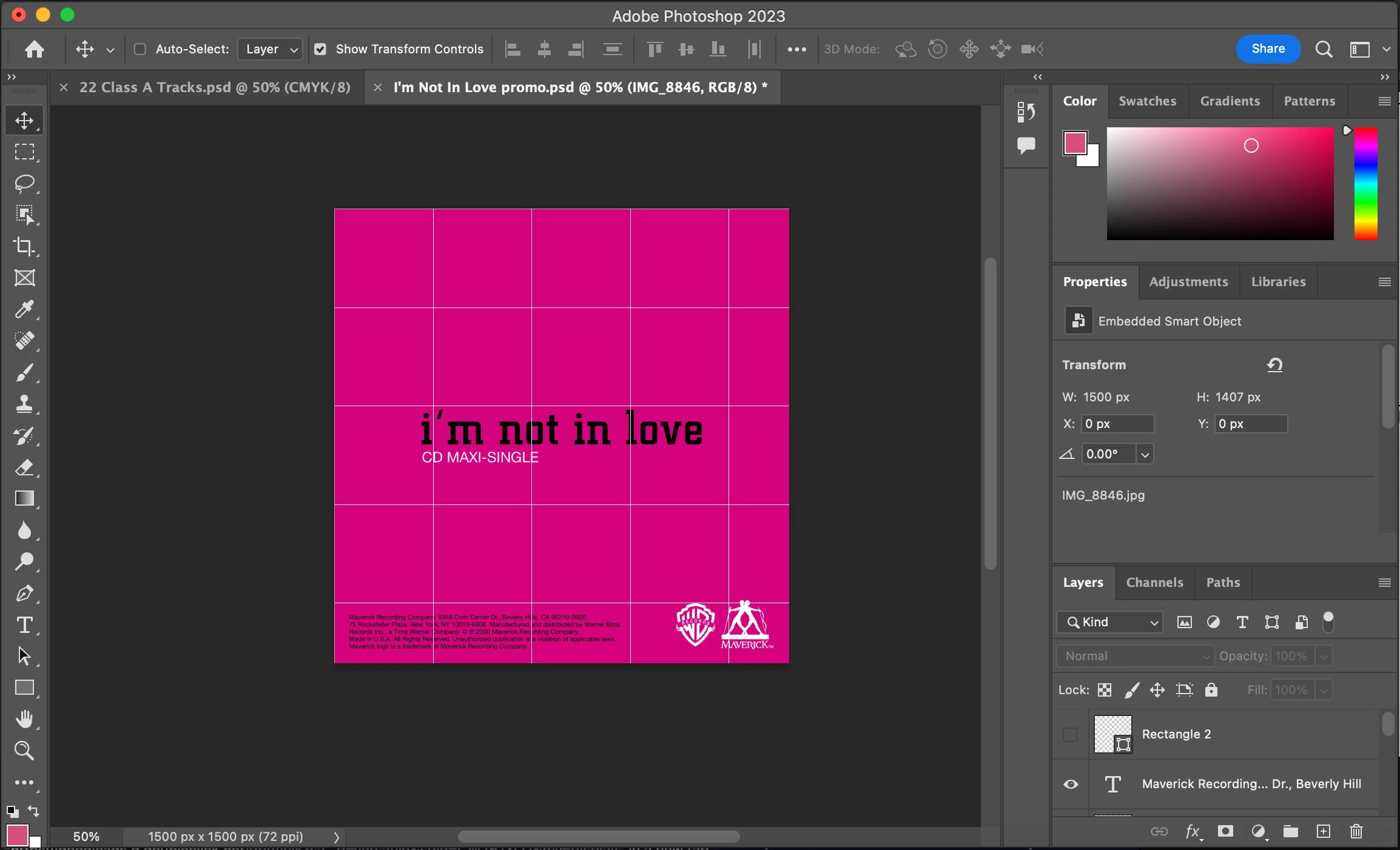


How exactly can this be done?


Thank you so much for any help!

This topic has been closed for replies.

4 replies

Trevor.Dennis
Community Expert
Community Expert
December 12, 2022

A slight variation

Make a New Guide Layout. Save with a meaningful name if you like to make it a preset.  (It will easier to use in an Action if it is a saved preset.)

Make your grid using the Line tool.  The line will snap to the grid.

I made one line; copied it three times and space them out using Move > Align.  Merged the layers, copied again and rotated 90°. Merge one more time and you have a vector grid.


What I suggest you do at this stage is open the CC Libraries panel. Make a new library with a meaningful name, and drage your grid to it.  

That grid can be dragged onto any new document with square dimensions, and dragged to fit.  CC Libraries are super useful. 


kirbydooAuthor
Inspiring
December 18, 2022

Thanks to everyone for their responses. I apologize for the delay in my reply. My biggest struggle with this is in getting the grid to be equal in width and height as it extends across the document space. I keep ending up with leftover space on one side of the document. I've tried a number of methods and haven't yet gotten it right. I've tried to make equal the number of pixels (all the way around a square) in the new guide layout, but the guides don't extend equally.


If the entire document is an even width and height (1500 x 1500 px), then I should be able to get even squares in that space to make a grid. 🤷🏻‍

jane-e
Community Expert
Community Expert
December 19, 2022

I've used the exact same settings as you and I'm still ending up with larger rectangles in the middle of the pink square and smaller ones on the edges. Your example is exactly what I want to achieve.


@kirbydoo wrote:

I've used the exact same settings as you


I don't have a margin. If you need one, follow the advice from DFosse.


Do you want the grid to be even across the 1500px by 1500px or across the pink square? The pink square appeared to fill your canvas in your first screenshot, but it no longer does. We don't know the size of the pink square.


Jane


thejanebradbury
Community Expert
Community Expert
December 12, 2022

I probably do things the long way around but here's how I did it:


1. Using either the Pen Tool or Line Tool draw a vector line. Set it to the width you want.

2. With the Move Tool, select that line and with the Align Tools align it to the left of the canvas. The Align Tool has two options: align to Selection or Align To Canvas - make sure it's Align To Canvas.

3. Make a copy of that line layer. Select it and align it to the right-hand side of the canvas.

4. Make 4 more copies of the line and drag them anywhere between the two aide lines already aligned.

5. Select all the lines and use Align>Distribute Spacing Horizontally.

6. Group all the lines together and make a copy.

7. Rotate 90 degrees and align to the canvas either top or bottom to finish the grid.


It took longer to write than to do!

D Fosse
Community Expert
Community Expert
December 12, 2022

In addition to Bojan's method, you can also set the grid to %.


I use both methods depending.

Bojan Živković11378569
Community Expert
Community Expert
December 12, 2022

Have you tried View > Guides > New Guide Layout > use Columns and Rows without Gutter (delete value or type 0). This will create guides which you can lock using View > Guides > Lock Guides. To show/hide guides use Ctrl + H keyboartd shortcut. I do not think you can control order of guides, they will stay on top, otherwise guides will lose purpose.


Here is free script to convert guides to vector shapes, change: var lineWidth = 6 to lets say 2 what will be shape width if you want tiny shapes or to 1 if you want them tiny as guides https://community.adobe.com/t5/photoshop-ecosystem-discussions/hey-guys-how-to-convert-ps-guides-into-paths-or-strokes/m-p/13303186#M681390 After converting to vector shapes you can control position of shapes in the Layers stack.