Unicycle Rob
Known Participant
October 2, 2018
Answered

How to create a Tiled Background Image for Web (Plugin or Effect?)(Gaussian Blur)

  • October 2, 2018
  • 2 replies
  • 4498 views

Hey Everyone!

I am trying to create an image that can be set to tile as a background for a website. Most people would have some kind of pattern when making one. In my situation, I'm trying to make this tile a Gaussian Blur image. So once its tiled, the whole background will just looks like a one big Gaussian Blurred background image.

Is there a plugin or effects that I don't know of on how to make this happen?

Thanks a million!!!

This topic has been closed for replies.
Correct answer Mike_Gondek10189183

Hi Bob,

From your description i tried my best to guess what you need.

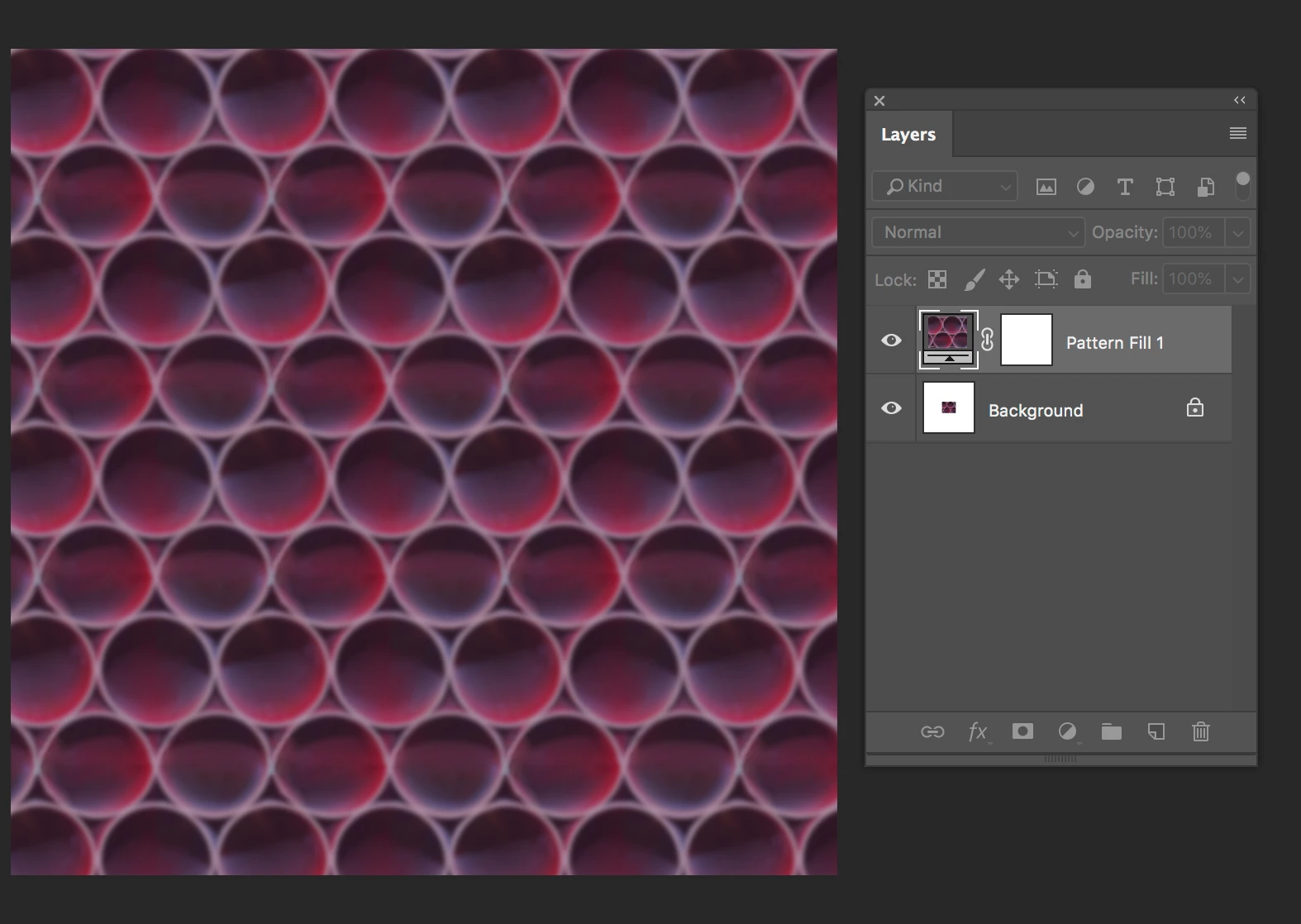
I took your image did a gaussian blur of 6 and and a filter >> other >> offset of 250 pixels in each direction.

This naturally shows a seam so I used using the healing brush to conceal

I then repeat the process, but this time use 100 pixels. Enough to show another seam, but not put me back to original position.

This reeals a seam on the left side, of which I heal brush again to fix.

'

I then select all, edit >> define pattern, then create a new pattern adjustment layer on a larger document.

This is an old technique used when Photoshop first came out, and still very relevant today. While a plug in could heal brush edges, it cannot make human decisions on lighting and rotating healing brush to match contrasting details. My pattern was quick, but hope this helps you.

2 replies

JJMack
Community Expert
October 2, 2018

Would be easy to do with a script like my Paste Image Roll that tiles images.   You just need to know you page size in pixels.  You know its aspect ratio.  know how mane image you want and figure out what aspect ration and image size should be used  for a perfect fit.  If you do not care to be perfect  create your tile mosaic larger  and crop it to page size.

For example lets do an easy one.  Say your page size is to a 1k Display 1920x1080px  we know the aspect  ratio is 16:9  so 4 image across and 3 high would work with image that has a 4:3 aspect  ratio  4x4=16 and 3x3=9  16:9 aspect   so  2:1.5 image would also work with 4 times as many image.    For now keep it simple 4x3 images.   1920/16=120  so at 120dpi 4x3 4"x3" images would be 1920x1080px..   Run the script set the settings in and select 12 image in the select image dialog. Once the mosaic is created you can tweak  some image composition with the move tool then flatten and add a blur. If you choose to go with small image  300 image would take a while to tile out.

JJMack
Mike_Gondek10189183
Community Expert
October 2, 2018

This is easily done in Photohsop, no need for a plug in

  1. Filter >> Other >> Offset (enter half your width in width, and half your height in height)
  2. Retouch out and lines with healing brush
  3. Select all
  4. Edit >> Define Pattern

If you need help, please post s screenshot of what you intend to use as a pattern

Unicycle Rob
Known Participant
October 3, 2018

Thanks MikeGondek,

This is very close to what I'm trying to get done. Unfortunately I am not able to get this to tile properly, I think mainly because I'm using a Gaussian blur with this offsetting effect. What seems to happen is that this type of blur spreads outside of the art-board. So its hard to capture everything within the art-board unless its a wider picture. But then there will be to much space around it.

Its a little hard to explain. I've attached the image I'm trying to tile with a Gaussian Blur, to have a better understanding.

Thank you!!!

Mike_Gondek10189183
Mike_Gondek10189183Correct answer
Community Expert
October 4, 2018

Hi Bob,

From your description i tried my best to guess what you need.

I took your image did a gaussian blur of 6 and and a filter >> other >> offset of 250 pixels in each direction.

This naturally shows a seam so I used using the healing brush to conceal

I then repeat the process, but this time use 100 pixels. Enough to show another seam, but not put me back to original position.

This reeals a seam on the left side, of which I heal brush again to fix.

'

I then select all, edit >> define pattern, then create a new pattern adjustment layer on a larger document.

This is an old technique used when Photoshop first came out, and still very relevant today. While a plug in could heal brush edges, it cannot make human decisions on lighting and rotating healing brush to match contrasting details. My pattern was quick, but hope this helps you.