


How to create dashed lines on horizontal and vertical directions?
How to create dashed lines on horizontal, vertical, and diagonal directions?
I am using Photoshop CC 2017
1.
I tried the "Line Tool"
I works kind of Ok on horizontal lines, but not that great for horizontal lines.
Also, the Line tool is not always uniform when you go from horizontal to vertical, and it is a tried and error type of tool if you want a more uniform spacing.
2.
I tried the "brush tool"
To be honest couldn't find a way to do much with it. It works if you want a dotted line, but not a flat evenly spaced horizontal and vertical lines.
Not sure what I was doing wrong, but couldn't find my way around on how to use it properly.
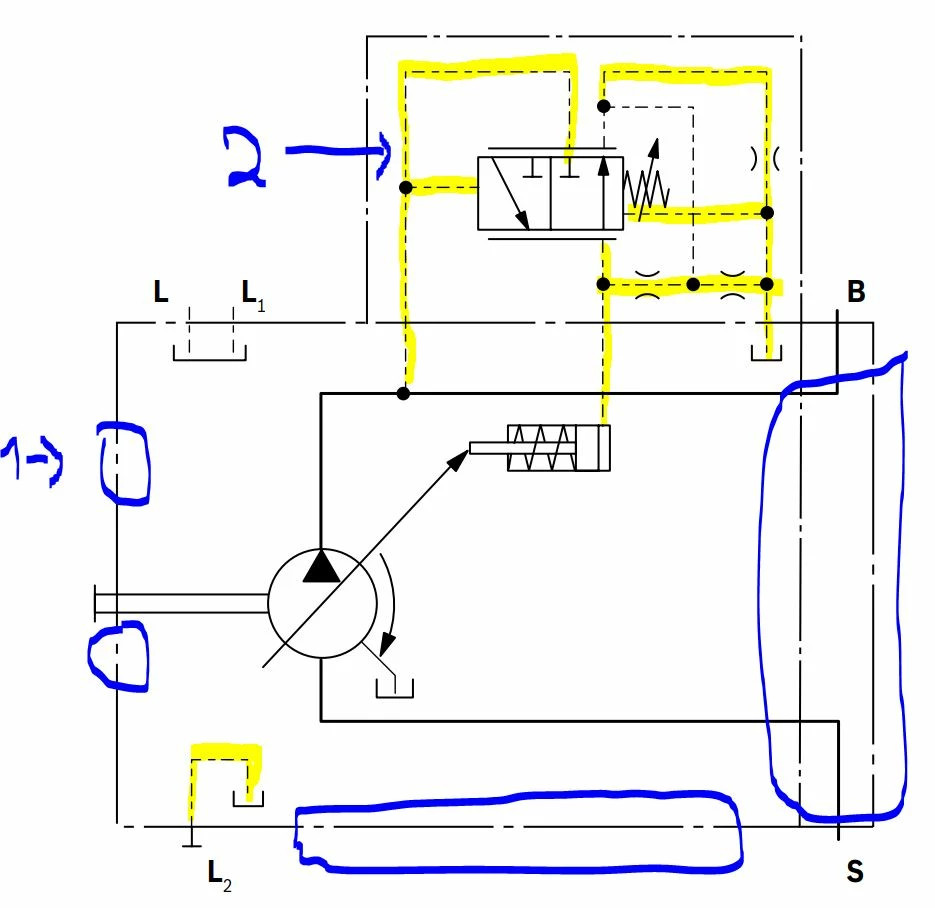
Below is an example of the type of lines I would like to create.
Number 2 (in yellow) is the most important.
Number 1 (inside blue circles) would be nice to do as well, but not a important.
Any suggestions on how I could create them both?
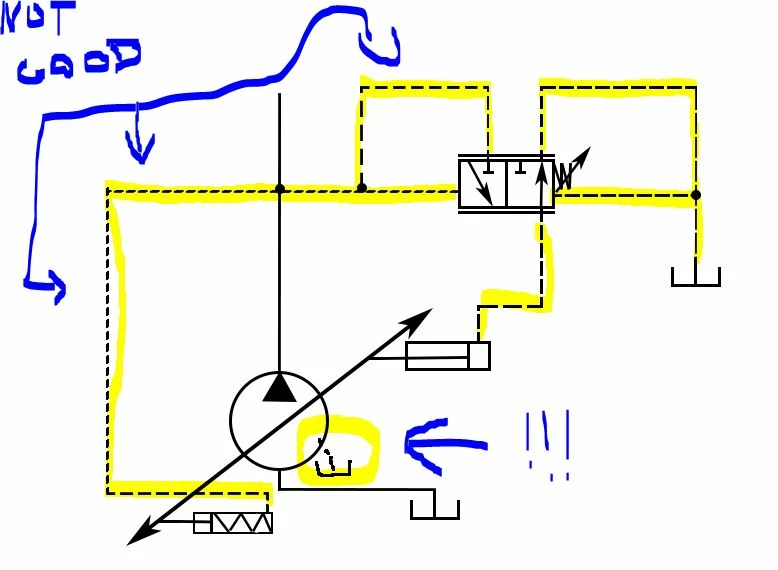
Below my drawing, not very good.
 AdChoices