


New Participant
April 3, 2021
Answered

How to keep text straight up while writing on a path?

  • April 3, 2021
  • 6 replies
  • 6830 views

So I know how to warp text along a custom path. But the thing is while writing text on a path, the characters also tilt along the path, I want them to be straight like when using "warp text". Is there anyway to do that? Thanks in advance. 
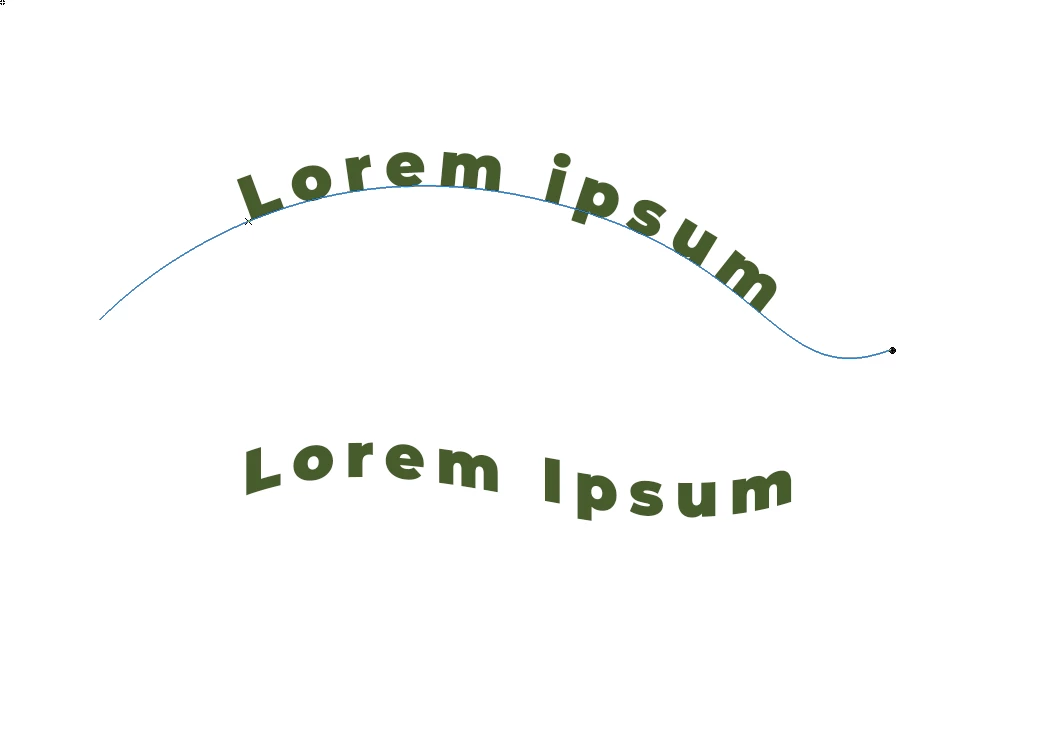
 Here is what I'm talking about. The characters of the text along the path is tilted along the path while the "warp" below are still straight up.
Correct answer Trevor.Dennis

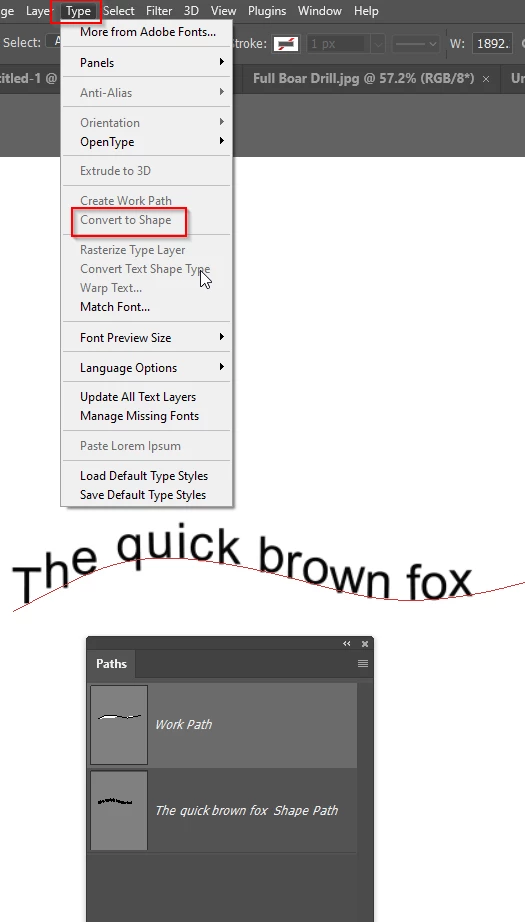
There's no automatic method that I can think of, but if you turn the Type layer into a shape layer from the Type menu, then you can select each letter with the Direct Selection tool, and use Free Transform to rotate.

6 replies

Participating Frequently
August 5, 2025

I ended up here in search of this same result and I believe I found a very easy solution. Select your path with the type on it, and then go to Type / Type On Path. Hover over to the right to access the submenu, and from here select Skew. Your text will now follow the path but also remain facing upward.


Jimjansen
New Participant
November 29, 2022

Good news: since a more recent version of Illustrator this is now a feature. You can go to Type > Type on a Path to select several different ways in which Illustrator places text on a path, including 'Stair Steps', which places the letters horizontally along the path. There's also more in depth options if you go to Type > Type on a Path > Type on a Path Options.

You'll probably need to manually tweak the spacing to get it to look right. With the text selected with the Type Tool, Using Option + ← / →  allows you to adjust space between individual letters which can be very helpful for tweaking this. 

Trevor.Dennis
Trevor.DennisCorrect answer
Community Expert
April 4, 2021

There's no automatic method that I can think of, but if you turn the Type layer into a shape layer from the Type menu, then you can select each letter with the Direct Selection tool, and use Free Transform to rotate.

Norman Sanders
Brainiac
April 3, 2021

In the Type Options Bar to the right of the color patch is a T with an arced line below it. Click for options.

First type your copy, then use this feature to bend it.

Note your slider options in Flag


Trevor.Dennis
Community Expert
April 4, 2021

Excellent workaround Norman.

Known Participant
April 3, 2021

The issue here is that the following version is literally having the baseline of the font follow the curve of the line. You would need to create some way of changing the orientation of the typeface to be true vertical. Not sure if a script could do this?

practice safe design | use a concept~ Petrula Vrontikis
didiermazier
Community Expert
April 3, 2021

That is a very good observation.

Illustrator is doing that easy peasy but not Photoshop to my knowledge…

You could import from illustrator in a smart object in case of further modifications…