
Participant
October 27, 2019
Question

How to make a 2D image look like a painting?

  • October 27, 2019
  • 3 replies
  • 1253 views

hello community


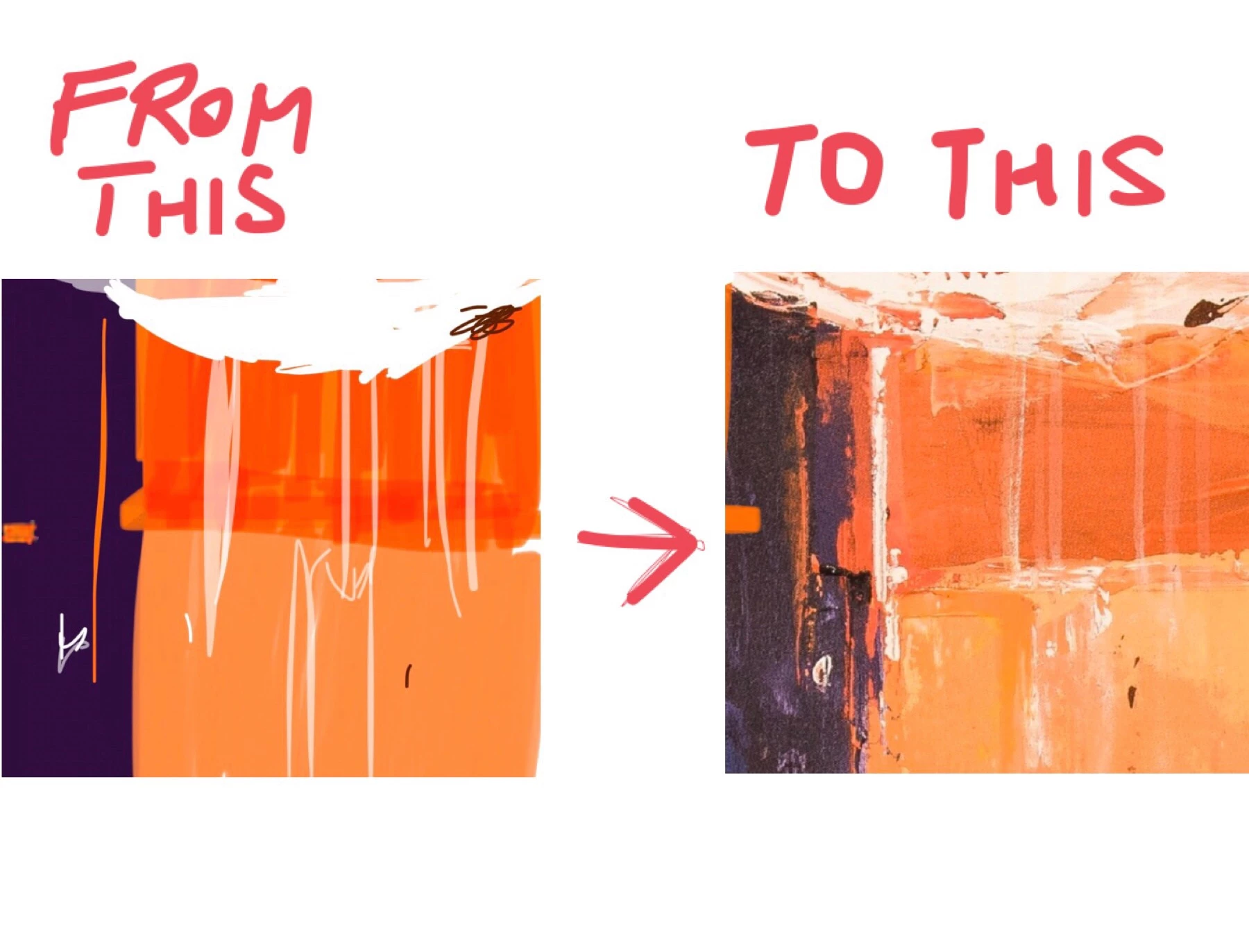
i would love to know how to make a basic image (like the one attached) look like a painting.


It doesn't have to be perfect but I have a bunch of images that I would like to display on a virtual wall as a sort of 3D mock up and it would be great if they looked like reaslistic paintings.


In the example I've provided, the image on the right is an actual painting of mine, and the one on the left is just something I've created based on that painting. So I would like to find a function or a filter that would achieve the painting look. 

I'm very new to adobe products so it might just be a simple solution and drop down menu item that Ive overlooked somewhere. 


thank you! 


This topic has been closed for replies.

3 replies

KShinabery212
Community Expert
Community Expert
October 27, 2019

There are brushes that work more like paint.  And these brushes tend to work even better when using a tabelt such as Wacom device instead of a mouse.


Also Adobe Fresco on iPad really is set up to make things look like water color or oil paint.  Worth looking into if you enjoy this type of art.

Legend
October 27, 2019

I am afraid it is really hard or possible to get that kind of detail and realistic look.

Even less just clicking a button.

Photoshop is not a painting program, yes it has a couple of filters you can use like Stylize>Oil Paint or better Filters Gallery>Artistic, wich can be used repeatedly or combined, you can try several iterations using different blend modes (first convert for smart filters the layer first to handle them individually in a non destructive way).

Better results can be obtained painting manually with a tool using different brushes, namely the Mixer Brush Tool (A tool placed under the Brush Tool in the Tools panel). But it may take practice, control, and a lot of time.

You may take a look also to a painting application, with a wide set of painting tools presets and controls, like Corel Painter.

Mylenium
Legend
October 27, 2019

No simple solution. Typically this stuff involves separating the individual colors to layers and then treating them with filters and manual overpainting using artsy brushes. If it's really just for a mockup, you might get away with globally applying filters like e.g. a distortion filter with very small turbulence size to get the frizzy effect, the respective artsy filters like Crosshatch and things like Roughen Edges and Noise. Naturally, having some monochrome images of specks and grime effects and overlaying them with blending modes like Multiply can also help to make images look grungy.


Mylenium